
What does the 240Hz frame-time budget actually mean?
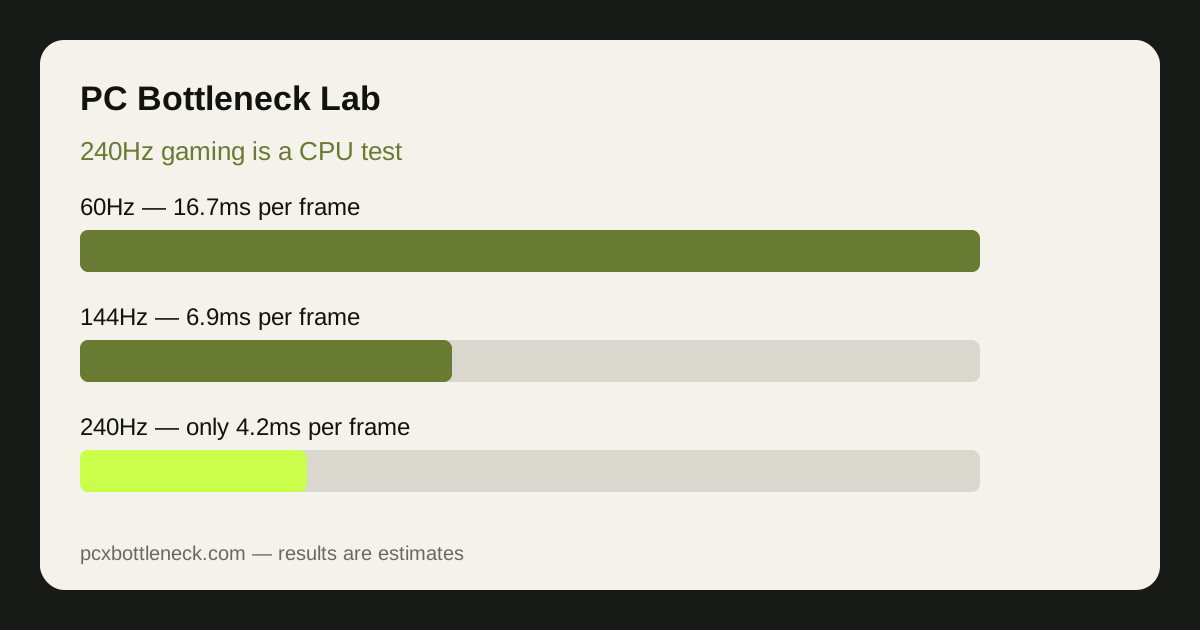
Refresh rate is a deadline, not just a speed rating. A 60Hz display shows a new frame every 16.7 milliseconds, a 144Hz display every 6.9 milliseconds, and a 240Hz display every 4.2 milliseconds. Game logic, physics, draw calls, and the GPU render must all fit inside that window, or the frame arrives late.
That deadline is why 240Hz feels so different from 60Hz. At 60Hz, a CPU taking 10 milliseconds per frame still leaves room to spare. At 240Hz, the same work is more than twice the budget, capping CPU-side output at roughly 100 frames per second, no matter how fast the GPU is. Averages can also mislead: busy scenes can push preparation past 4.2 milliseconds and cause stutters even near a 240 average.
What work does the CPU do for every frame?
Before the GPU draws anything, the CPU runs the game simulation: input, movement, enemy behaviour, physics, collision checks, and scene setup. It then issues draw calls telling the GPU what to render and in what order. At 240 frames per second, it must repeat all of that work 240 times a second — a very different demand from 60 frames per second.
Most games still depend heavily on one or two fast cores for this work, even on many-core processors. That is why total CPU usage can look low while the game is still CPU-limited: one busy core near 100% can cap frame rate while others sit idle. Clock speed, cache, and per-core performance matter more for high refresh than core count alone, and slow or single-channel RAM can delay preparation further. To confirm a CPU limit on your system, see how to check a CPU bottleneck.
How does the limit change with refresh rate?
The table below shows why the limiting part shifts as the refresh target rises. These are estimates of the general pattern, not measured results for any specific PC.
| Refresh target | Frame-time budget | Which part usually limits first |
|---|---|---|
| 60Hz | ~16.7ms per frame | Often the GPU at higher resolutions and settings |
| 120Hz | ~8.3ms per frame | Balanced: CPU and GPU both matter |
| 144Hz | ~6.9ms per frame | CPU in esports titles, GPU in demanding AAA games |
| 240Hz | ~4.2ms per frame | Usually the CPU, especially in esports and at 1080p |
| 360Hz | ~2.8ms per frame | Almost always the CPU and game engine first |
Resolution changes this balance but does not remove the CPU deadline. Raising resolution mainly loads the GPU, so a system CPU-limited at 1080p may become GPU-limited at 1440p or 4K. Lowering resolution frees the GPU and exposes the CPU ceiling — which is why a high-refresh test at 1080p is such a revealing CPU test.
Why do esports games hit the CPU limit first?
Esports titles are built for very high frame rates, with relatively light graphics but fast simulation: many players, projectiles, effects, and rapid input changes every frame. A mid-range GPU renders those graphics quickly, so CPU preparation becomes the bottleneck long before the GPU runs out of power. Chasing 240 frames per second here is mostly a question of CPU headroom.
Demanding AAA games behave differently: detailed lighting, shadows, and textures mean the GPU often limits first, especially at 1440p and above, though busy open-world scenes can still create CPU-limited moments. Simulation and strategy games, meanwhile, can be CPU-limited at any refresh rate, since their work grows with units or cities, not graphics settings. See CPU bottlenecks in esports vs AAA games for a fuller comparison.
Which settings actually help at 240Hz?
Not all settings affect the CPU equally, so turning everything to low is not always smartest. The settings that matter most for high refresh are those that reduce CPU work: view distance, crowd or object density, physics and particle counts, and CPU-driven shadow quality. Lowering these can free up precious milliseconds of preparation time.
Texture quality and resolution, by contrast, mainly load the GPU. Lowering them helps a GPU-limited system, but if the CPU is already the limit, dropping textures from high to low may change almost nothing. Outside the game, protect headroom with dual-channel RAM at its rated speed, closed background apps, and cooling that prevents throttling. Before upgrading, run your pairing through the PC bottleneck calculator and read the PC Guides hub.
When does the GPU still matter at 240Hz?
The GPU still matters whenever rendering takes longer than CPU preparation. At 1440p with high settings, in ray-traced titles, or in visually heavy AAA games, even a strong CPU can be left waiting on the GPU, and frame rates will fall well short of 240 no matter how much CPU headroom you add. There, a GPU upgrade or lower graphics settings is the correct fix.
For example, a strong gaming CPU such as the Ryzen 7 9800X3D paired with the RTX 4060 can be GPU-limited in demanding titles at higher settings, while a mid-range CPU with a very high-end card can be CPU-limited in esports titles at 1080p. Also check display settings: frame-rate caps, vertical sync, and power-saving modes can silently cap output below 240Hz. A capped frame rate is not a bottleneck; it is a setting.
What should you do before buying for 240Hz?
Start by testing, not shopping. Monitor per-core CPU usage, GPU usage, and frame time in the games you play, at your usual settings. If GPU usage stays well below maximum while a CPU core is near its limit and frame rate does not rise when settings drop, the CPU is your 240Hz ceiling. If GPU usage is near maximum and frame rate rises when settings drop, the GPU is the ceiling instead.
Match the upgrade to that finding: a CPU upgrade for a CPU limit in your main games, especially esports titles at 1080p; a GPU upgrade for a GPU limit at your resolution and settings. If both are near their limits, you are balanced — try better cooling, faster RAM, or a lower refresh target for demanding titles. Browse the blog for related checks before you decide.
Limitation: frame-time budgets are fixed arithmetic from refresh rate, but real frame rates are estimates varying by game, scene, drivers, RAM, cooling, and background software. Nothing here is a measured benchmark for your PC, and no upgrade guarantees 240 frames per second in every game.
Frequently asked questions
Is 240Hz gaming mainly a CPU test or a GPU test?
Mainly a CPU test, especially in esports games at 1080p. At 240Hz the CPU must prepare a frame every ~4.2ms, and if it cannot, the GPU waits idle. In graphically heavy AAA games at higher resolutions, though, the GPU can still become the limit first, so the answer depends on the game and settings.
Why does my frame rate stop below 240 even with a powerful GPU?
Because the GPU cannot render frames the CPU has not prepared. If one CPU core is near its limit, frame preparation takes longer than 4.2ms and the frame rate stalls, even at low settings. Check per-core usage and frame time: a busy core with low GPU usage is the classic CPU-limited pattern.
Will lowering graphics settings help me reach 240Hz?
Only if the settings you lower reduce CPU work, such as object density, physics, or CPU-driven shadows. Texture quality and resolution mainly load the GPU, so lowering them helps a GPU-limited system but changes little when the CPU is already the limit. Test one setting at a time and watch frame rate.
Do I need a high-end CPU for a 240Hz monitor?
Not necessarily for every game, but you need enough per-core performance and CPU headroom for the games you play most. Esports titles at 1080p reward a fast gaming CPU, while demanding AAA games at 1440p reward a stronger GPU. Match the upgrade to your own monitoring test, not to the monitor alone.
Can RAM or cooling stop me reaching 240Hz?
Yes, both can. Single-channel or slow RAM can delay the CPU's per-frame work, and a CPU that throttles under heat loses the boost clock speed high-refresh gaming needs. Check dual-channel RAM, its rated speed profile, temperatures, and background software before assuming you need a new CPU or GPU.