
The refresh-rate ceiling: frames you cannot see
A monitor can only show as many frames per second as its refresh rate, so any performance above that rate is invisible. On a 60Hz display, a PC producing well over 60 frames per second looks the same as one producing exactly 60 — the extra frames are discarded. That is why a strong GPU on a 60Hz monitor is often wasted money: the display, not the parts, is the bottleneck, and no upgrade to either part will change what you see.
Variable refresh rate changes the feeling but not the ceiling. It smooths out frame-rate variation below the maximum, so a game running below the refresh rate on a 144Hz variable-refresh display can feel smoother than the same frame rate on a fixed 60Hz display — but it cannot show more frames than the panel's maximum. The ceiling is still the ceiling.
The practical test is simple: if your frame rate already matches your monitor's refresh rate in the games you play, and the game feels smooth, there is no monitor bottleneck to fix and no part upgrade that will visibly help. Spend the money on the next display upgrade instead, or save it. If frame rate sits below the refresh rate, the parts are the limit — and which part depends on resolution, as the next section shows.
1080p 144Hz vs 1440p 165Hz vs 4K 60Hz
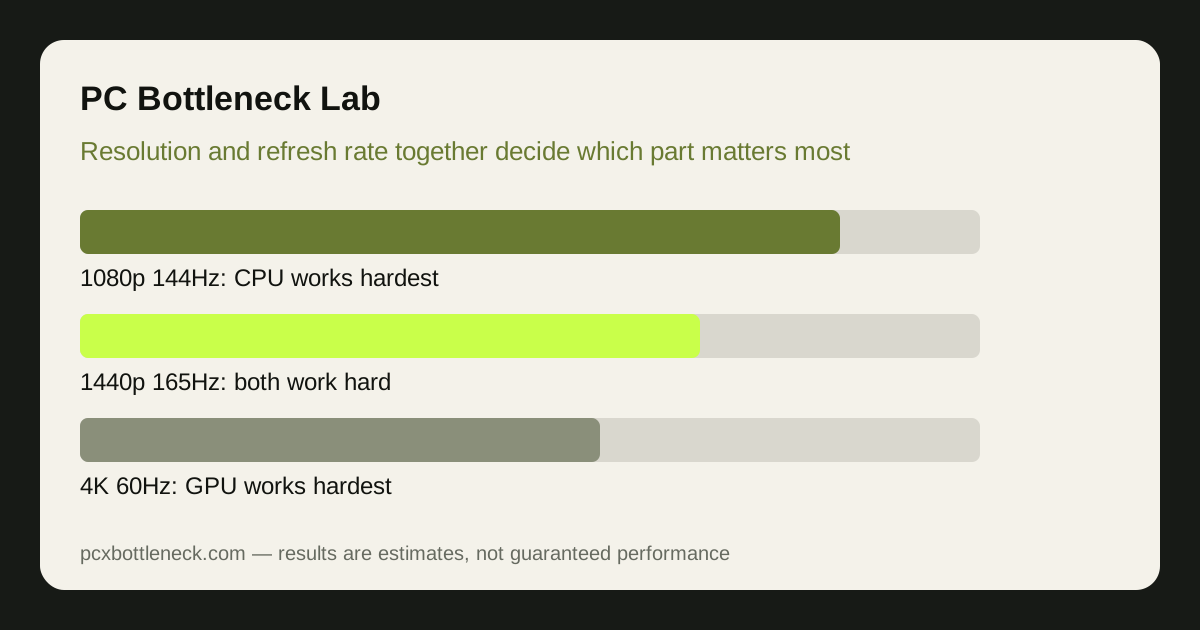
These three displays ask for three different PCs. At 1080p 144Hz, the CPU must deliver 144 frames per second, which is a heavy CPU demand, while the GPU's job is relatively light because there are few pixels. This is the display where the CPU matters most, and where a strong CPU with a mid-range GPU is often the right balance — the extra-cache chips such as the one on our Ryzen 7 9800X3D page shine here precisely because they feed frames fast.
At 1440p 165Hz, both parts work hard: the CPU must still deliver up to 165 frames per second, and the GPU must draw more than twice as many pixels as at 1080p. This is the most demanding combination of the three for the system as a whole, and it is where a balanced high-end pairing earns its price. A weak part on either side will cap the result, so this display punishes mismatches more than the other two.
At 4K 60Hz, the GPU carries almost everything: four times the pixels of 1080p at a modest 60 frames per second, so the CPU's job is comparatively easy. Even a mainstream CPU can feed a strong GPU here, and the money belongs overwhelmingly to graphics power and VRAM. A flagship CPU on a 4K 60Hz display is usually wasted, while a flagship GPU is exactly what the display demands.
| Display | Which part works hardest | Typical pairing balance | Where money is wasted |
|---|---|---|---|
| 1080p 144Hz | CPU — must deliver 144 FPS | Strong CPU, mid-range GPU | Flagship GPU the CPU cannot feed |
| 1440p 165Hz | Both — high FPS and many pixels | Balanced high-end CPU and GPU | A weak part on either side |
| 4K 60Hz | GPU — four times the pixels of 1080p | Mainstream CPU, strong GPU | Flagship CPU the display never needs |
What your display hides from you
A display hides a bottleneck whenever its ceiling sits below what the parts can do. On a 1080p 60Hz monitor, a large CPU or GPU mismatch is invisible because both parts already exceed 60 FPS — the pairing could be badly unbalanced and you would never know until you upgrade the monitor and the weaker part is exposed. That is why a monitor upgrade often "creates" a bottleneck that was always there: it raises the ceiling and reveals the slower part.
The reverse also happens. A high-refresh display exposes a CPU limit that a 60Hz display hid, because the CPU must now deliver frames twice or three times as fast. Builders who upgrade from 60Hz to 144Hz or 165Hz and find their games no smoother have usually discovered a CPU limit, not a faulty monitor — and the fix is the CPU, as the esports vs AAA CPU guide explains for the games where frame rate matters most.
Resolution scaling inside the game can preview a monitor upgrade. Running a game at a higher render resolution than the display, or at a lower one, shows how the balance shifts — the same test described in how resolution changes bottlenecks. If raising the render resolution barely changes frame rate, the CPU is the limit your new monitor will expose; if it falls sharply, the GPU is.
Choosing the display and the pairing together
Choose the monitor and the parts as one decision, not two. A 1080p 144Hz display pairs with a strong CPU and a mid-range GPU; a 1440p 165Hz display needs both parts to be strong; a 4K 60Hz display needs a strong GPU and only a mainstream CPU. Buying the parts first and the monitor later, or the reverse, is how mismatches happen.
If you already own the monitor, work backwards from it. Enter your CPU and GPU in PC Bottleneck Calculator at your monitor's resolution and refresh target, and see which part sets the pace for the display you actually own — not for a display you might buy one day. A pairing that is balanced for 1440p 165Hz is overbuilt for 1080p 60Hz and underbuilt for 4K, and only the calculator result at your resolution tells you which.
When you do upgrade the display, re-check the pairing before assuming the parts are still right. A monitor upgrade is also a balance upgrade: the display you buy decides which part you will need next, and planning for that saves a second round of spending.
Limitation: the comparisons here are qualitative — which part works hardest at each display — not measured frame rates for any specific pairing, because results vary by game and settings. Use the calculator at your exact resolution and refresh rate for a pairing estimate before buying.
Frequently asked questions
Is my monitor bottlenecking my PC?
It can, in two ways. If your frame rate already exceeds the refresh rate, the monitor caps what you can see and extra performance is wasted. If your refresh rate is high and your CPU cannot deliver that many frames, the monitor exposes a CPU limit that a 60Hz display would have hidden.
Is 1080p 144Hz more CPU-heavy than 4K 60Hz?
Yes, usually by a wide margin. At 1080p 144Hz the CPU must produce 144 frames per second with few pixels per frame, so the CPU is often the limit. At 4K 60Hz the CPU only needs 60 frames per second while the GPU draws four times the pixels, so the GPU dominates and the CPU matters far less.
Do I need a better GPU for a 1440p 165Hz monitor?
You need both parts to be strong. That display demands high frame rates and many pixels at once, so a weak CPU or a weak GPU will each cap the result. It is the display that punishes a mismatch most, which is why a balanced high-end pairing is the right answer for it.
Why did upgrading my monitor make games feel worse?
Because the new display raised the ceiling and exposed the slower part. A higher refresh rate demands more frames from the CPU, and a higher resolution demands more pixels from the GPU. The bottleneck was always there — the old monitor simply hid it by capping what you could see.
Should I upgrade my monitor or my GPU first?
Decide them together. If your current monitor is 1080p 60Hz, a GPU upgrade alone will be invisible, so the monitor should come first or at the same time. If your monitor is already high-refresh and high-resolution, the parts are the limit and the GPU or CPU upgrade comes first — check the calculator at your resolution to see which.