
Why CPU-GPU balance for video editing and 3D rendering differs from gaming
Gaming is mostly a race to draw the next frame, and the graphics card usually sets the pace. Editing and rendering are a relay: the CPU decodes the footage, the GPU accelerates effects and previews, memory holds the timeline, storage feeds the media, and then the CPU and GPU together produce the export. A machine that is balanced for gaming can be badly unbalanced for editing, because the work is split differently.
The second difference is that editing rewards sustained performance, not bursts. A game frame takes milliseconds; a timeline scrub or an export takes minutes. A processor that boosts high for a few seconds and then throttles under heat will feel fast in a benchmark and slow in a real edit. Cooling and sustained power delivery matter more here than in gaming.
The third difference is that the bottleneck moves between stages. The timeline may be CPU-limited, the preview may be GPU-limited, and the export may be limited by either — or by the drive. Judging the whole machine by one stage is like judging a relay team by one runner.
Editing, stage by stage: which part limits what
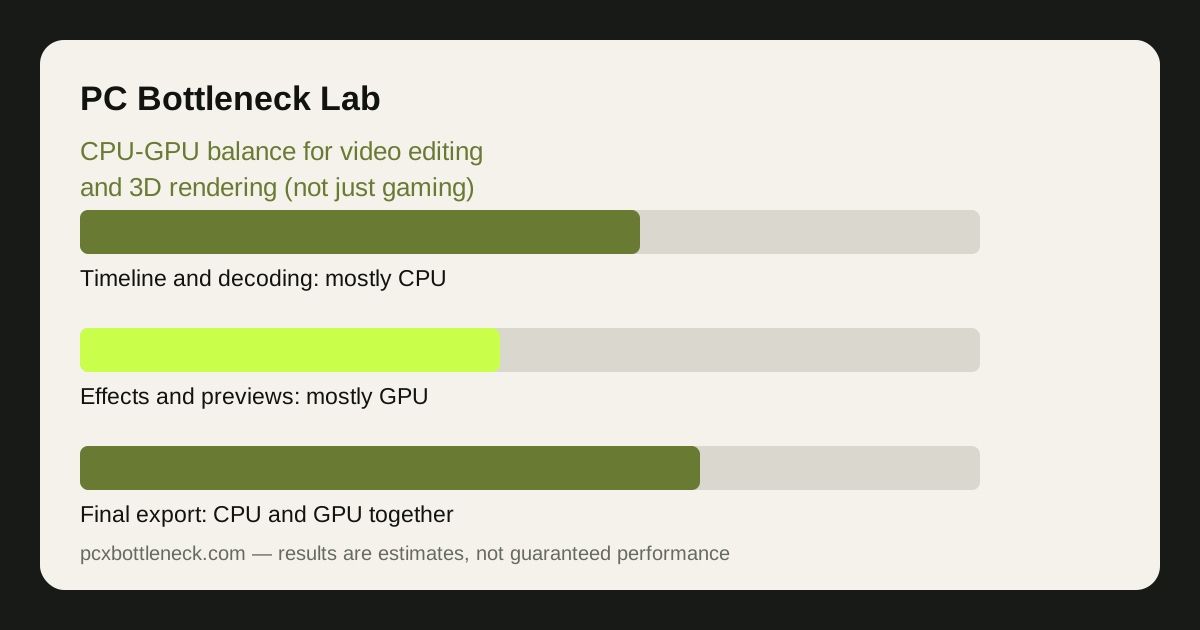
Import and decoding are CPU work. Compressed footage — the kind most cameras and phones produce — must be decoded before it can be shown, and that decoding is done by the processor (or by dedicated decode hardware on the chip). High-resolution, heavily compressed footage is the hardest: a machine that edits 1080p smoothly can choke on 4K footage from the same camera, even with a strong graphics card.
Timeline playback and effects are where the GPU earns its keep. Colour grading, stabilisation, noise reduction and many transitions are GPU-accelerated, so a weak graphics card makes the preview stutter even when the CPU is idle. But the GPU can only accelerate effects the software supports — an effect the editor runs on the CPU will not speed up with a better card, however expensive it is.
Memory and storage are the quiet limits. Editing holds frames, previews and undo history in RAM, so 16 GB that is enough for gaming can be tight for a 4K timeline; 32 GB is a common working target for serious editing, and more helps with long, complex projects. Storage matters too: editing from a slow drive makes the timeline stutter in ways that look like a CPU or GPU problem. See when the bottleneck is storage, not CPU or GPU.
3D rendering: CPU rendering, GPU rendering and the split between them
3D rendering splits into two worlds. CPU rendering uses the processor's many cores to calculate light, shadows and materials, and it scales with core count: more cores, faster renders, almost linearly. GPU rendering uses the graphics card's thousands of cores and is often much faster for the same scene — but it is limited by the card's VRAM, because the whole scene must fit in graphics memory.
That VRAM limit is the trap. A scene that fits in the card's memory renders quickly; a scene that does not fit either fails or falls back to slower paths. When you choose a card for GPU rendering, VRAM capacity matters as much as raw speed — a slower card with more VRAM can finish a large scene that a faster card with less VRAM cannot start. Check VRAM bottlenecks for how that limit behaves.
Modelling, sculpting and viewport work are different again: they are mostly single-core CPU work plus GPU viewport drawing, so they reward a fast processor and a responsive card rather than the most cores. A machine built only for final rendering may feel sluggish while you actually build the scene.
Choosing the balance for your workload
Start from the stage that hurts most. If the timeline stutters, the CPU, memory or storage is the suspect; if previews stutter with effects on, the GPU is the suspect; if exports are slow, check which part is busy during an export — the answer tells you where to spend. Do not buy a part until you have watched the machine do the work that bothers you.
| Workload | Part that usually limits it | What helps most |
|---|---|---|
| Editing 1080p timelines | CPU decoding and RAM | Fast CPU, 32 GB RAM, fast storage |
| Editing 4K timelines | CPU decoding, then GPU previews | Strong CPU, capable GPU, fast storage |
| Effects-heavy previews | GPU acceleration | Capable GPU with enough VRAM |
| CPU 3D rendering | CPU core count | Many-core CPU, good sustained cooling |
| GPU 3D rendering | GPU VRAM and cores | Card with large VRAM, strong GPU |
Budget splits follow the workload, not the gaming rule. A gaming build puts the largest share into the graphics card; an editing build often splits the budget more evenly, because the CPU, memory and storage all do real work. A rendering build may put the largest share into the card — or into a many-core processor — depending on which renderer you use. There is no single right split; there is the split that matches your software.
Check the pairing with the PC bottleneck calculator as a starting point, then check it against your software's own guidance: the editor or renderer you use publishes which hardware it accelerates, and that list matters more than any generic balance number.
Workflow fixes that beat a new part
Before buying anything, try the workflow fixes. Proxy editing — editing with small, light copies of the footage and exporting from the originals — removes the decoding load from the timeline and can make a modest machine edit 4K smoothly. It costs disk space and a little setup time, and it saves far more than it costs.
When you do upgrade, upgrade the stage that hurts. A faster card will not fix a timeline that stutters on decoding; more RAM will not fix a preview that stutters on effects. Match the upgrade to the stage, test it on a real project, and keep the old part until the new one proves itself.
Limitation: editing and rendering performance depends heavily on the software, the codec and the project — the same hardware can be fast in one editor and slow in another. The stage mapping here is typical behaviour; test your own software and footage before spending on an upgrade.
Frequently asked questions
Do I need a strong GPU for video editing?
It depends on the stage. The GPU accelerates effects, previews and some exports, so it matters a lot for effects-heavy work. For simple cuts on a 1080p timeline, the CPU, memory and storage matter more than the graphics card.
Is a gaming PC good for video editing?
Often partly. A gaming PC has a strong GPU, which helps previews and effects, but it may be short on RAM, storage speed and sustained CPU cooling — the things editing needs for long sessions. Check the editing stages, not just the gaming frame rate.
How much RAM do I need for 4K editing?
32 GB is a common working target for 4K timelines, and more helps with long or complex projects. 16 GB can work for short 1080p projects but will struggle with 4K, effects and previews held in memory at once.
CPU or GPU rendering — which is better for 3D?
GPU rendering is usually faster for scenes that fit in the card's VRAM; CPU rendering handles very large scenes and scales with core count. The right choice depends on your scene size, your renderer and how much VRAM your card has.
Why is my timeline smooth but my export slow?
Because they are different stages with different limits. The timeline is limited by decoding and previews; the export is limited by encoding and rendering, which may use the CPU, the GPU or both. Watch which part is busy during the export to find the limit.