
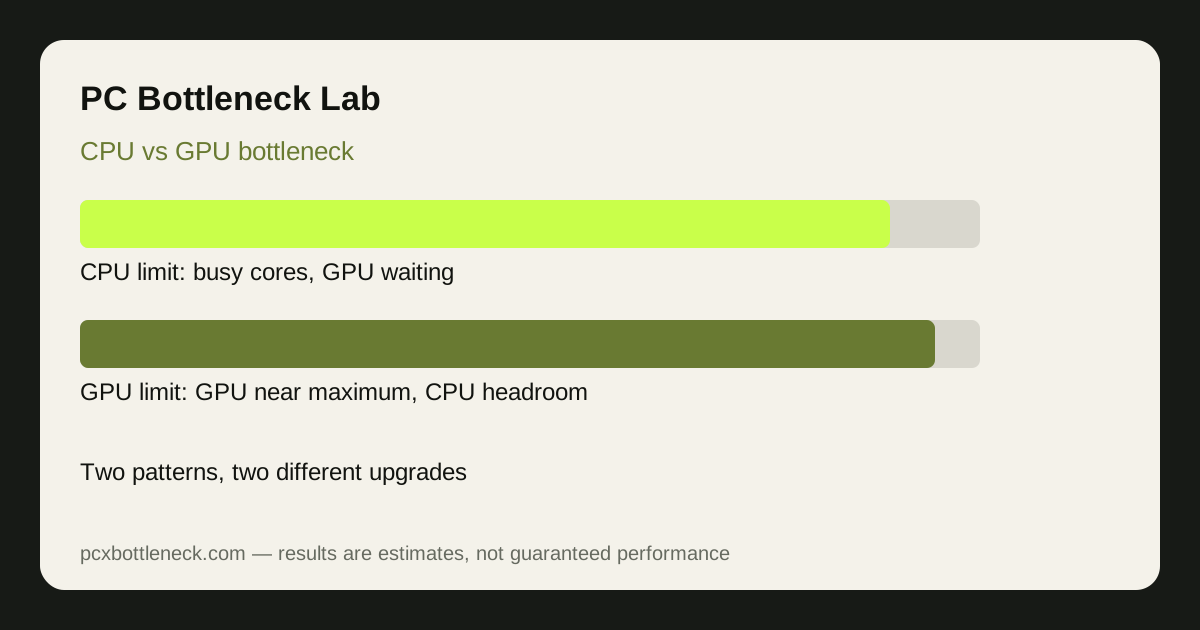
The two patterns side by side
| Signal | CPU bottleneck | GPU bottleneck |
|---|---|---|
| GPU usage | Often 50–80%, well below maximum | Often 90–100% |
| Per-core CPU usage | One or two cores near 100% | Cores have headroom |
| Lowering resolution | FPS barely changes | FPS rises clearly |
| Raising settings | FPS barely falls at first | FPS falls as GPU load rises |
| Frame time | Spikes tied to CPU work | Steady, tracking the GPU |
The key mistake is reading total CPU usage. A game using four cores heavily shows only a modest total on a many-core CPU, yet is still CPU-limited. Per-core usage is the number that tells you the truth, which is why our CPU bottleneck check guide insists on it.
The resolution test, step by step
- Play at your normal settings in a demanding scene and note GPU usage, the busiest CPU core and FPS.
- Drop to a lower resolution and lower demanding effects. If FPS barely moves, the CPU is setting the pace. If FPS jumps, the GPU was the limit.
- Raise settings back up. If FPS falls as GPU load rises, you have crossed back into a GPU limit, which is normal at high settings.
- Repeat in a second game. One game can mislead you; a pattern across games is a real limit.
If you want the no-software version of this test, read how to check a GPU bottleneck without software. It uses Task Manager and the same resolution logic.
When both, or neither, is the answer
Sometimes both parts are near their limits, which means the pairing is balanced and neither upgrade alone will transform it. Sometimes neither part is the limit: a frame cap, VSync, single-channel RAM, heat throttling or the game engine itself is holding FPS back. And sometimes the limit changes with the game, as our esports vs AAA guide explains: competitive titles lean on the CPU, story-driven titles at high resolution lean on the GPU.
Do not buy on a single test. A mixed result means you should change the cheapest variable first, resolution or settings, and retest, before you commit to a part.
Which upgrade each pattern needs
A CPU pattern needs a stronger CPU, faster dual-channel RAM, or a lower frame-rate target at a higher resolution, in that order of cost. A GPU pattern needs a stronger GPU, more VRAM for high resolutions, or lower settings. A balanced pattern needs no upgrade at all, unless you want a higher frame-rate target, in which case both parts may need to move together.
Run your pairing through the PC bottleneck calculator and check the PC Guides for the resolution you play at, because the right upgrade at 1080p can be the wrong upgrade at 4K.
Laptops need a slightly different reading of the same patterns, because many laptops share cooling and power between CPU and GPU, and most cannot upgrade either part separately. On a laptop, a CPU pattern may mean the machine is throttling on shared heat rather than lacking CPU power, and the practical fix is often cooling, a power plan change, or a lower frame-rate target, rather than a part you cannot replace. The resolution test still works, but interpret it alongside temperatures.
Limitation: monitoring shows a pattern in your test, not a guaranteed result for every game. Settings, drivers, RAM, cooling and the engine all shift the balance, so confirm the pattern in the games you play most.
Frequently asked questions
Can a PC have both a CPU and a GPU bottleneck at once?
Yes, when both parts are near their limits the pairing is balanced and neither part alone is clearly waiting. In that case a single upgrade helps less than expected, and you may need to raise the frame-rate target or upgrade both parts together to see a large gain.
Why is my GPU at 100% but my FPS still low?
Because the GPU is the limit and it is working as hard as it can. Lowering resolution or demanding effects should raise FPS if this is the pattern. If it does not, check for a frame cap, heat throttling or a second limit hiding behind the GPU.
Why is my CPU high and my GPU high at the same time?
That usually means a balanced, demanding workload, or a game that loads both parts heavily. It is not a fault. Check whether FPS meets your target: if it does, the pairing is doing its job, and if it does not, the resolution test will show which part gives way first.
Can the bottleneck change from game to game?
Yes, and it often does. Esports, simulation and strategy games lean on the CPU, while story-driven AAA games at high resolutions lean on the GPU. Test the games you actually play most, rather than trusting a result from one title.
Do I need software to tell CPU from GPU bottleneck?
No, although software helps. Task Manager plus the resolution test can separate the two patterns: FPS that rises when settings drop points to the GPU, while FPS that stays flat points to the CPU. Monitoring software adds per-core detail and frame times.