
Confirm the GPU is really the limit
Check with a monitoring overlay during gameplay. A GPU bottleneck shows the graphics card near maximum usage — usually 90–100% — while the CPU sits well below its limit. The decisive test is resolution: drop from 1440p to 1080p, and if FPS rises clearly, the GPU is setting the pace.
If FPS barely moves when you lower resolution, the CPU or another part is the limit instead, and GPU fixes will disappoint. The no-software version of this test is in how to check a GPU bottleneck without software, and the general pattern is in low GPU usage, low FPS causes and fixes.
The settings ladder: what to lower first
Not all settings cost the same. Lower the expensive ones first and keep the ones your eyes actually notice. Work down this ladder one step at a time, retesting the same scene.
| Setting to lower | FPS recovery range | Visual cost | Notes |
|---|---|---|---|
| Ray tracing (off or low) | Often large — a big share of frames | Loses reflections and lighting detail | The single biggest lever on supported cards |
| Resolution scale / render scale | Scales with how far you drop it | Softer image | Pair with upscaling below for a cleaner result |
| Shadow quality | Often around 5–15% | Flatter shadows | High shadows cost a lot for little visible gain |
| Ambient occlusion and volumetrics | Often around 5–10% | Less depth in corners and fog | Medium usually looks close to ultra |
| Anti-aliasing (lower or off with upscaling) | Often around 3–8% | More jagged edges | Upscaling already smooths edges |
Keep textures high if your VRAM allows it: texture quality mostly costs video memory, not frame rate, so lowering it rarely helps a GPU limit and can make the game look noticeably worse. If you run out of VRAM, that is a different problem — see the VRAM bottleneck guide for 8, 12 and 16 GB cards.
Upscaling: the biggest single free gain
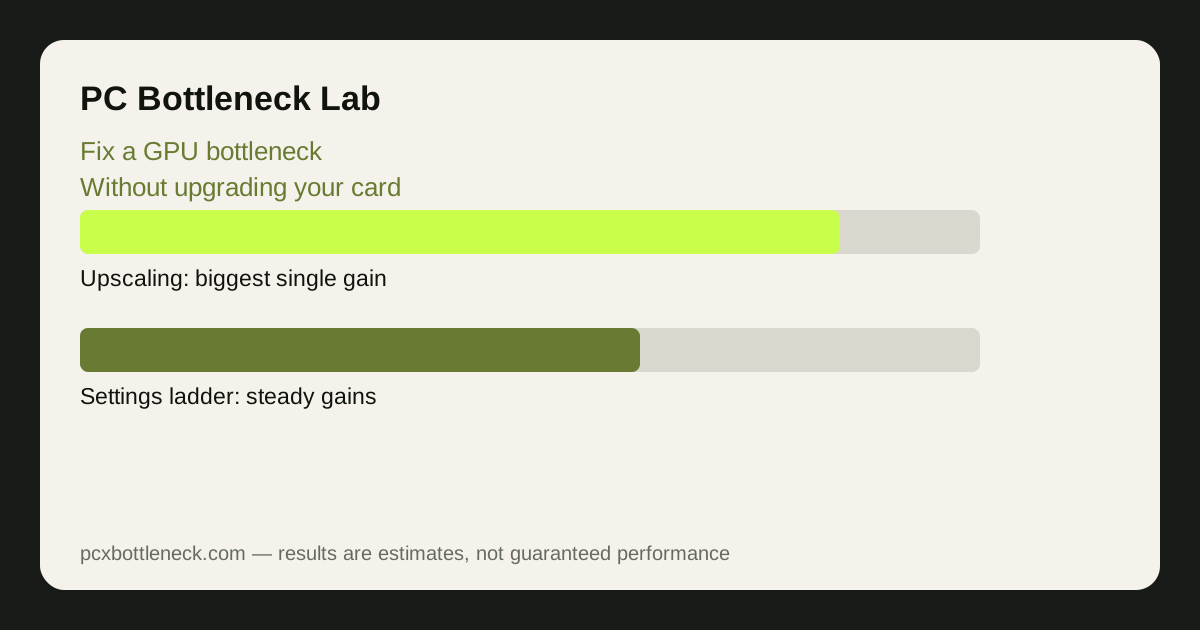
Upscaling renders the game at a lower internal resolution and reconstructs a sharp image with AI or a smart algorithm. DLSS on Nvidia cards, FSR on AMD and most other cards, and XeSS on Intel and others all do this, and Quality mode is usually the right starting point.
At 1440p, Quality upscaling often recovers a large share of frames — commonly around a third or more in demanding games — with an image most players struggle to tell from native resolution. Performance mode recovers more still, but the image softens, so it suits fast competitive games more than slow cinematic ones.
Frame generation, where supported, goes further by inserting AI-generated frames between real ones. It raises displayed FPS and makes motion feel smoother, but it adds a little input lag and does not raise the game's real simulation rate, so it suits single-player games better than competitive ones. The CPU side of frame generation is covered in DLSS and FSR frame generation and CPU bottlenecks.
System fixes: cooling, drivers and refresh rate
Three system issues quietly make a GPU bottleneck worse. First, heat: a card that hits its temperature limit lowers its clock speed, so clean the fans, improve case airflow and check temperatures under load. A card running hot can lose a noticeable share of its performance without any setting changing.
Second, drivers: install the latest driver cleanly, and check that the game is actually using the dedicated GPU rather than integrated graphics — a common laptop trap. Third, match the target to the monitor: if your screen is 60 Hz, chasing 120 FPS wastes GPU effort you could spend on image quality instead. Cap FPS at the refresh rate and put the spare headroom into settings.
If all of this still leaves FPS below what you want in the games you play most, then an upgrade is the honest answer. Check what your CPU can feed first in PC Bottleneck Calculator, so a new card does not land in front of a CPU that cannot keep up.
Limitation: recovery ranges are estimates and vary by game, card and scene. Upscaling gains depend on the game, the mode and the resolution, so test Quality mode in your own games before judging it.
Frequently asked questions
Does lowering resolution fix a GPU bottleneck?
It raises FPS, because the card draws fewer pixels per frame — but it also makes the image softer on a fixed monitor. A better trade is usually upscaling at Quality mode, which lowers the internal render resolution while reconstructing a sharper image.
Is DLSS or FSR better for fixing a GPU bottleneck?
DLSS usually looks a little cleaner on supported Nvidia cards, while FSR works on almost any card, including older and AMD ones. Either is worth using: pick whichever your card and game support, start at Quality mode, and only drop to Balanced or Performance if you still need frames.
Can a driver update fix a GPU bottleneck?
It can help when a driver bug or a game-specific optimisation is involved — new drivers sometimes recover a noticeable share of frames in recent games. It cannot make a card faster than its hardware, so treat drivers as maintenance, not an upgrade.
Why is my GPU at 100% but my FPS still low?
Because 100% usage means the card is doing all it can at your current settings and resolution. The card is not broken; it is simply the slowest step. Lower the expensive settings, enable upscaling, or accept a lower target frame rate for that game.
Should I overclock my GPU instead of upgrading?
A modest overclock can recover a small single-digit percentage of frames, but it adds heat and power draw and can cause crashes if pushed too far. It is worth trying after the settings and upscaling steps, not instead of them.