
What an overclocking bottleneck fix can actually do
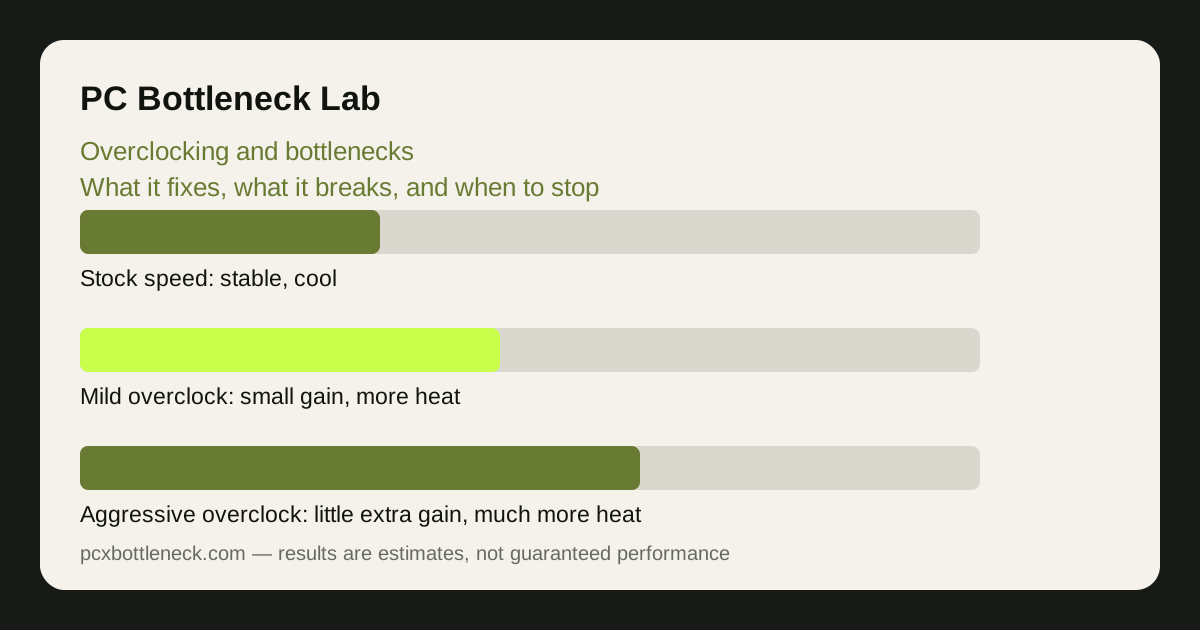
Overclocking means running a part faster than its stock speed: a higher CPU clock, a higher GPU clock, or faster memory. The gain is real but modest — typically a small percentage in the tasks that part was limiting — and it comes with more heat, more power draw and less stability. It is a way to close a small gap, not to turn a weak part into a strong one.
The key rule is that overclocking only helps the bottleneck you actually have. If the CPU is the limit, a CPU overclock can help; a GPU overclock will not, because the graphics card is already waiting. If the GPU is the limit, the reverse is true. Overclocking the wrong part adds heat and risk for no gain at all, which is why the first step is always diagnosis, not the BIOS.
Memory overclocking is the quiet third option. Faster memory, or tighter timings, helps the CPU feed itself — especially in simulation games and other CPU-heavy work. But it is also the easiest to get wrong: unstable memory causes crashes that look like a dozen other problems. Enable the memory's rated profile (XMP or EXPO) before you try anything manual.
CPU overclocking: when it helps and what it costs
CPU overclocking helps most when one or a few cores are the limit — simulation games, strategy games, and high-refresh esports at 1080p. A modest increase in clock speed can lift those frame rates by a small but noticeable amount, because the CPU finishes each frame's work a little sooner. The gain is usually larger in minimum frame rates than in averages, which is what smoothness feels like.
The cost is heat, and heat is not free. A faster CPU draws more power and needs better cooling; a stock cooler that was adequate at stock speed may not be adequate overclocked. Watch temperatures under a sustained load, not just in a short test — a CPU that is fine for five minutes and throttles after twenty has not been fixed, it has been moved to a different limit. See thermal throttling vs bottleneck to tell the two apart.
GPU and RAM overclocking: smaller gains, different risks
GPU overclocking helps when the graphics card is the limit — high resolutions, high settings, ray tracing. A modest core and memory overclock can add a few percent to frame rates, which matters more at the edge of playability than at the top end. But the graphics card already manages its own boost speed, so a manual overclock often adds less than people expect: the card was already boosting close to its practical limit.
RAM overclocking is different: the gain is not in frame rate directly, but in how quickly the CPU gets its data. In CPU-bound games the difference can be felt as smoother minimum frame rates; in GPU-bound games it barely registers. The risk is instability that appears randomly — a crash once an hour is worse than no gain at all, and memory instability can corrupt a file being written when it happens.
For both, change one thing at a time and test with the games you actually play, not only with a synthetic stress test. A stress test proves stability under one load; your games are the load that matters. Run your pairing through the PC bottleneck calculator first, so you know which part to overclock at all.
What overclocking breaks — and the signs to stop
Overclocking breaks stability first. Crashes, blue screens, games closing without warning, and visual artefacts — flickering textures, coloured blocks, strange shapes — are all signs that a clock is too high or the voltage is wrong. Artefacts on the screen mean the GPU overclock is too aggressive; crashes under load often mean the CPU or memory is unhappy.
| Symptom | Most likely cause | What to do first |
|---|---|---|
| Game crashes after a while | CPU or memory instability under heat | Drop the CPU overclock one step and retest |
| Visual artefacts or flicker | GPU clock or memory too high | Lower the GPU memory clock first |
| Frame rate falls under load | Thermal throttling | Improve cooling or reduce the overclock |
| PC will not boot | Settings too aggressive for the board | Reset the BIOS to defaults and start again |
| Random crashes when idle | Unstable memory or voltage too low | Return memory to its rated profile |
Heat is the second thing it breaks — slowly. Running a part hot for months shortens its life, even if it never crashes today. A good rule is to keep temperatures comfortably below the manufacturer's stated limits under your heaviest real load, with a margin, and to treat any temperature that climbs over time as a warning to clean the cooler or reduce the overclock.
Overclocking can also void a warranty, depending on the manufacturer and the part. Check the warranty terms before you start, and know that a part damaged by excessive voltage is rarely covered. That is part of the price of the gain, and it should be counted before you begin.
When to stop: the decision, not the setting
Stop when the next step buys almost nothing. Overclocking gains shrink as you push further: the first modest step may give you most of the benefit, and each step after gives less while adding more heat. When a further increase changes nothing you can feel, you have found the limit — pushing past it is not tuning, it is gambling.
And stop when the bottleneck is somewhere else. If the real limit is a slow drive, a single stick of RAM, or a monitor that cannot show the frames, no overclock will fix it. Fix the actual limit — see how to fix a CPU bottleneck without buying a new CPU and whether RAM can cause a bottleneck — and save overclocking for the small gap that remains.
Limitation: overclocking results vary widely between individual parts — two identical processors can overclock differently — so no gain figure here is a promise for your chip. Test your own part, keep temperatures in check, and treat any instability as a stop sign, not a challenge.
Frequently asked questions
Will overclocking fix my bottleneck?
Only if the part you overclock is the limit, and only by a small amount. A CPU overclock helps a CPU limit; a GPU overclock helps a GPU limit. Overclocking the wrong part adds heat for no gain, so diagnose the bottleneck first.
Is overclocking safe?
A modest overclock with good cooling and sensible temperatures is low-risk for most parts, but it is never zero-risk. Excessive voltage or heat can shorten a part's life, and it may affect the warranty. Stay well inside temperature limits and stop at the first sign of instability.
Why does my PC crash after overclocking?
Usually because a clock is too high for the voltage, or the part is overheating under sustained load. Drop the overclock one step at a time, test with your real games, and check temperatures — do not raise the voltage to chase a crash away.
Does overclocking RAM help gaming?
It can help CPU-bound games, where the processor needs data faster, and it often shows up as smoother minimum frame rates. In GPU-bound games it barely matters. Start with the memory's rated XMP or EXPO profile before trying manual settings.
Should I overclock or upgrade?
Overclock when the gap is small and the part is the limit; upgrade when the gap is large, the part is locked, or the cooling and power cannot support an overclock. An overclock closes a few percent — it does not turn a weak part into a strong one.