
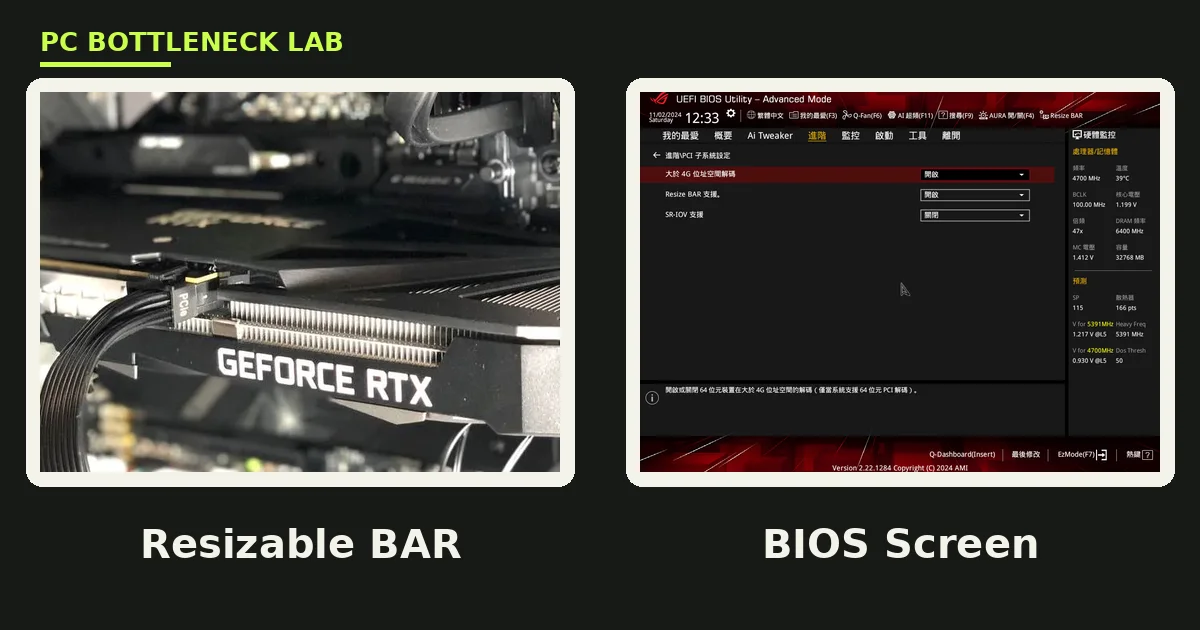
Key takeaways
- Resizable BAR lets the CPU reach all of a GPU memory at once, instead of through a 256 MB window.
- Smart Access Memory is AMD name for the same feature.
- Typical gains run a few percent in games that respond, and most games show no change at all.
- On Intel Arc cards the feature is close to required, since those cards lean on it far more than others.
- Turning it on needs UEFI boot with CSM off, so check boot mode first.
Resizable BAR: the short answer
Resizable BAR, often shortened to ReBAR, is a PCI Express feature. It changes how much of your graphics card memory the CPU can map at one time. Without it, the CPU talks to the GPU through a small 256 MB window. It must swap data in and out of that window again and again. With it on, the CPU can reach the full VRAM in one go. If your CPU holds your card back in other ways, check the pair first with our free bottleneck calculator before you chase BIOS settings.
What the wider window actually does
BAR stands for Base Address Register. It is the mechanism that maps GPU memory into the address space your CPU can see. Think of it as a doorway between the processor and the graphics card. A narrow doorway forces the CPU to carry data in small loads; a wide doorway lets it move big chunks at once. Games that stream large textures benefit most, since the CPU waits less on those transfers. Games that barely touch that path see no change; the doorway was never their limit. The feature does not raise clock speeds or add memory; it only removes one small delay from CPU-to-GPU traffic.
SAM vs ReBAR: same feature, two names
Smart Access Memory, or SAM, is AMD marketing name for Resizable BAR on AMD systems. It is the same PCI-SIG feature underneath; AMD launched it with the RX 6000 series in November 2020. NVIDIA followed with its own support on the RTX 30 series in February 2021. Intel uses the plain name for its Arc cards. The names differ, but the BIOS setting does the same job on all three vendors. So a guide that says SAM helps AMD cards and ReBAR helps NVIDIA cards describes one feature twice. What changes between vendors is how much each card leans on it, not what the switch does.
| Vendor | Name used | First cards | How much it matters |
|---|---|---|---|
| AMD | Smart Access Memory (SAM) | RX 6000 series, Nov 2020 | A few percent in supported games |
| NVIDIA | Resizable BAR | RTX 30 series, Feb 2021 | Per-game profiles decide when it runs |
| Intel | Resizable BAR | Arc A series | Close to required |
How much FPS does Resizable BAR add?
It adds a few percent in the games that respond; that is the honest answer from every source we checked. NVIDIA own announcement says some titles gain a few percent, up to 12 percent; other titles lose speed. AMD claimed roughly 5 to 15 percent for SAM at launch, depending on the game. Independent testing landed lower; PCWorld own tests showed uplifts between 2 and 8 percent. The site warns that results vary by game, resolution, and hardware. One XDA writer measured around 10 percent or less in Cyberpunk 2077, Flight Simulator, and Forza Horizon 5. So treat vendor numbers as best cases; expect the middle of the independent range in real play. For the VRAM side of the same story, see our guide on VRAM bottleneck: 8GB vs 12GB vs 16GB.
| Source | Claimed gain | What it means |
|---|---|---|
| NVIDIA announcement | A few percent, up to 12% | Best case; some titles lose speed |
| AMD launch claim | About 5 to 15% | Launch SAM claim |
| PCWorld testing | 2 to 8% | Independent range |
| XDA hands-on | Around 10% or less | One system, heavy AAA games |
Which games benefit, and which lose speed?
Big modern AAA games gain the most; they stream large textures and push heavy draw-call traffic through the CPU. Cyberpunk 2077, Forza Horizon 5, Flight Simulator, and Dying Light 2 are the titles where testers keep seeing gains. Esports and older DirectX 11 games are the other side of the coin; a few of them run slightly slower with the feature on. Hardware Unboxed found measurable penalties in a few of NVIDIA own supported titles. Other testers report small losses in Valorant, CS2, and Rainbow Six Siege; the pattern is simple. If a game moves lots of data between CPU and GPU, the wider window helps. If it barely uses that path, the extra mapping work can cost a frame or two. NVIDIA handles this with per-game profiles; it enables the feature only where its own testing showed a gain.
What hardware do you need?
You need a modern GPU, a fairly recent CPU, and a motherboard with a UEFI BIOS that offers the setting. On the GPU side, the floor is an RTX 30 series card, an RX 6000 series card, or an Intel Arc A series card. Older cards like the GTX 16 series do not support it, and no firmware update will add it. On the CPU side, XDA puts the floor at a Ryzen 3000 chip or an Intel 10th Gen chip. Your board must also run in UEFI mode with CSM disabled. It needs Above 4G Decoding switched on, since the two settings work as a pair. The clearest exception is Intel Arc, where the feature is close to required. Arc cards lean on full VRAM access far more than GeForce or Radeon cards do. Our Arc guide covers that card in full: Intel Arc B580 bottleneck guide for 2026.
How to enable it in BIOS
First, confirm Windows boots in UEFI mode, not Legacy mode; the CSM step below can break a Legacy install. Press Win plus R, type msinfo32, and look for BIOS Mode; it should read UEFI. Second, update your motherboard BIOS and your GPU driver to current versions; early BIOS builds hid the setting or shipped it broken. Third, restart into BIOS, usually with Delete or F2 during boot, and find the PCIe settings. Fourth, enable Above 4G Decoding, then enable Re-Size BAR Support, and set CSM to disabled. Fifth, save and boot into Windows, then confirm the feature is on. On NVIDIA, open NVIDIA Control Panel and check System Information for ReBAR: Yes. On AMD, open AMD Software and look for Smart Access Memory in the performance section. If you cannot find the setting at all, your board or GPU may not support it. For a mid-range card where the setting matters, see our best CPU for RTX 5060 and 5060 Ti guide.
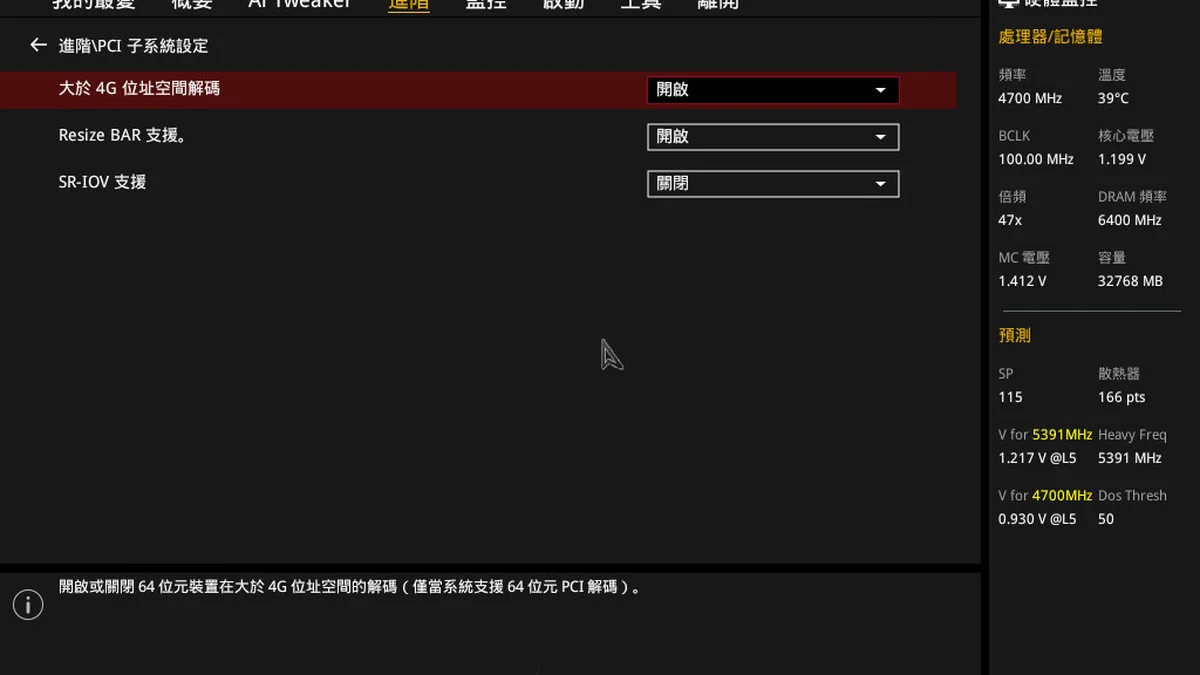
The CSM boot risk you must know first
Disabling CSM on an old Legacy or MBR Windows install can stop the system booting. This is the one real risk in the whole process. CSM, short for Compatibility Support Module, is the BIOS mode that lets old Legacy installs boot. The feature needs it off. If your Windows install uses the older MBR partition style, turning CSM off leaves the board with no boot path it understands. So check BIOS Mode in msinfo32 before you touch anything; convert the drive to GPT first if it still reads Legacy. A GPT drive with UEFI boot switches over without drama. If you already flipped the setting and the PC will not boot, go back into BIOS and turn CSM on again. Then sort out the boot mode before you retry; never force the feature on every game through tools like NVIDIA Profile Inspector. That can cause worse frame times, stutter, and crashes in titles the vendor never validated.
The bottom line on Resizable BAR
Resizable BAR is free performance, but only a little of it, and only in some games. Turn it on if you own a supported card; it costs nothing, and the default is on for most new builds anyway. Do not buy a new card or board for it; do not expect it to fix a real bottleneck. A weak CPU still limits your frames, and a full VRAM pool still stutters, with or without the wider window. Check your pair on the CPU bottleneck calculator if frames stay low after the switch. The true limit is usually elsewhere. Test one game you play often before and after the switch, and watch the 1 percent lows. Our guide on checking GPU limits without extra tools walks through that test: how to check a GPU bottleneck without software. If your games feel uneven rather than slow, read our frame-time guide: stuttering and frame time: 1% lows explained.
Frequently asked questions
What does Resizable BAR do for gaming FPS?
It lets the CPU read the full graphics card memory at once, instead of through a small 256 MB window. That wider path adds a few percent in texture-heavy games; most games show nothing. NVIDIA own claim runs from a few percent up to 12 percent; PCWorld independent testing showed 2 to 8 percent. A few older titles lose a little speed instead.
Is Smart Access Memory the same as Resizable BAR?
Yes. Smart Access Memory is AMD brand name for Resizable BAR, and both names describe the same PCI-SIG feature. AMD launched it with the RX 6000 series in November 2020; NVIDIA added its version on the RTX 30 series in February 2021. Intel calls it ReBAR on Arc cards; the BIOS switch does the same job on all three vendors.
Should I turn Resizable BAR on or off?
Turn it on if your GPU and board support it, since most new builds ship with it on by default. Expect a few percent in heavy AAA games, no change in most titles, and a small loss in a few older games. NVIDIA uses per-game profiles to enable it only where testing showed a gain. Leave it off if a daily game runs worse with it on.
Can Resizable BAR stop my PC from booting?
Yes, if Windows was installed in Legacy mode on an MBR drive. The feature needs CSM disabled and UEFI boot, and a Legacy install cannot boot with CSM off. Check BIOS Mode in msinfo32 first: it must read UEFI, not Legacy; if it reads Legacy, convert the drive to GPT first. If the PC already fails to boot, re-enable CSM in BIOS.
Does Resizable BAR help Intel Arc graphics cards?
Yes, more than any other brand. Intel Arc cards lean on full VRAM access far more than GeForce or Radeon cards do. The feature is close to required for normal Arc performance. An Arc card with the feature off can lose a large share of its speed in some games. Always confirm it is on in BIOS before you judge an Arc card.
Can Resizable BAR make some games slower?
Some games run slightly slower with the wider BAR window, mainly older DirectX 11 titles and a few esports games. Hardware Unboxed found measurable penalties in some NVIDIA supported titles, and testers report small losses in Valorant, CS2, and Rainbow Six Siege. Use the driver profile to disable it for that one game only.
How this guide was prepared
This guide uses the 2026 explainers of TechFuel, XDA Developers, and PCWorld; it also uses NVIDIA own announcement and AMD launch claims. The CSM boot risk and the Intel Arc note come from TechFuel and XDA. The regression reports come from Hardware Unboxed testing as cited by TechFuel; no frame rates of our own are claimed. This guide explains a feature, not a benchmark.
Last updated: November 12, 2026