
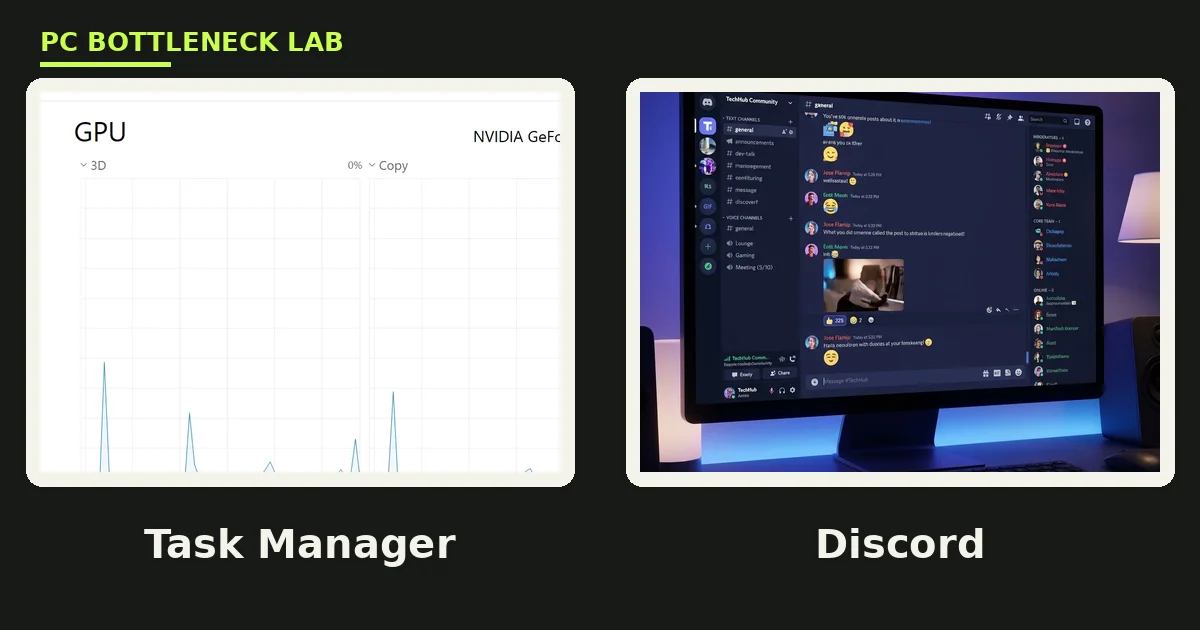
Key takeaways
- Background apps take CPU time from your game, and the worst ones run while you play.
- Discord and Chrome are the usual suspects, yet any app can be the culprit.
- Sort Task Manager by CPU to find the app, not the guess.
- Turn off Discord hardware acceleration and the overlay first, then test again.
- Never close antivirus or Windows security processes to free CPU time.
Background apps eating CPU while gaming: the short answer
Background apps eating CPU while gaming steal the processor time your game needs, and the fix is to find the app first. Discord, Chrome, and a few Windows features are the usual suspects, yet any app can be the culprit on your PC. Check your pair on the pc bottleneck calculator to rule out a real CPU bottleneck first.
Open Task Manager, sort by CPU, and look for the app beside your game at the top. Then change one setting at a time in that app, and check the CPU column again after each change.
Find the culprit first
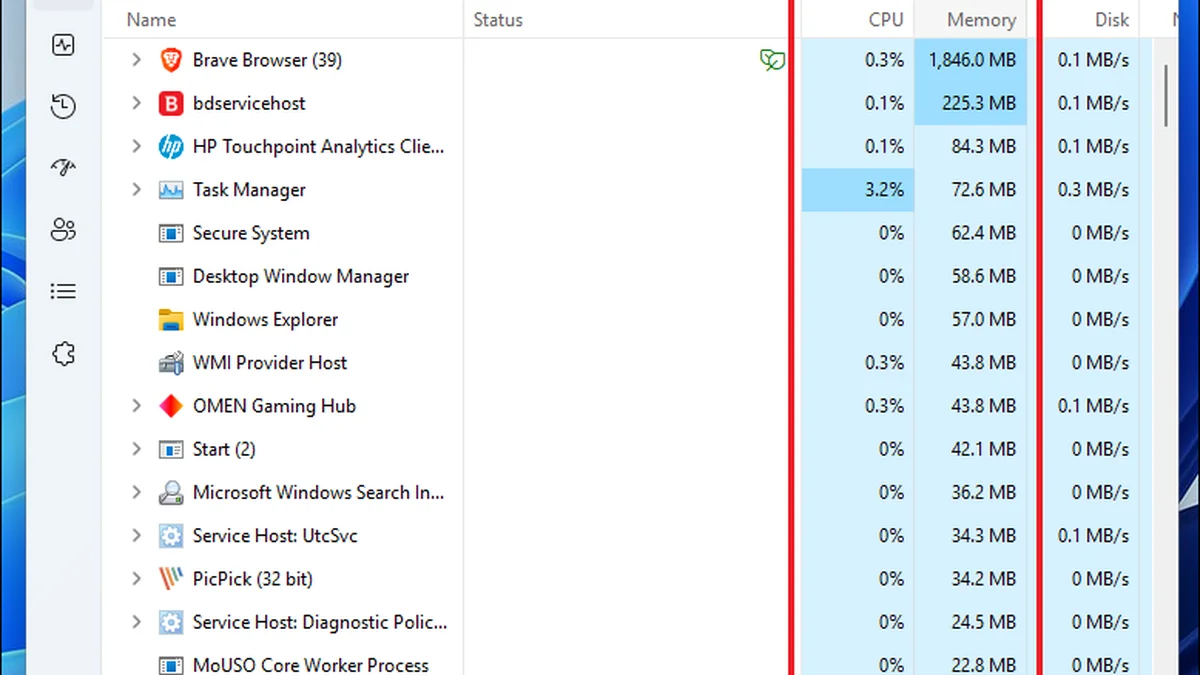
Open Task Manager with Ctrl, Shift, and Esc, then click the CPU column to sort by usage. Play for a minute, switch back with Alt and Tab, and read the top of the list.
The game should sit at the top, with background apps far below it. If Discord, Chrome, or another app sits near the game, that app is your culprit. Note its name and number before you change anything, so you can compare after each fix.
Check the Startup tab next, since apps that start with Windows keep running in the background all day. Disable the ones you do not need at startup, and restart the PC to see the change. A clean boot, with only the game and the app you test, separates a real culprit from a one-off spike.
Do not kill processes at random, and never end antivirus or Windows security processes to free CPU time. If a process name means nothing to you, look it up before you touch it. For the CPU side of the story, see our guide to 100% CPU usage with low GPU usage.
Fix Discord first
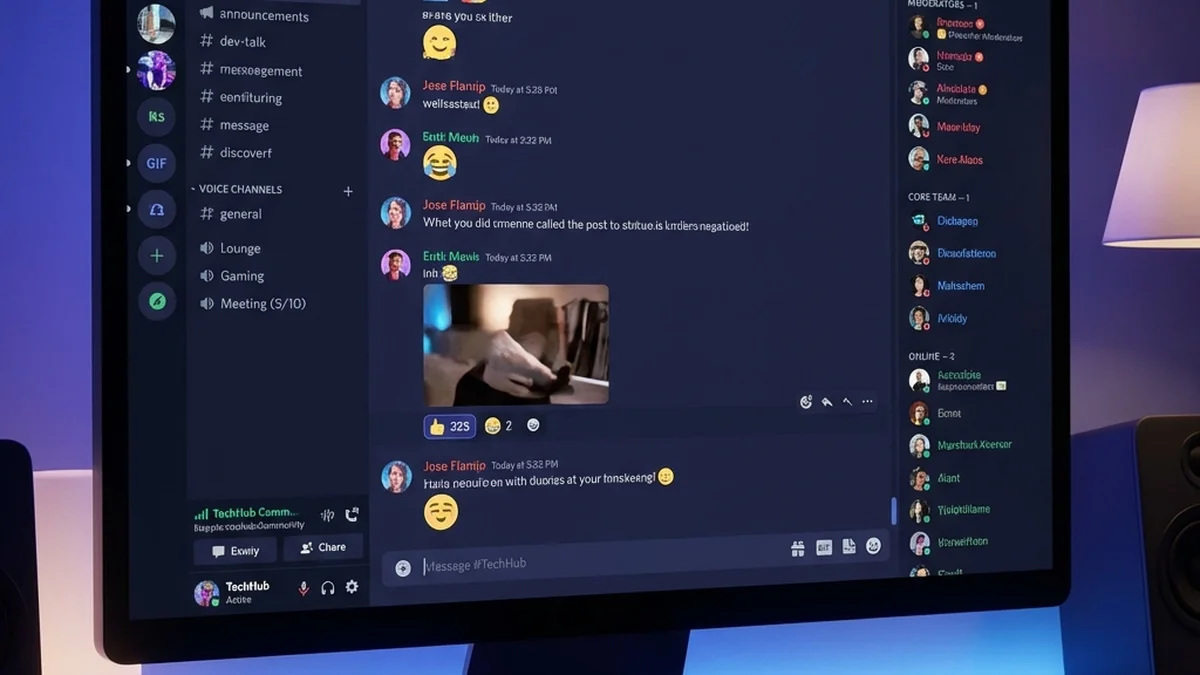
Discord uses CPU for voice chat, video, screen sharing, and its overlay, so high use during a call is normal. The problem is high use while Discord sits idle, or while you only read text channels.
Turn off hardware acceleration first: open User Settings, go to Advanced, and toggle Hardware Acceleration off, then restart Discord. Discord lists this as a lag fix, and it helps when the GPU driver handoff pushes CPU use up instead of down.
Turn off the overlay next: open User Settings, go to Game Overlay, and disable it for the game you play. Overlays inject into the game process, and a bad hook can spike a single core. Discord also advises disabling the overlay when it causes lag or crashes.
Then turn down voice processing: in Voice and Video settings, turn off noise suppression and echo cancellation for one test. Clear the cache if use stays high, by closing Discord and deleting the Cache folder under AppData, then restart the app. If the game still stutters after Discord is tamed, our guide to fixing a CPU bottleneck without buying a new CPU covers the next steps.
Fix Chrome next
Chrome runs each tab and extension as its own process, so a heavy tab or a bad extension can eat CPU in the background. Press Shift and Esc inside Chrome to open its own Task Manager, sort by CPU, and end the top offender.
Turn off background running next: open chrome://settings/system and turn off Continue running background apps when Google Chrome is closed. With this setting on, Chrome keeps extensions and apps alive after you close every window. With it off, Chrome quits fully when you close the last window.
Turn on Memory Saver in chrome://settings/performance, so idle tabs sleep instead of burning CPU. Test hardware acceleration both ways in the same System page, since it helps some PCs and hurts others. Disable extensions one at a time, starting with coupon tools, VPNs, and AI assistants, and re-enable only the ones you need. If the browser still drags after these steps, our guide to FPS drops after a Windows update covers the system side.
Windows and other background apps
Xbox Game Bar can record in the background while you play, so turn off background recording in Settings, under Gaming and Game Bar. OneDrive syncs files while you play too, so pause syncing during a gaming session.
Windows Update downloads and installs in the background, so set your active hours and pause updates before a long session. RGB and fan tools poll hardware nonstop, so close them or set a static profile before you play. Streaming while you game adds the same load, as our guide to streaming and recording bottlenecks explains.
| App | What it does to your CPU | First fix |
|---|---|---|
| Discord | Voice, overlay, hardware acceleration | Turn off hardware acceleration and overlay |
| Chrome | Tabs, extensions, background running | Turn off background apps, close heavy tabs |
| Xbox Game Bar | Recording and overlay in the background | Turn off background recording |
| OneDrive | Syncs files while you play | Pause syncing during games |
| Windows Update | Downloads and installs in the background | Set active hours, pause updates |
| RGB and fan tools | Poll hardware nonstop | Close them or set a static profile |
| Check | Where | What good looks like |
|---|---|---|
| CPU column in Task Manager | Processes tab, sort by CPU | Game at the top, background apps near the bottom |
| Startup apps | Task Manager Startup tab | Only apps you need start with Windows |
| Chrome background | chrome://settings/system | Background apps toggle off |
| Discord overlay | User Settings, Game Overlay | Off for the game you play |
| Game Bar recording | Settings, Gaming, Game Bar | Background recording off |
RAM pressure makes the same apps hurt more, since a full memory meter forces Windows to swap data to disk. Our guide to how much RAM you need for gaming in 2026 covers the memory side.
Background apps eating CPU while gaming: the verdict
Background apps eating CPU while gaming are a settings problem more often than a hardware problem, and the fix is usually free. Find the culprit in Task Manager, change one setting at a time, and check the CPU column after each change.
If no background app stands out and the CPU still sits at 100%, the CPU itself may be the limit, not the apps. Run your parts through the cpu bottleneck calculator before you spend on new hardware.
Frequently asked questions
How much CPU should Discord use while gaming?
Very little when it sits idle, and more during an active voice call, video call, or screen share. High use during a call is normal, since voice processing needs real-time work. High use while Discord sits idle, or while you only read text channels, is the problem to fix. Turn off hardware acceleration and the overlay first, then check Task Manager again after a restart.
Why does Chrome use CPU even after I close it?
Because Chrome keeps background apps and extensions running after you close every window, and that setting is on by default. Open chrome://settings/system and turn off Continue running background apps when Google Chrome is closed. After that change, closing the last window quits Chrome fully. Check Task Manager after a restart to confirm no chrome.exe process stays behind.
Should I turn off hardware acceleration in Discord and Chrome?
Test it both ways, since it helps some PCs and hurts others. Hardware acceleration hands rendering work to the GPU, which should cut CPU use. On some driver and hardware combinations, the handoff backfires and raises CPU use instead. Turn the setting off, restart the app, and compare the CPU column in Task Manager. Keep whichever setting runs lower on your PC.
Can background apps cause stuttering even with a fast CPU?
Yes, when an app spikes one core at the wrong moment, since most games lean on one or two main threads. A single-core spike from an overlay hook or a sync task can stall the game for a frame, even while total CPU use looks low. Sort Task Manager by CPU during play and watch for spikes beside the game. Closing or taming the spiking app removes the stutter.
Is it safe to end tasks in Task Manager while gaming?
Yes for apps you recognise, such as Chrome, Discord, or a launcher, and no for system processes you do not know. Ending a game launcher is safe, and ending a browser tab is safe, yet ending a Windows service can crash the session. Never end antivirus or Windows security processes to free CPU time. If a process name means nothing to you, look it up before you touch it.
Why is my CPU at 100% in Task Manager when I open a game?
Because a game loads the CPU hard at startup, while it builds shaders, loads assets, and starts background tasks. That spike usually settles once you reach gameplay, so watch the number during play, not at the loading screen. If it stays at 100% during play, a background app or a weak CPU is the cause. Sort by CPU to see which process holds the top spot.
How this guide was prepared
This guide uses Discord support troubleshooting, Chrome settings documentation, and fix guides from Tempered, How-To Geek, and Windows101Tricks. No FPS gain is promised, since each fix depends on which app causes the load.
Last updated: November 14, 2026