How a streaming bottleneck in OBS with NVENC actually forms
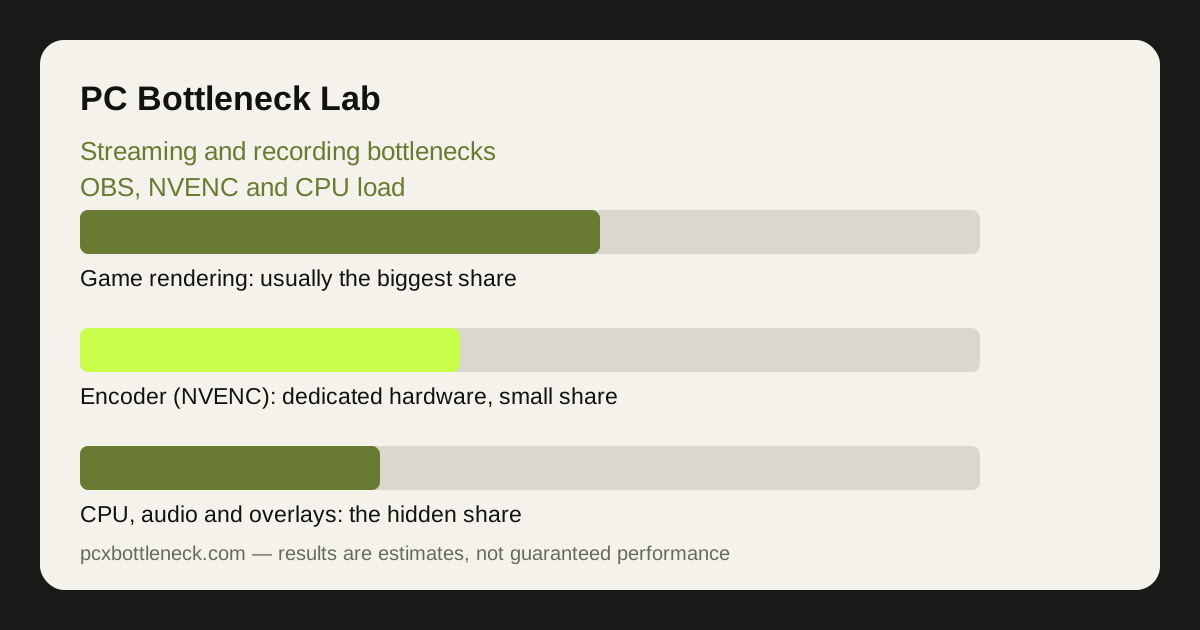
When you stream, your PC does three jobs at once. The game renders frames, the encoder compresses them into a video stream, and the CPU handles audio, chat, overlays, browser sources and the operating system. A streaming bottleneck appears when any one of those jobs cannot keep up, even if the other two have room to spare. That is why a PC that plays a game smoothly on its own can stutter the moment OBS starts.
NVENC changes the split in an important way. NVENC is a dedicated encoder built into NVIDIA graphics cards, so it compresses video without asking the main graphics cores to do the work. That is different from the common x264 encoder, which runs entirely on the CPU. With NVENC, encoding itself is cheap; with x264, encoding is another heavy CPU job stacked on top of the game.
Is it the CPU, the GPU or the encoder?
Start by watching the two usage numbers while you stream. If the CPU sits near its limit while the graphics card has headroom, the stream is CPU-limited: the game plus OBS is asking the processor for more than it can deliver. If the graphics card is near its limit and the CPU is relaxed, the game itself is GPU-limited, and the stream simply inherits the game's lower frame rate.
OBS has its own warning signs. Dropped frames from encoding mean the encoder could not keep up, which is rare with NVENC and more common with x264 on a busy CPU. Dropped frames from the network mean your upload connection, not your PC, is the limit. Skipped frames from rendering mean the graphics card was too busy to hand OBS a finished frame in time — a classic sign that the game settings are too high for streaming.
| OBS warning | What it means | Most likely limit |
|---|---|---|
| Dropped frames, encoding | Encoder could not keep up | CPU with x264, rarely NVENC |
| Dropped frames, network | Upload could not keep up | Internet connection |
| Skipped frames, rendering | Graphics card too busy to hand over a frame | Game settings too high |
| High CPU, low GPU usage | Processor is the limit | Game plus OBS on the CPU |
Resolution and frame rate multiply the work. Streaming at 1080p and 60 frames per second asks the encoder and the capture pipeline to handle roughly twice the pixels of 720p at 30 frames per second, and the game has to render at that rate too. A stream that is smooth at 720p can fall apart at 1080p on the same PC, with nothing else changed.
NVENC settings that matter most in OBS
The encoder preset is the first setting to check. In OBS, NVENC presets trade quality against encoder effort: a slower, higher-quality preset squeezes more detail out of the same bitrate but asks more of the encoder. For most streamers, a middle preset at a sensible bitrate looks better than the highest preset at a bitrate the connection cannot sustain. Quality comes from the combination, not from one slider pushed to the top.
Bitrate is the second lever, and it is capped by your upload speed, not by your wishes. A bitrate above what your connection can hold steadily causes network drops, buffering and a stream that freezes for viewers even while your game looks fine. Test your real upload speed, leave a comfortable margin for the game and other apps, and set the bitrate below that ceiling.
Canvas and output resolution deserve the same care. Many streamers run the game at 1440p but stream at 1080p, letting OBS downscale. That downscale costs some work, but it is usually cheaper than encoding the full 1440p frame. If the PC still struggles, dropping the output to 720p is a bigger relief than any encoder preset change, and most viewers on small screens barely notice.
Fixes that actually help, in order
Fix the game first. Lower the settings that cost the CPU most — draw distance, crowd density and physics-heavy effects — before touching the stream settings. Cap the game's frame rate a little below what the PC can sustain, so the graphics card always has a small reserve to hand OBS a frame on time. An uncapped frame rate that swings wildly is harder to stream than a steady, slightly lower one.
- Use NVENC, not x264, on a busy CPU: if your graphics card supports it, NVENC moves encoding off the processor and frees it for the game and OBS.
- Close browser sources you do not need: animated overlays, alert widgets and chat docks each run a browser in the background and eat CPU and memory.
- Run OBS as administrator: on Windows this gives OBS priority for GPU time, which reduces rendering skips when the game is demanding.
- Record and stream separately: recording at a higher quality than the stream asks the encoder to do two jobs; record the stream quality, or record later from the saved broadcast.
Check the result the same way every time: stream the same game scene for ten minutes, watch CPU and GPU usage, and read the OBS statistics panel for dropped and skipped frames. Change one setting at a time, or you will never know which change helped. For the wider picture, see how to check for a CPU bottleneck and why average FPS can hide stuttering.
Recording without streaming: a different bottleneck
Recording locally is easier on the network but harder on storage. A recording writes a large file continuously, so a slow or nearly full drive can cause dropped frames that look exactly like an encoder problem. Record to a drive with plenty of free space, and avoid recording to the same drive the game is loading from if you can.
Run your pairing through the PC bottleneck calculator before planning a streaming setup, and compare it with CPU-GPU balance for video editing and 3D rendering if you also edit what you record. The balance that suits gaming alone is not always the balance that suits gaming plus a stream plus an edit.
Limitation: the guidance here describes typical OBS and NVENC behaviour on a mid-range gaming PC; exact load varies with the game, the graphics card generation, the OBS version and your upload speed, so test your own setup with the OBS statistics panel rather than trusting a single rule.
Frequently asked questions
Does NVENC use the CPU at all?
Very little for encoding itself, because NVENC is dedicated hardware on the graphics card. The CPU still runs the game, OBS, audio and overlays, so a weak CPU can still limit a stream even when NVENC is doing the encoding.
Why does my stream lag but my game feels fine?
The game can feel fine while OBS struggles to capture, encode or send frames. Check the OBS statistics panel: rendering skips point to the graphics card, encoding drops point to the encoder, and network drops point to your upload connection.
Should I stream at 1080p or 720p?
It depends on your PC and your upload speed. 1080p looks sharper but needs more encoder work and more bitrate. If either is short, 720p at 60 frames per second usually looks smoother to viewers than a stuttering 1080p stream.
Is x264 ever better than NVENC?
On a strong CPU with a weak or older graphics card, x264 can give good quality, because the CPU has spare capacity. On most modern gaming PCs the CPU is the busy part, so NVENC is the safer default — it frees the processor for the game.
Will a faster graphics card fix my streaming stutter?
Only if the graphics card is the limit. If the CPU is near its limit, or the upload connection is dropping frames, a new card will not help. Check CPU usage, GPU usage and the OBS statistics panel before spending anything.