Why the eGPU bottleneck is the link, not the card
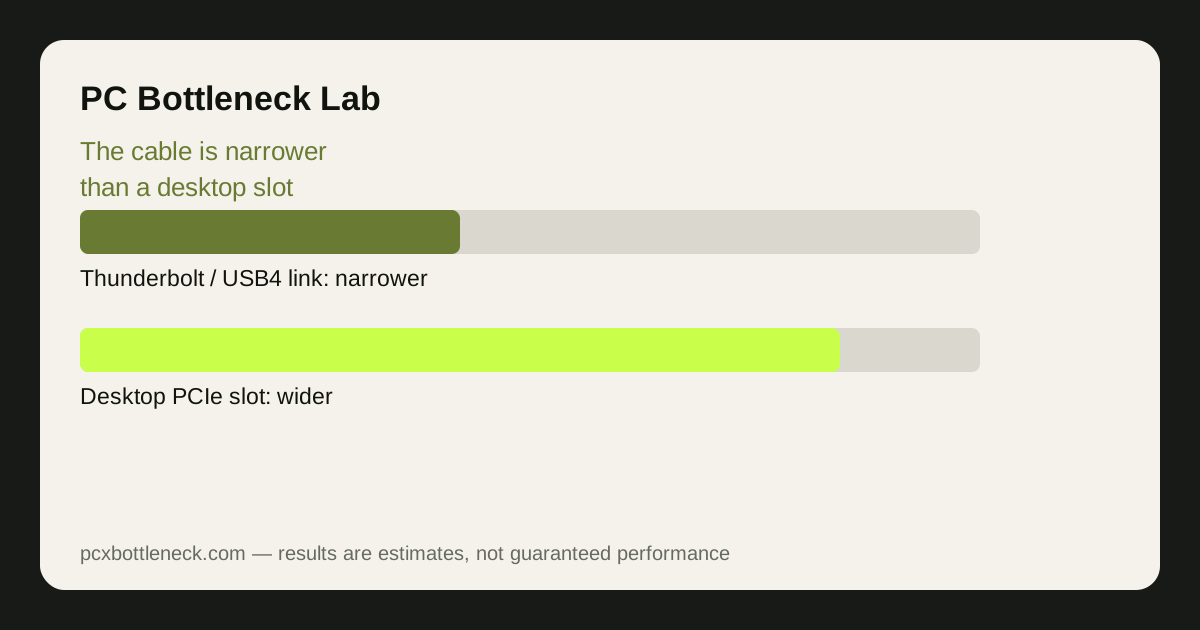
Inside a desktop, a graphics card sits in a PCIe x16 slot with far more bandwidth than most games need. In an eGPU enclosure, the same card talks to the laptop through a cable. Thunderbolt 4 and USB4 carry about 32 Gbps of PCIe data — roughly the same as a PCIe 3.0 x4 slot — and the card must squeeze every texture, draw call and frame through that pipe, in both directions.
That is why the loss is not a fixed number. A game that streams lots of textures, or one that runs at low resolution with very high frame rates, pushes far more data across the link per second than a slow, high-resolution game. Competitor-reported tests put typical eGPU loss at roughly 10 to 30% versus the same card in a desktop, with the bigger losses at 1080p and in texture-heavy titles, and smaller losses at 4K where the card spends most of its time shading pixels rather than talking to the laptop.
The host laptop matters too. A laptop CPU running on a small power budget can become the second limit: the external card waits for draw calls the laptop CPU cannot produce fast enough. That is the same shared-power problem handhelds face, and it is why a modest laptop plus a flagship card is often a poor match. See how handheld power budgets limit performance for the same idea in a smaller package.
Thunderbolt, USB4, OCuLink and Thunderbolt 5 compared
| Link | PCIe data rate | Typical reported loss vs desktop |
|---|---|---|
| Thunderbolt 3 / 4, USB4 | About 32 Gbps (PCIe 3.0 x4) | Roughly 10–30%, worst at 1080p |
| OCuLink | About 64 Gbps (PCIe 4.0 x4) | Roughly 5–10% |
| Thunderbolt 5 | About 80 Gbps | Lower than Thunderbolt 4, but rare in 2026 |
| Internal display (loopback) | Same link, plus a return trip | Extra loss — frames travel back over the cable |
| External monitor | Same link, no return trip | Recovers much of the loopback loss |
OCuLink is the clear winner on bandwidth: it is a native PCIe 4.0 x4 connection at about 64 Gbps, with reported losses of roughly 5 to 10% instead of 10 to 30%. The trade-off is convenience — OCuLink is a bare cable with no charging, no USB hub and no hot-plug polish, and fewer laptops have the port. Thunderbolt 4 and USB4 are far more common and carry power and peripherals over one cable, which is why most buyers end up with them despite the narrower pipe.
Which graphics card tier makes sense on each link
The link sets a ceiling on useful card power. On Thunderbolt 4 or USB4, a mid-range card is usually the sweet spot: it is fast enough to be a big upgrade over laptop graphics, but not so fast that a large share of its power is wasted waiting on the cable. A flagship card on the same link still performs better than a mid-range one, but you pay flagship money for mid-range-plus results, and the gap grows at 1080p.
On OCuLink, the ceiling is higher, so a stronger card makes more sense — the extra bandwidth lets it stretch its legs, especially at 1440p and above. That is the link to choose if you already own a high-end card or plan to buy one. On Thunderbolt 5, the same logic applies, once laptops and enclosures with the port are actually available to buy.
Check before you buy an eGPU enclosure
Check the port first, in the laptop manual rather than by the shape of the socket. A USB-C port that looks identical may be plain USB, Thunderbolt 3, Thunderbolt 4 or USB4, and only the Thunderbolt and USB4 versions carry PCIe at all. Check whether the port supports the full 32 Gbps and whether the laptop can charge through it, because some laptops split bandwidth when other devices share the same controller.
Then check the enclosure's power supply against the card you plan to use. Enclosures are often sold with a 500 to 750 watt supply, which is fine for a mid-range card but tight for a flagship, and the card's transient power spikes matter here just as they do in a desktop. Add up the parts by hand using our PSU sizing guide before you commit.
- Confirm the port: Thunderbolt 4 or USB4 with PCIe support, not just USB-C.
- Plan an external monitor: it recovers the loopback loss of the internal display.
- Match the card to the link: mid-range for Thunderbolt 4, stronger for OCuLink.
- Test at your resolution: 1440p and 4K hide the link loss; 1080p exposes it.
Run your laptop CPU and the card you are considering through the PC bottleneck calculator as a desktop pair, then expect the eGPU result to sit below it by the reported loss range for your link. That gap is the honest price of the cable.
Limitation: the loss ranges here are competitor-reported figures from specific cards, games and resolutions, not measurements from PC Bottleneck Lab. Your loss will vary with the game, the resolution, the display and the laptop CPU, so treat the ranges as a guide and test your own setup before judging the enclosure.
Frequently asked questions
How much performance do you lose with an eGPU on Thunderbolt 4?
Competitor-reported tests put typical loss at roughly 10 to 30% versus the same card in a desktop, depending on the game and resolution.
Is OCuLink better than Thunderbolt for an eGPU?
For raw graphics bandwidth, yes: OCuLink carries about 64 Gbps of native PCIe 4.0 x4 data, roughly double Thunderbolt 4, with reported losses around 5 to 10%.
Does an eGPU work with the laptop screen, or do I need a monitor?
It works with the laptop screen, but finished frames must travel back over the same cable, which costs extra performance.
What graphics card should I put in a Thunderbolt eGPU?
A mid-range card is usually the best value: it is a large upgrade over laptop graphics without paying for power the cable cannot feed.
Can a weak laptop CPU bottleneck an eGPU?
Yes. The laptop CPU still has to prepare every frame, and a low-power laptop CPU can leave a strong external card waiting. Check the CPU side with our 5-step self-test before spending on the enclosure.