
Step 1: set up the tools (free, five minutes)
You need one monitoring tool showing CPU and GPU usage while you play. MSI Afterburner with its RivaTuner overlay is the usual choice: free, works with any graphics card, and draws the numbers on screen over your game. HWiNFO is a good alternative for a detailed sensor list, and Task Manager works for a rough check on a second monitor — open Performance and watch the CPU and GPU graphs.
Turn on the overlay for four readings: CPU usage per core, GPU usage, frame rate, and GPU temperature. Per-core CPU usage matters more than the overall figure, because games often load a few cores heavily while the rest idle — an overall 50% can still mean one core is maxed out.
Pick one game you actually play and one repeatable scene: a busy town, a large battle, or a level opening you can replay the same way twice. A repeatable scene is what makes the before-and-after check in step 5 meaningful.
Steps 2–3: play, record, and read the numbers
Step 2 — play and record. Play your chosen scene for three to five minutes at your normal settings. Note three things: CPU usage and the busiest core, GPU usage, and the frame rate. A phone photo of the overlay at the busiest moment is enough — no logging software needed.
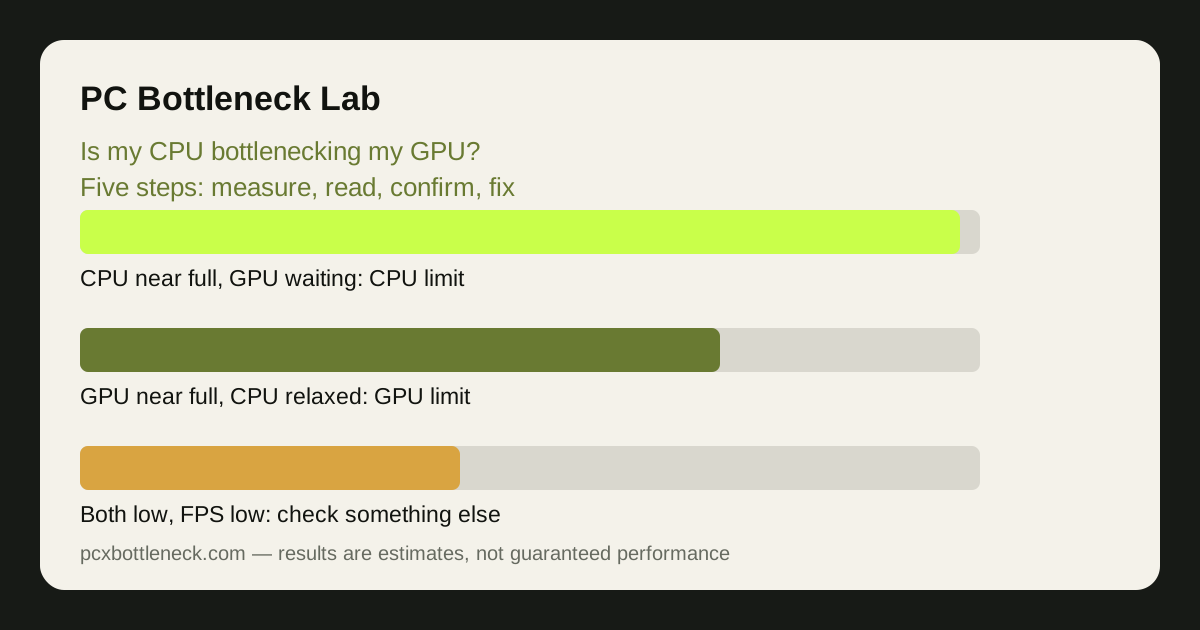
Step 3 — read the pattern. The pattern, not any single number, is the answer: CPU near its limit while the GPU has room to spare means a CPU bottleneck; GPU near its limit while the CPU is relaxed means a GPU bottleneck; both high means the system is well matched.
| What you see | What it means | What to do next |
|---|---|---|
| CPU near 100% or one core pinned, GPU well below full load | CPU bottleneck | Confirm with step 4, then try the fixes |
| GPU near 100%, CPU relaxed | GPU bottleneck — normal at high settings | Lower settings or resolution, or upgrade the GPU |
| Both high | Balanced — both parts working hard | Nothing wasted; upgrade the weaker part |
| Both low, FPS low | Something else is the limit | Check thermals, RAM, storage, or a cap |
| GPU usage swings wildly | CPU struggling to feed the GPU | CPU bottleneck — confirm with step 4 |
Two readings are easy to misread. A frame-rate cap — V-Sync, a menu limiter, a 60 FPS cap — makes both parts look idle — not a bottleneck at all — so turn caps off before testing. And overall CPU usage hides single-core limits, so always check the busiest core, not just the average.
Step 4: confirm whether the CPU is bottlenecking the GPU
A single reading can mislead, so confirm it with one change: drop the resolution or render scale one step and replay the same scene. If the frame rate barely moves, the CPU is the limit: cheaper frames did not help, because the CPU was already the ceiling. If it jumps sharply, the GPU was the limit.
Do the same test in reverse for extra confidence: raise the resolution one step. If the frame rate falls a lot, the GPU is doing the heavy work; if it barely changes, the CPU is still the ceiling. This resolution test is the most reliable home check, because it separates the two parts cleanly — only the GPU's work changes, so a frame-rate change points at the GPU and a flat result at the CPU.
Write both results down: frame rate and GPU usage at your normal resolution, and the same two numbers at the lower resolution. Two pairs of numbers beat an hour of guessing — exactly what you need if you ask for upgrade advice anywhere.
Step 5: fix it — and check before and after
Step 5 — fix, then re-test. If the test says CPU bottleneck, try the free fixes first: close background programs — a browser, a launcher updating, a recording app — and re-run the same scene. If frame rates rise, background load was part of the problem. Lower CPU-heavy settings such as crowd density, view distance and physics, which cut the CPU's work without touching image quality. Check temperatures too: an overheating CPU slows itself down, and our guide to thermal throttling vs a bottleneck shows how to tell the two apart.
If the free fixes are not enough, the hardware answer is a faster CPU — often a drop-in upgrade on the same motherboard. Our guide to whether to upgrade the CPU or GPU first walks through the money decision. Whatever you change, repeat steps 2–4 in the same scene and compare: a real fix shows up as higher GPU usage and higher frame rates at the same settings.
For a second opinion on the pairing, run it through the PC bottleneck calculator at your resolution, and read our guide to checking for a CPU bottleneck in 10 minutes for the monitoring setup.
Limitation: this test shows which part limits your frame rate in one game and one scene, not a universal verdict on your PC. Different games stress different parts — repeat the test in a second game before spending money on an upgrade.
Frequently asked questions
How do I know if my CPU is bottlenecking my GPU?
Watch CPU and GPU usage while you play: if the CPU or its busiest core is near maximum while the GPU has room, the CPU is the bottleneck. Confirm it by lowering the resolution — if frame rates barely move, the CPU was the ceiling.
What is a normal GPU usage percentage in games?
In a demanding game at high settings, a GPU near full load is normal and healthy — the card is doing the work you paid for. Low GPU usage only matters when frame rates are low and the CPU is maxed out.
Can a CPU bottleneck happen if CPU usage is only 50%?
Yes. Games often load a few cores heavily while the rest idle, so overall usage can read 50% while one core is pinned at 100%. Always check per-core usage, not just the overall figure, before ruling a CPU bottleneck out.
Does a CPU bottleneck damage my GPU?
No. A bottleneck does not damage hardware — the card runs below its maximum load. It only costs you performance you already paid for, which is why finding and fixing it is worth doing.
Should I lower my resolution if my CPU is bottlenecking my GPU?
Lowering the resolution makes the bottleneck more visible, not better — it is a diagnostic step, not a fix. To ease a CPU bottleneck, lower CPU-heavy settings, close background programs, or upgrade the CPU. Raising the resolution shifts work to the GPU and hides the limit.