
Key takeaways
- VRR makes the monitor follow the GPU, so each frame shows at its own pace.
- G-Sync vs FreeSync is a brand and tier choice, not a different core trick.
- The VRR range and low framerate compensation matter more than the badge.
- VRR removes tearing, yet it never raises your frame rate.
- NVIDIA cards now work with FreeSync monitors, and AMD cards work with G-Sync Compatible screens.
G-Sync vs FreeSync: the short answer
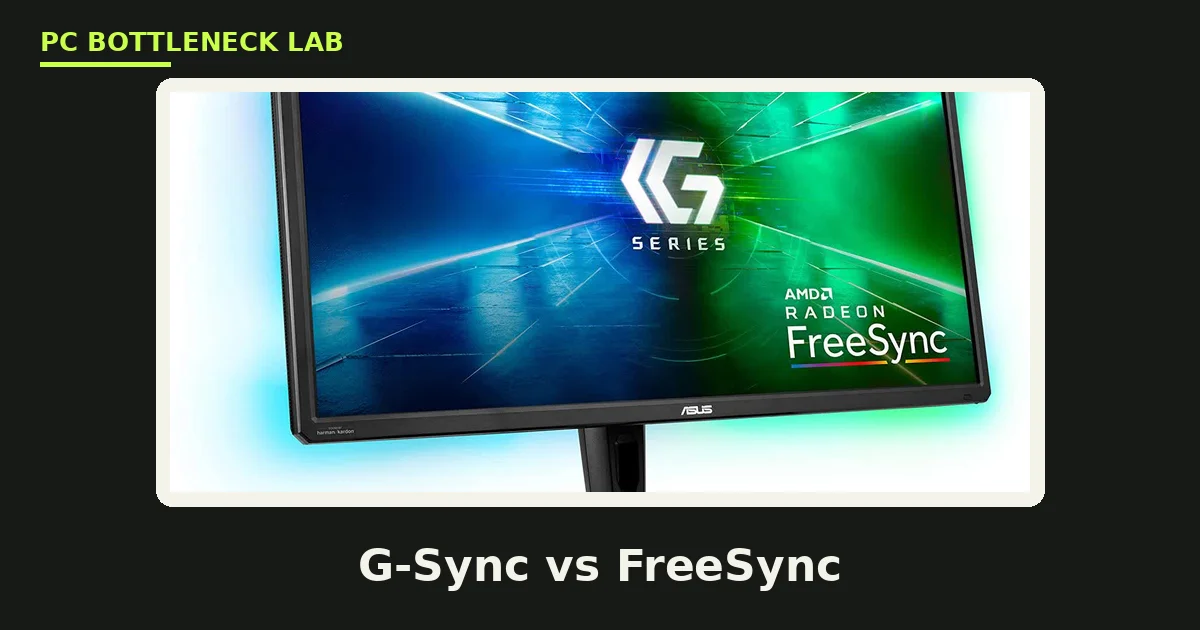
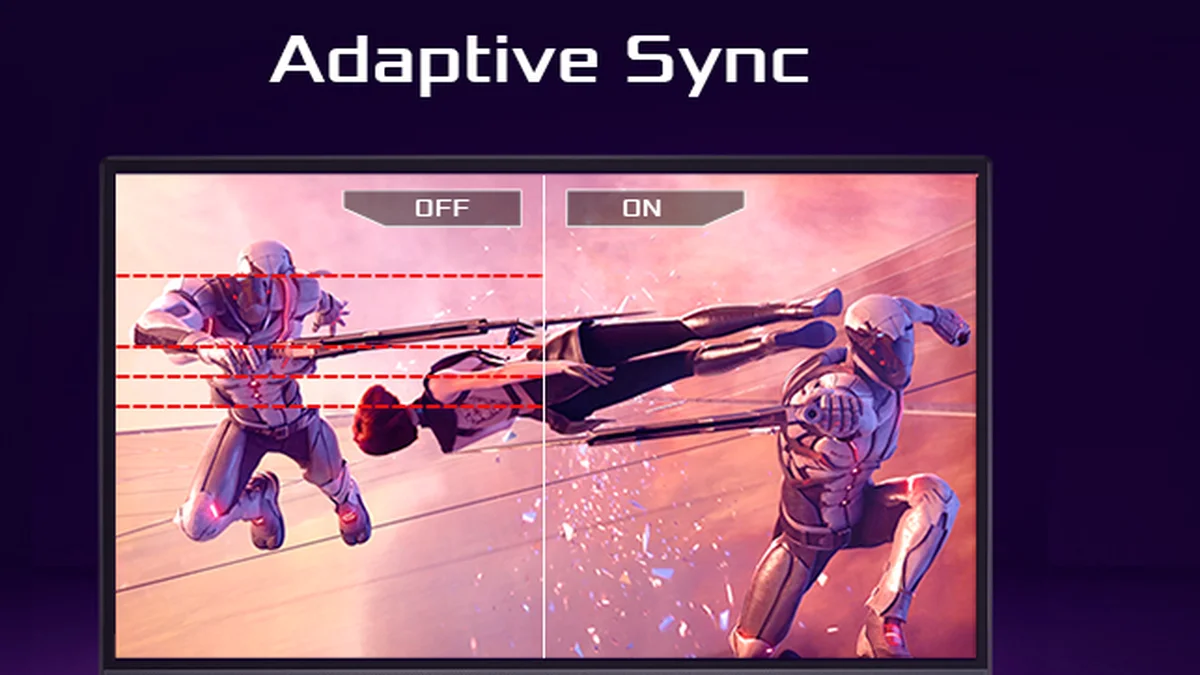
A normal monitor refreshes on a fixed clock, such as 144 times per second. Your GPU finishes frames at an uneven pace, so some frames arrive early and some arrive late. When the monitor draws half of one frame and half of the next, you see a tear across the screen. Variable refresh rate, or VRR, flips the deal: the monitor waits for each finished frame before it refreshes. G-Sync is the NVIDIA brand of VRR, and FreeSync is the AMD brand of the same core trick. For the wider monitor story, see this: monitor refresh rates and bottlenecks. You can also check your own pair with the bottleneck calculator.
| G-Sync | FreeSync | |
|---|---|---|
| Owner | NVIDIA | AMD |
| Base standard | Hardware module or validated Adaptive-Sync | VESA Adaptive-Sync, open standard |
| VRR range | 1 Hz to max on module monitors | Varies by monitor |
| Low framerate compensation | Always on module monitors | Premium tier and above |
| HDR tier | G-Sync Ultimate | FreeSync Premium Pro |
| Works with | NVIDIA graphics cards | AMD and NVIDIA graphics cards |
What variable refresh rate actually does
VRR is a deal between your GPU and your display over how long each frame stays on screen. At 87 FPS, a VRR monitor refreshes at 87 Hz, so each frame gets exactly one refresh. Tearing goes away, since the monitor never draws half a frame. V-Sync fixes tearing the other way: it makes the GPU wait for the monitor. That wait adds input lag, and it can halve your frame rate when the GPU falls behind. VRR avoids both costs, which is why it is now the default pick for gaming monitors. The catch is the range: VRR only works between a minimum and a maximum refresh rate, and the next section covers that limit.
G-Sync vs FreeSync tiers compared
NVIDIA launched G-Sync in 2013 with a hardware module inside the monitor. AMD answered in 2015 with FreeSync, built on the open VESA Adaptive-Sync standard. The module gave NVIDIA tight control, including variable overdrive that adjusts pixel response as the refresh rate changes. FreeSync spread faster, since any monitor maker could use the open standard without paying for a module. Since 2024, NVIDIA has put full G-Sync features into MediaTek monitor scalers, so new monitors no longer need the separate module. G-Sync Pulsar, which pairs VRR with backlight strobing for clearer motion, reached its first monitors in January 2026.
| Tier | What it needs | What it adds |
|---|---|---|
| G-Sync Compatible | Validated Adaptive-Sync monitor, no module | Basic VRR, tested by NVIDIA |
| G-Sync | NVIDIA module or MediaTek scaler | Wide range, variable overdrive |
| G-Sync Ultimate | Enhanced module | Wide range, HDR at 1000 nits and above |
| FreeSync | Adaptive-Sync monitor | Basic VRR, no LFC promise |
| FreeSync Premium | 120 Hz minimum at 1080p | LFC, smoother low frame rates |
| FreeSync Premium Pro | Premium plus HDR support | LFC and HDR |
The VRR range and low framerate compensation
Every VRR monitor has a range, such as 48 to 165 Hz. Inside the range, the monitor follows the GPU frame by frame. Below the floor, the monitor cannot refresh slowly enough, so tearing or judder returns. Low framerate compensation, or LFC, covers that gap by showing each frame twice or more. At 40 FPS on a 48 to 165 Hz screen, LFC runs the panel at 80 Hz and shows each frame twice. All FreeSync Premium and Premium Pro monitors must support LFC, while base FreeSync does not promise it. G-Sync module monitors always have it. The floor on the spec sheet matters more than the badge. A basic FreeSync screen with a low floor can feel smoother than a Premium screen with a 48 Hz floor.
A high refresh rate still needs a CPU that can feed it: 240 Hz and the CPU test. Extreme refresh rates raise their own questions: 500 Hz monitors, faster CPU or marketing.
Cross-compatibility in 2026
The old brand walls have mostly fallen. NVIDIA cards from the RTX 20 series onward work with FreeSync monitors through Adaptive-Sync, and NVIDIA tests the best of them as G-Sync Compatible. AMD cards work with G-Sync Compatible monitors in the same way. A monitor with a true G-Sync module still needs an NVIDIA card to use its module features. Both Xbox Series X and PlayStation 5 support VRR on HDMI, so the same monitor can serve a console and a PC. The practical rule is simple: buy the monitor for its panel and range first, then check that your card can drive its VRR mode. Uneven frame delivery still shows up as stutter when VRR cannot help: stuttering and frame time: 1% lows explained.
What VRR cannot fix
VRR changes how uneven frames look, and it never creates new frames. A game at 35 FPS still runs at 35 FPS with VRR on, and it still feels slow. VRR also cannot fix hitches from shader compilation, asset streaming, or a full memory pool. Some monitors flicker near the bottom of their VRR range, and the fix is usually a higher frame rate or a different overdrive setting. Check the connection too: VRR needs DisplayPort or HDMI with Adaptive-Sync support, and an old cable or port can block it. Treat VRR as polish on a healthy system, not as a rescue for a weak one. Frame generation pairs with VRR on high-refresh screens: DLSS and FSR frame generation and CPU bottlenecks.
G-Sync vs FreeSync: which one should you buy
G-Sync vs FreeSync comes down to your GPU, your budget, and the monitor VRR range. NVIDIA owners can pick any of the three G-Sync tiers or a FreeSync screen. AMD owners get the best value from FreeSync Premium or Premium Pro. Spend on a wide range and LFC first, and treat the badge as the tie-breaker. Before you buy a new monitor, check the gpu bottleneck calculator to see whether your card can feed the refresh rate you want.
Frequently asked questions
Does G-Sync work with an AMD graphics card?
No, not the full module version. A monitor with a true G-Sync module needs an NVIDIA card to use its module features. AMD cards do work with G-Sync Compatible monitors, since that tier is a validated Adaptive-Sync screen rather than a module. If you run AMD, shop for FreeSync Premium or a G-Sync Compatible badge instead.
Does FreeSync work with an NVIDIA graphics card?
Yes, in most cases it works through Adaptive-Sync. NVIDIA cards from the RTX 20 series onward can drive FreeSync monitors, and NVIDIA tests the best of them as G-Sync Compatible. Turn the setting on in the NVIDIA control panel, then check that the monitor shows a VRR range. A few older FreeSync screens may flicker, so test before you settle.
Does VRR increase FPS?
No, VRR never raises your frame rate. It changes how uneven frames reach your eyes by letting the monitor wait for each finished frame. A game at 45 FPS still renders 45 frames per second with VRR on. What changes is the tear-free, smoother look of those frames. For more frames, you need a faster GPU, a faster CPU, or lower settings.
What is low framerate compensation in FreeSync?
Low framerate compensation, or LFC, repeats frames when your frame rate falls below the monitor VRR floor. At 40 FPS on a 48 to 165 Hz screen, LFC runs the panel at 80 Hz and shows each frame twice. The picture stays tear-free even though no new frames appear. FreeSync Premium and Premium Pro must support it, while base FreeSync does not promise it.
Why does my monitor flicker with VRR on?
Flicker near the bottom of the VRR range is the most common cause. The panel struggles to hold a steady image when the refresh rate drops very low, and some panels show brightness shifts there. Raise your frame rate above the floor, or turn LFC on if your monitor supports it. If the flicker stays, try a different overdrive setting or a newer cable.
Is G-Sync Ultimate worth the extra cost over G-Sync Compatible?
It depends on what you pay for beyond VRR. G-Sync Ultimate adds a hardware module, a full 1 Hz to max range, variable overdrive, and HDR at 1000 nits and above. If you want top HDR and the widest range, it earns its price. If you only want tear-free gaming, a G-Sync Compatible screen gives you the same core VRR for far less money.
How this guide was prepared
This guide uses the 2026 Adaptive-Sync explainers from Monitor Guide, LandGadget, and Newegg, plus the V-Sync comparison from pcbottleneck.buildkit.store. Tier rules and VRR ranges are the published specs from monitor makers as those guides report them. No latency or smoothness figures are claimed, since VRR changes how frames look rather than how fast they render.
Last updated: November 14, 2026