
Key takeaways
- Where the card vanishes names the fix: missing in BIOS means hardware, missing only in Windows means drivers.
- The monitor cable must plug into the graphics card, not the motherboard, or a working card looks absent.
- Reseating the card until the PCIe latch clicks is the single most effective fix.
- A card shown as Microsoft Basic Display Adapter has no vendor driver loaded, not a dead card.
- If the card is invisible in BIOS after reseating, power checks and a second slot, it may be faulty.
First, find where the card disappears
A graphics card is a discrete GPU: a separate board that draws game frames. Integrated graphics, by contrast, is built into the CPU. Windows can only use a discrete card it can see. The card can vanish at three points, and each point needs a different fix. Find your point first, because driver work cannot fix a card the motherboard cannot see.
Open Device Manager to check Windows. Press Win + X, then pick Device Manager, then expand Display adapters. A card named by its maker, such as NVIDIA GeForce RTX 4060, means Windows sees it. Microsoft Basic Display Adapter means Windows sees a display device but has no vendor driver for it. No entry at all, or a yellow warning icon, means Windows sees a problem or nothing at all. Click View, then Show hidden devices, because Windows sometimes hides a card it partly sees. A greyed-out card there means the device is present but disabled.
Next, check the BIOS. Restart the PC and tap Delete, F2 or F10 during boot; the key shows on the splash screen. Look for the card name on the PCIe or graphics information pages. If the BIOS lists the card but Windows does not, skip to the driver steps. If the BIOS does not list it either, stay in the hardware steps. Task Manager gives a second view: press Ctrl + Shift + Esc, open Performance, and look for a GPU tile. If the card appears but games run slowly, read our guide on how to tell a CPU bottleneck from a GPU bottleneck. It shows the usage patterns to watch.
| What you see | Where it vanishes | What it means |
|---|---|---|
| No card in BIOS, no display at all | BIOS and hardware | Seating, power, slot or card fault |
| Card missing in BIOS, picture from motherboard port | BIOS and hardware | Card not seated, or BIOS forcing integrated graphics |
| BIOS sees it, Windows shows Microsoft Basic Display Adapter | Windows driver | Vendor driver missing or broken |
| Windows sees it with a yellow icon or Code 43 | Windows driver | Driver or power fault reported by the device |
| Windows sees it, but games use integrated graphics | Settings | Wrong port or hybrid-GPU setting |
GPU not detected: the two-minute checks
Do these before you open the case. First, check the monitor cable. It must plug into the graphics card's HDMI or DisplayPort sockets, not the motherboard's. A cable in the motherboard port uses integrated graphics, and a working card looks absent. Move the cable to the card and restart. If the screen stays black, try a second cable and a second port on the card, because one bad port can hide a good card.
Second, restart the PC fully. A cold restart clears a failed device start that a fast shutdown can preserve. Shut down, wait ten seconds, then power on. If the card appears, the fault was a one-time start failure, and you are done.
Third, check the fans and lights. Fans that spin and lights that glow prove the card gets some power. A card can still light up yet fail to talk to the motherboard, so treat lights as a power hint only.
Fix the hardware: reseat the card and its power
If the BIOS cannot see the card, work on hardware. Power the PC fully off, flip the power supply switch to off, and unplug the cord. Hold the case power button for five seconds to drain leftover power. Then open the side panel.
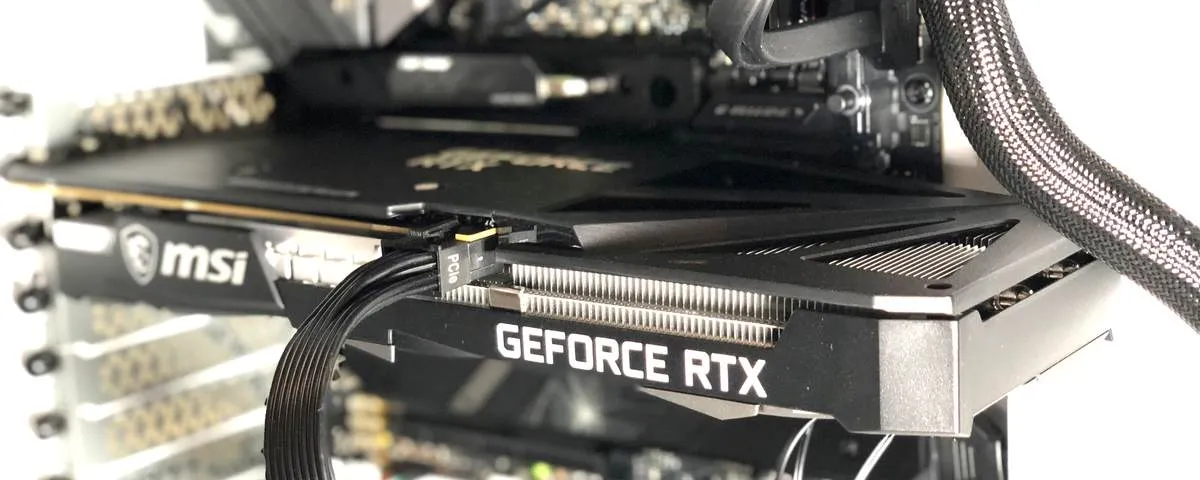
Remove the card first. Undo the bracket screws, press the PCIe retention latch at the end of the slot, and pull the card straight out. Check the gold contacts and the slot for dust, bent pins or debris. Blow the slot out with compressed air. Then push the card back into the top PCIe x16 slot, the one closest to the CPU. Push firmly and evenly until the latch clicks shut on its own. The bracket should sit flush with the case without force. Screw the bracket in, because a sagging card can lose contact over time.
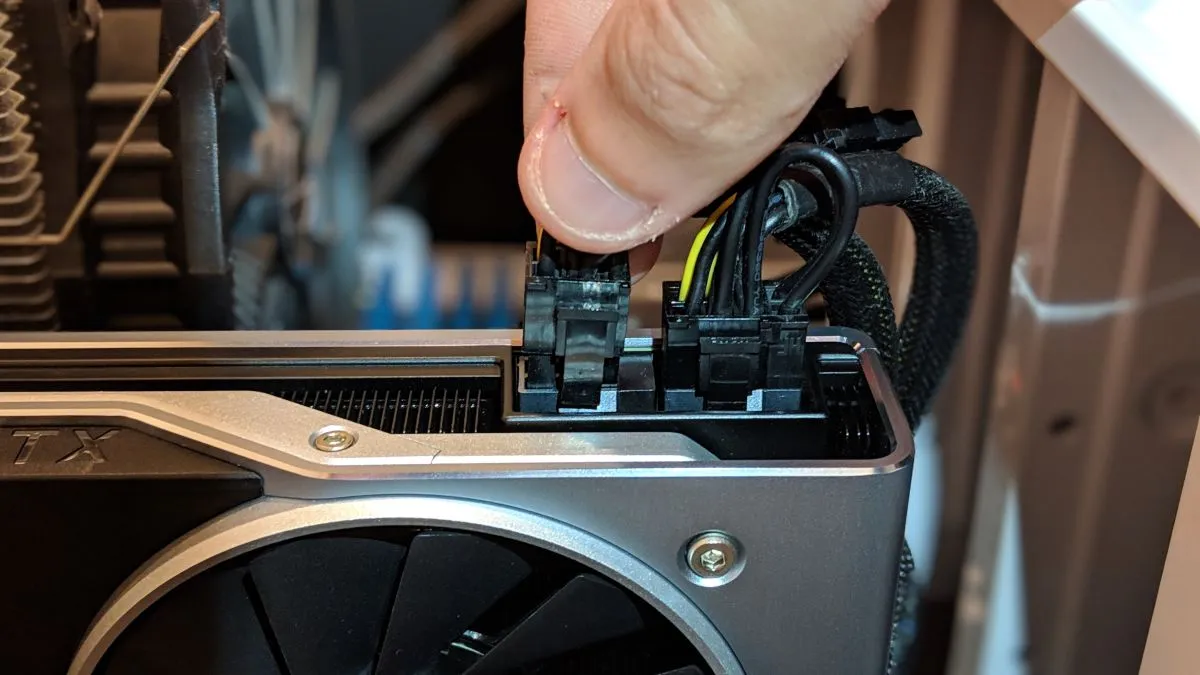
Next, reseat every PCIe power cable. Push each connector firmly until it clicks. Use cables that run straight from the power supply, not splitters or adapters. A card that misses one connector may light up yet fail to start. Check the card's manual for how many connectors it needs: a card with two sockets needs both filled. If your power supply lacks the right cables, stop here and check whether it meets the card's needs. Our guide to how many watts your PC needs helps you size the supply.
Try a second slot if the first still fails. Move the card to another x16 slot and restart. If the card appears there, the first slot may be faulty or disabled. If a known-good card also stays invisible in BIOS, the fault sits elsewhere. Check the motherboard, the power supply or the BIOS settings, not your card.
| Hardware step | What it rules out | Sign it worked |
|---|---|---|
| Reseat the card until the latch clicks | Loose contact, sagging card | BIOS lists the card |
| Reseat every PCIe power cable | Missing or loose power | Card powers up and BIOS sees it |
| Try a second PCIe x16 slot | Faulty or disabled first slot | Card appears in the second slot |
| Test a known-good card in the slot | Board, supply or BIOS fault | Known-good card appears |
| Test the card in a second PC | Card fault vs board fault | Card works in the other PC |
Fix the firmware: BIOS settings that hide a card
The BIOS is the firmware that starts your PC before Windows loads. It decides which graphics device gets the display. Enter the BIOS with Delete, F2 or F10 at boot, then look for the graphics settings. Menu names vary by board maker, so use these as a guide, not an exact map.
Set the primary display to PEG, PCIe, Discrete or External GPU. On ASUS boards this sits under Advanced, System Agent, Graphics Configuration, Primary Display. On MSI boards it sits under Settings, Advanced, Integrated Graphics Configuration, Initiate Graphic Adapter. If the setting says Auto or iGPU, the board may send the display to integrated graphics and ignore your card. Change it, save with F10, and restart.
Set integrated graphics to Disabled or Auto, never Forced. Forcing integrated graphics can hide the discrete card from Windows entirely. Then set the PCIe x16 mode to Auto. If Auto fails, try Gen3 for testing. A poor signal on a riser cable or a long board trace can fail at Gen4 or Gen5 speeds while Gen3 works. A card that appears at Gen3 has a signal problem, not a dead chip.
If the settings look right and the card still hides, clear the CMOS. That resets every BIOS setting to factory defaults. Power off, unplug the cord, and either remove the small coin battery for a minute or short the clear-CMOS pins with a screwdriver. Your board manual shows the exact steps. A stray setting such as a disabled slot or a bad overclock can block detection even when the hardware is fine.
When the card is probably dead
Some signs point at a faulty card, and honesty matters more than hope. The card stays invisible in BIOS after reseating, power checks, a second slot, a BIOS reset and a CMOS clear. A known-good card works in the same slot with the same cables. The card shows Code 43 after a DDU clean and a fresh driver install. The card's fans spin but its chip grows hot with no display, or you smell burning from the card. Any one of these after the full steps above means the card likely needs repair or replacement under warranty.
Before you give up, test the card in a second PC if you can. A card that works there proves your board or supply is at fault. A card that fails there too proves the card is at fault. Keep your receipt and warranty papers, because most cards carry at least two years of cover. And remember that a detection fault does not damage the rest of your PC. Our guide on whether a bottleneck can damage your PC explains the risk. A slow or missing part is a performance problem, not a danger to other parts.
The bottom line on a GPU not detected
A GPU not detected fault is a search, not a guess. Find where the card vanishes, then fix that layer. Reseat and power the card for BIOS faults. Set the BIOS to PEG, clear the CMOS for firmware faults, and DDU-clean the driver for Windows faults. Most cases end at the reseat or the driver clean. If the card stays invisible in BIOS after every hardware step, test it in a second PC before you call it dead. Once the card is back, run the PC bottleneck calculator to check the balance of your parts.
Frequently asked questions
Why is my GPU not detected in Device Manager?
The most common causes are a card that is not fully seated, a missing PCIe power cable, or a driver fault. Check Device Manager with hidden devices shown, then check the BIOS: if the BIOS cannot see the card, fix the hardware first, because no driver can fix a card the motherboard cannot see.
How do I fix a graphics card not showing up in BIOS?
Power off and unplug the PC, then reseat the card in the top PCIe x16 slot until the latch clicks. Reconnect every PCIe power cable until it clicks, set the BIOS primary display to PEG or PCIe, and clear the CMOS if it still hides. If a second slot also fails, test the card in another PC.
My new GPU is not detected after install. What should I check first?
Check the monitor cable first: it must plug into the graphics card, not the motherboard. Then check that every PCIe power connector is filled and clicked in. New cards often need two connectors, and a half-filled card can light up yet stay invisible to the system.
What does Microsoft Basic Display Adapter mean?
It means Windows sees a display device but has no vendor driver loaded for it. The card is present, yet Windows runs it on a basic fallback driver. Download the driver from the card maker's site, or run a DDU clean in Safe Mode first if a normal install fails.
What is Code 43 on a GPU?
Code 43 means the driver told Windows that the device failed, so Windows stopped it. It points at a driver or power fault rather than a dead slot. Run DDU in Safe Mode, reinstall the driver fresh, and check the power cables. If Code 43 returns after that, the fault is likely hardware.
Can a BIOS setting hide my graphics card?
Yes, a BIOS set to force integrated graphics can hide a discrete card from Windows entirely. Enter the BIOS, set the primary display to PEG or PCIe, and set integrated graphics to Disabled or Auto. A bad overclock or a disabled slot can do the same, which is why clearing the CMOS helps.
Does a GPU not detected mean the card is dead?
Not always. Most cases are seating, power, BIOS settings or drivers, and all of those are fixable. The card is likely dead only if it stays invisible in BIOS after reseating, power checks, a second slot and a CMOS clear, or if it fails in a second PC too.
How this guide was prepared
We checked several 2026 repair guides and vendor support playbooks for GPU detection faults. We kept only steps that appear in more than one source. BIOS menu paths vary by maker, so we name the setting and give two common locations. No error codes are listed beyond Code 43, which sources name directly.
Last updated: November 10, 2026