Key takeaways
- The monitor cable must plug into the new graphics card, not the motherboard, or the screen stays black.
- Fans spinning with no display means the card has some power, not that it works.
- If Safe Mode shows a picture, the fault is the driver, not the card.
- Old drivers from a previous card brand cause most post-swap black screens.
- A clean driver reinstall with DDU in Safe Mode is the strongest driver fix.
First, find what kind of black screen you have
Not every black screen is the same fault. The pattern you see tells you where to look. A screen that shows the motherboard logo and then goes black points at Windows or the driver. A screen that never shows anything, not even the logo, points at hardware, power or the monitor. A screen that shows "no signal" means the monitor gets no video at all, which is different from a black screen with a cursor.
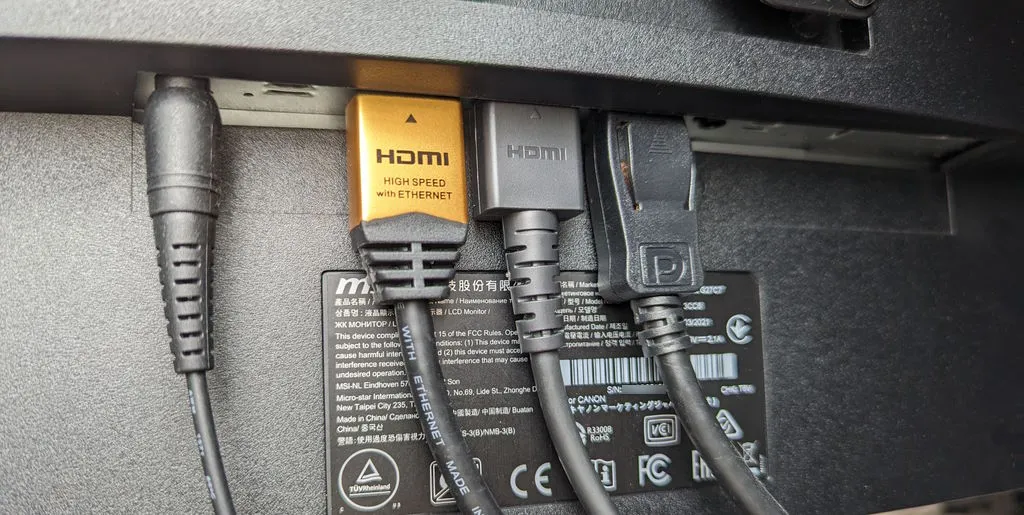
Listen and watch as the PC starts. Fans that spin, lights that glow and a keyboard that responds suggest the PC boots but sends no picture.
Run the one test that splits the problem in two. Restart and try to reach Safe Mode. Hold Shift and click Restart from the login screen, then pick Troubleshoot, Advanced options, Startup Settings, Restart, and press 4 or F4. Safe Mode loads Windows with a basic display driver and skips the full graphics driver. If Safe Mode shows a picture, the hardware can still produce basic output, so the fault sits in the full driver or its settings. If Safe Mode is also black, the fault sits in the monitor, cable, power or hardware. If your PC has integrated graphics, plug the monitor into the motherboard port. A picture there narrows the fault to the discrete card, its power or its driver.
| What you see | Likely fault | Go to |
|---|---|---|
| Logo shows, then black in Windows | Driver or display mode | Safe Mode and DDU steps |
| Never any picture, not even the logo | Hardware, power or cable | Cable, seating and power steps |
| "No signal" on the monitor | No video output at all | Cable, port and BIOS steps |
| Safe Mode has a picture, normal mode is black | Full driver problem | DDU clean and fresh driver |
| Safe Mode black, integrated graphics has a picture | Discrete card output or power | Hardware and BIOS steps |
| Black screen with a cursor after login | Driver handover or display mode | Safe Mode, then driver clean |
Black screen after installing new GPU: the five-minute checks
Do these before you open the case. First, check the monitor cable. It must plug into the new graphics card's HDMI or DisplayPort sockets, not the motherboard's. This is the most common mistake after a GPU swap, and it takes ten seconds to fix. Move the cable, then restart.
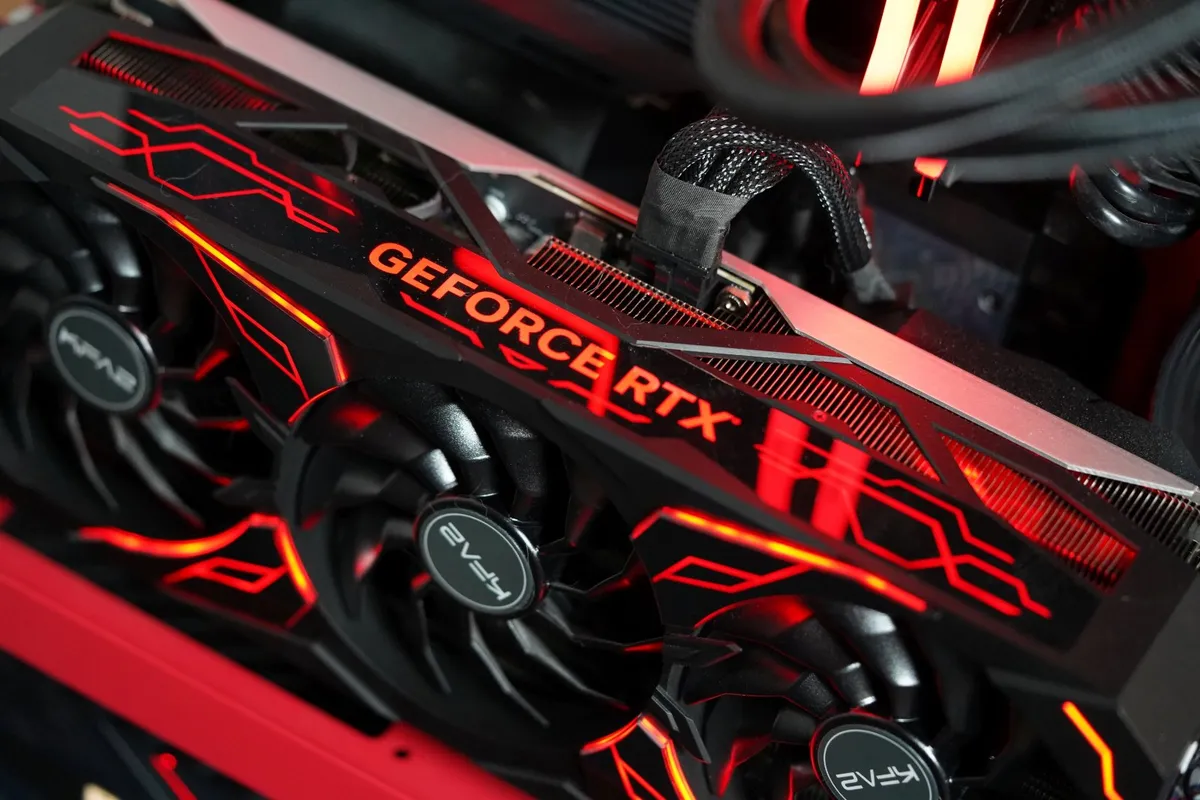
Second, try a different cable and a different port on the card. A faulty cable or one bad port can cause a black screen on a healthy card. Also check the monitor's input setting. Press the input button and pick the right HDMI or DisplayPort input by hand, because some monitors do not switch on their own.
Third, check the power connectors. Power off, open the case, and push each PCIe power connector firmly until it clicks. A card with two sockets needs both filled. A card with one connector filled may spin its fans yet show no display. Use cables that run straight from the power supply, not splitters or adapters. If your supply lacks the right cables, check whether it meets the card's needs with our guide to how many watts your PC needs.
Fourth, reseat the card. Power off, flip the supply switch to off, and unplug the cord. Undo the bracket screws, press the PCIe latch, and pull the card straight out. Then push it back into the top PCIe x16 slot firmly and evenly until the latch clicks shut. Screw the bracket in, because a sagging card can lose contact. If the screen stays black, try a second x16 slot to rule out a faulty slot.
Fix the BIOS: display output and old settings
The BIOS is the firmware that starts your PC before Windows loads. It decides which graphics device gets the display. If it still points at integrated graphics, your new card gets no picture. Enter the BIOS with Delete, F2 or F10 at boot. Menu names vary by board maker, so use these as a guide.
Set the primary display to PEG, PCIe, Discrete or External GPU. If the setting says Auto or iGPU, the board may send the display to integrated graphics and ignore your card. Set integrated graphics to Disabled or Auto, never Forced. Save with F10 and restart.
If the settings look right and the screen is still black, clear the CMOS. That resets every BIOS setting to factory defaults. Power off, unplug the cord, and either remove the small coin battery for a minute or short the clear-CMOS pins as your board manual shows. A stray setting such as a disabled slot or a bad overclock can block the new card even when the hardware is fine.
One more BIOS check helps with new cards. Older boards may need a BIOS update to start a new-generation card. A board set to legacy CSM boot can fail with cards that need UEFI. Look for a CSM setting under Boot and set it to Disabled for UEFI boot, unless your system needs legacy mode for another reason. If the card still shows nothing after these steps, the fault is not the BIOS.
Fix the driver: Safe Mode and a DDU clean install
Old drivers cause most black screens after a GPU swap. If you moved from an AMD card to NVIDIA, or the other way round, the old driver files can clash with the new card. Windows may load the wrong driver, or the new driver may inherit settings the monitor cannot show, such as a refresh rate outside its range. The screen goes black, yet the PC keeps running behind it.
The fix is a clean driver reinstall with Display Driver Uninstaller, known as DDU. Download DDU and the new GPU driver first, on another PC or before the swap, because Safe Mode may have no internet. Boot into Safe Mode: hold Shift and click Restart, then pick Troubleshoot, Advanced options, Startup Settings, Restart, and press 4 or F4. Safe Mode loads with a basic display driver, so the screen will look large and plain. That is normal, and it is exactly what you need.
Run DDU in Safe Mode, pick GPU and your card's brand, then click Clean and restart. DDU removes driver files, folders and registry entries that a normal uninstall leaves behind. The screen may go black briefly during the clean. That is normal too. After the restart, install the fresh driver from the card maker's site, not from Windows Update. Then restart once more and check that the display is sharp and the card shows by name in Device Manager.
If the black screen returns right after the driver install, the driver may have set a display mode the monitor cannot show. Boot into Safe Mode again and open the display settings. Set the resolution and refresh rate to values your monitor supports, such as 1920x1080 at 60Hz. Then restart normally and raise them step by step. A monitor that shows "out of range" is not broken: it is receiving a mode outside what it can display.
| Fix, in order | What it rules out | Sign it worked |
|---|---|---|
| Move the monitor cable to the new card | Wrong output port | Picture appears |
| Try a different cable, port and monitor input | Faulty cable, port or input | Picture appears |
| Reseat the card, fill every power connector | Loose card, missing power | Logo shows at boot |
| Set BIOS primary display to PEG or PCIe | Output sent to integrated graphics | BIOS shows on the new card |
| DDU clean in Safe Mode, fresh driver | Old or clashing drivers | Normal boot shows a sharp display |
When the fault is power or the card itself
Some black screens survive every cable, BIOS and driver step. Then the fault is power or the card. Check the power supply first. A new card that draws more power than the old one can trip a weak supply. The symptom is a black screen with fans that spin briefly and stop. Try a second power supply if you can borrow one, or test the card in a second PC. A card that works in a second PC proves your supply or board is at fault. A card that fails there too proves the card is at fault.
Check for Code 43 after a driver install. Open Device Manager, expand Display adapters, and look for a yellow warning icon on your card. Code 43 means the driver told Windows the device failed, which points at a driver or power fault. If Code 43 returns after a proper DDU clean and a fresh install, the fault is hardware, not software. Our guide on low GPU usage with low FPS covers the usage checks that help confirm a hardware fault.
Do not ignore heat and smell. A card that grows very hot with no display, or a smell of burning from the card, means stop and unplug the PC. Do not keep testing a card that smells burnt. Keep your receipt and warranty papers, because most cards carry at least two years of cover. A black screen alone does not damage the rest of your PC. Our guide on whether a bottleneck can damage your PC explains why a faulty part is a performance problem, not a danger to other parts.
How to avoid this next time you swap a GPU
The best fix is the one you never need. Before your next swap, clean the old drivers first. With the old card still installed, boot into Safe Mode, run DDU, and pick Clean and shutdown. Then swap the card with the PC fully off, and install the new driver fresh on first boot. That order removes the clash that causes most post-swap black screens.
Also check the simple things before you buy. Confirm the card fits your case, your power supply has the right connectors, and your monitor supports the resolution and refresh rate you want. Our guide on how to fix a GPU bottleneck without upgrading covers the settings that keep a new card fast once it works. Once the new card works, check the balance of your build on the bottleneck calculator. And if your new card runs but games stutter, read our guide on thermal throttling vs bottleneck to tell heat limits from balance limits.
The bottom line on a black screen after installing new GPU hardware
A black screen after installing new GPU hardware is a search with a clear order. Work through cable and port, seating and power, BIOS display output, then Safe Mode and a DDU clean install. Safe Mode is the test that splits the problem in two, and the driver clean is the fix that ends most cases. If the screen stays black after every step, test the card in a second PC before you call it dead. Change one thing at a time, write down what you tried, and the fix will show itself. Check your pair on the CPU bottleneck calculator before your next upgrade.
Frequently asked questions
Why is my screen black after installing a new GPU?
The most common causes are the monitor cable in the motherboard port, a card that is not fully seated, a missing PCIe power connector, or old drivers clashing with the new card. Check the cable and power first, then test Safe Mode: a picture there means the fault is the driver.
How do I fix a black screen after a GPU upgrade?
Work in order: move the monitor cable to the new card, reseat the card until the latch clicks, fill every power connector, and set the BIOS primary display to PEG or PCIe. Then boot into Safe Mode, run DDU to clean old drivers, and install the new driver fresh.
What is DDU and how does it fix a black screen?
DDU is Display Driver Uninstaller, a free tool that removes every trace of GPU drivers, including files and registry entries a normal uninstall leaves behind. Run it in Safe Mode, pick your card's brand, click Clean and restart, then install a fresh driver. It fixes black screens caused by leftover or clashing drivers.
My new GPU fans spin but there is no display. Is the card dead?
Not yet. Fans spinning only proves the card gets some power, not that it works. Check the monitor cable, reseat the card, fill every power connector, and test Safe Mode. The card is likely dead only if it fails in a second PC too, or if Code 43 returns after a DDU clean and fresh install.
How do I boot into Safe Mode with a black screen?
From the login screen, hold Shift and click Restart, then pick Troubleshoot, Advanced options, Startup Settings, Restart, and press 4 or F4. If you cannot reach the login screen, interrupt the boot three times in a row to trigger Windows Recovery, then follow the same path to Startup Settings.
Can old drivers cause a black screen with a new GPU?
Yes, old drivers are the most common cause after a brand swap, such as AMD to NVIDIA. Leftover files and settings can clash with the new card or set a display mode the monitor cannot show. Clean the old drivers with DDU in Safe Mode before installing the new card's driver.
Should I update my BIOS for a new GPU?
Only if the card still shows nothing after the cable, seating, power and driver steps. Some older boards need a BIOS update to start a new-generation card, and a board set to legacy CSM boot can fail with cards that need UEFI. Check your board maker's site for the update and follow its instructions exactly.
How this guide was prepared
We checked several 2026 repair guides and vendor support playbooks for black screens after GPU installs. We kept only steps that appear in more than one source. BIOS menu paths vary by maker, so we name the setting and give the common locations. No error codes are listed beyond Code 43, which sources name directly.
Last updated: November 10, 2026