
Key takeaways
- SolidWorks modelling, rebuilds, and mates run mostly on one CPU core, so clock speed beats core count.
- The GPU drives the viewport, RealView graphics, and large-assembly rotation, not the rebuild itself.
- RealView needs a certified workstation GPU, and it is off by default on consumer GeForce cards.
- Simulation solving and Visualize rendering are the exceptions, because they use many cores or the GPU.
- A good SolidWorks PC pairs a high-clock processor with 32GB of memory and a certified graphics card.
How SolidWorks uses your CPU and GPU
SolidWorks is built on a parametric, history-based model. Each feature in the tree depends on the one before it, so when you change a sketch, the software must recalculate each feature in order. That chain cannot be split across cores, which is why modelling is single-threaded.
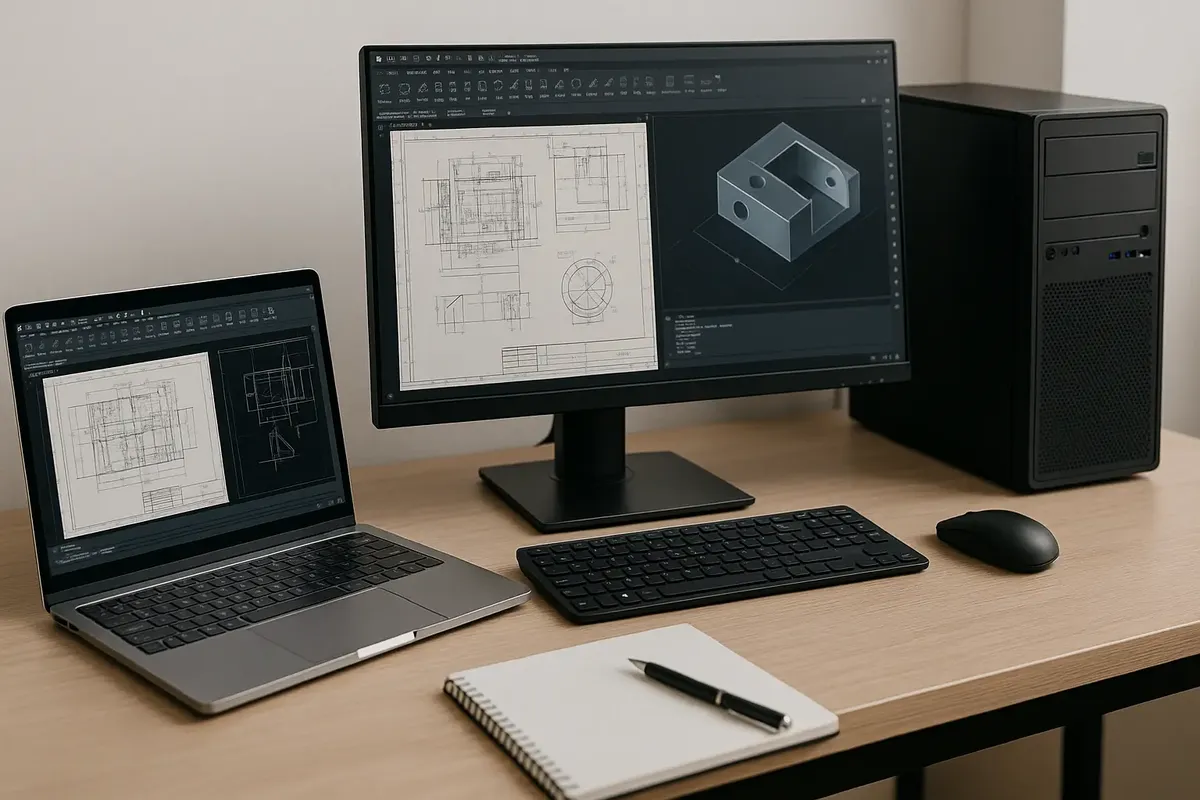
A single-threaded task is a task that runs on one CPU core, no matter how many cores your chip has. Modelling, rebuilds, mates, and drawing views are single-threaded in SolidWorks. So a chip running at 5.5 GHz rebuilds faster than a 64-core server chip at 2.5 GHz. The server chip has far more cores, but they do not help here.
The GPU handles a narrower set of jobs. It draws the viewport, rotates large assemblies, and powers RealView graphics with materials, reflections, and shadows. It also runs SolidWorks Visualize, the ray-traced renderer. The GPU cannot speed up a rebuild, because the rebuild never reaches it.
The one rule that decides your purchase
Buy clock speed first if you model parts all day. A high boost clock on a modern 8-core chip beats a slower chip with twice the cores. More cores help only with the few tasks that split across them, such as simulation solving and rendering. For daily modelling, frequency is the upgrade that you feel. If you are unsure which part limits you, check your pair on the GPU bottleneck calculator first.
Which SolidWorks tasks use the CPU, and which use the GPU
The table below maps each common task to the part that drives it. Use it to find your own bottleneck: if the slow task is in the CPU column, a new graphics card will not help.
| Task | Main driver | Graphics card impact |
|---|---|---|
| Part modelling and rebuilds | CPU, single core | Low |
| Sketches, mates, and features | CPU, single core | Low |
| Opening files and drawings | CPU, single core, plus storage | Low |
| Viewport rotation and pan | GPU | High |
| RealView graphics and shadows | GPU | High |
| Large assemblies over 1,000 parts | GPU and memory | High |
| Simulation solving (FEA) | CPU, many cores, plus memory | Low to moderate |
| SolidWorks Visualize rendering | GPU, plus memory | Very high |
If your rebuilds take long but rotation feels smooth, your processor is the limit. If rotation stutters but rebuilds are quick, your graphics card or driver is the limit. If the whole program freezes when you open a file, check memory and storage first. Our guide on how to check for a CPU bottleneck shows the steps to test your own PC.
SolidWorks CPU vs GPU bottleneck: why clock speed beats core count
A SolidWorks CPU vs GPU bottleneck confuses many buyers, because the spec sheet for a workstation chip lists cores first. For modelling, cores are the wrong number to chase. The feature tree forces the software to work through one core, so the speed of that one core sets your pace.
Think of a rebuild as a chain of sums. Each sum needs the answer from the one before it, so two cores cannot work on two sums at the same time. A faster core finishes the chain sooner. A slower core with 63 friends still finishes it at its own pace.
That is why guides recommend a processor with a boost clock above 4.5 GHz. Add 8 to 16 cores for the tasks that do split across them. An Intel Core i7 or i9 from the 13th or 14th generation fits that band. A Ryzen 7 or 9 from the 7000 or 9000 series fits it too. Current hardware guides for SOLIDWORKS 2026 name the same families: Intel Core i7 or i9, or AMD Ryzen 7 or 9, with high boost clocks.
Where more cores do help
More cores help with SolidWorks Simulation, which splits stress, thermal, and fluid studies across many threads. They also help with Visualize CPU rendering, batch drawing exports, and background tasks. If you run simulations daily, buy a chip with both a high clock and enough cores, rather than one or the other. If you only model parts, spend the money on clock speed and memory instead.
Where the GPU actually matters in SolidWorks
The GPU matters most in the viewport. Rotation, panning, and zooming in a large assembly all run on the graphics card. RealView graphics, which shows live materials, reflections, and ambient occlusion, also runs on the GPU. Turn RealView off during modelling if rotation feels slow, and turn it on only for visual checks.
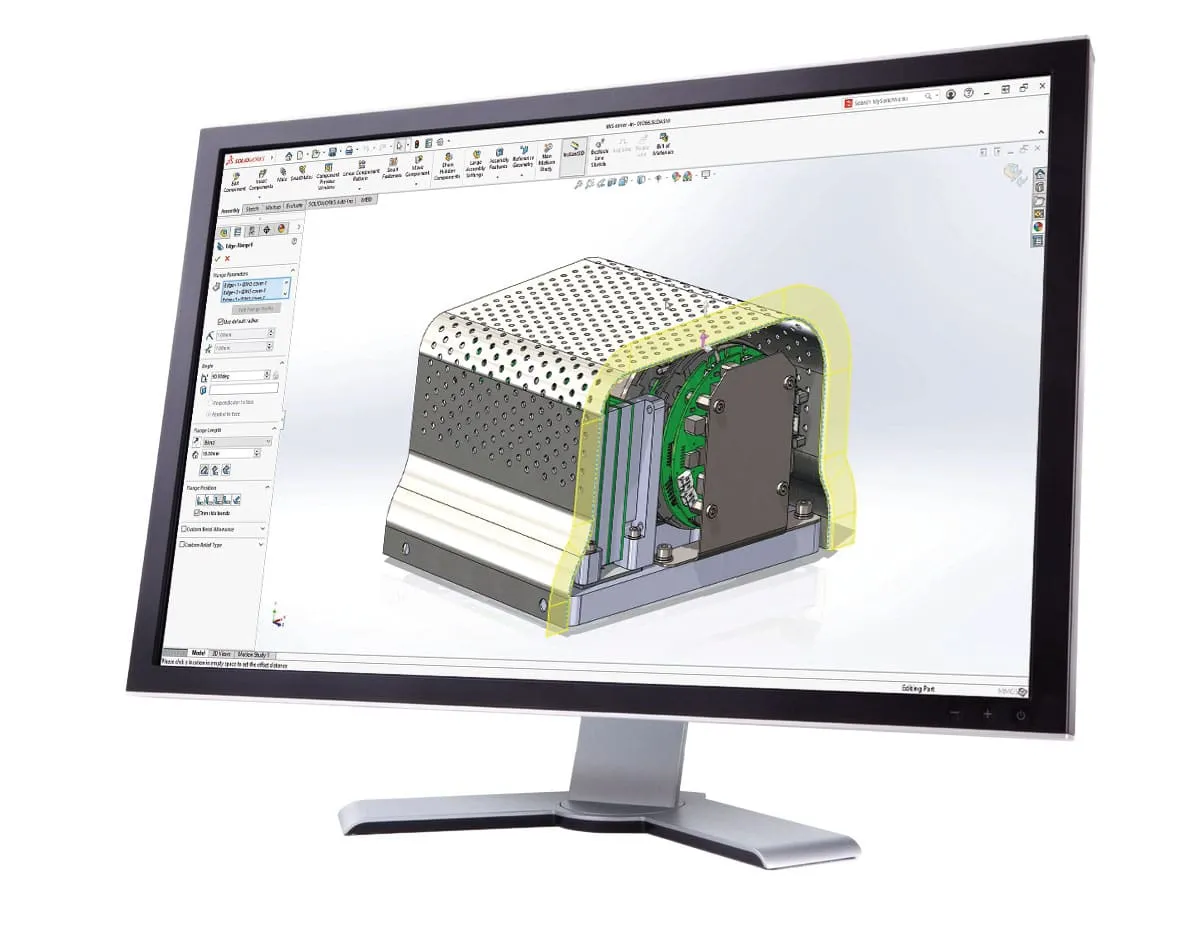
RealView is a SolidWorks display mode that shows realistic materials, self-shadowing, and reflections live in the viewport. It needs a certified workstation GPU and driver. On a consumer GeForce card, RealView is off by default, and SolidWorks support will not help with graphics issues on uncertified hardware.
Certified means the card and driver were tested together by Dassault Systemes and the card maker for that SolidWorks version. A certified GPU gives you RealView, enhanced OpenGL features, and support coverage. A consumer card gives you raw speed in Visualize rendering, but no RealView and no certified driver.
Certified versus consumer cards
Workstation cards such as the NVIDIA RTX Ada series use drivers tuned for OpenGL and certified for SolidWorks. Consumer GeForce cards use drivers tuned for games. For parts and assemblies under about 1,000 components, a modest workstation card is enough, because the processor is the limit anyway.
For Visualize rendering, the story flips. Visualize scales with graphics power, and a high CUDA-count consumer card can beat a modest certified card at that one job. So the right card depends on your mix: modelling all day points to a certified card, while heavy Visualize work points to raw graphics power. Check the CPU and GPU balance guide for video editing and 3D rendering for the rendering side in more detail.
Memory, storage, and settings that fix slow SolidWorks
Memory is the third part of the story, and it is often the real limit in large assemblies. Dassault Systemes lists 16GB as the minimum for SolidWorks, with 32GB strongly recommended. Large assemblies, simulation studies, and Visualize all use memory heavily, and a full drive slows file opening too.
Keep your models on a fast NVMe SSD, not a hard drive. Opening a large assembly from a slow drive can take minutes, and no processor or graphics card can fix that. Leave free space on the drive, because a full drive slows saving as well. Our guide to whether RAM causes a bottleneck explains the memory side in more detail.
Settings help too. Turn on Enhanced Graphics Performance, which uses OpenGL 4.5 to move edge drawing to the GPU. Turn off RealView and shadows while you model, and turn them on only for checks. Use lightweight mode for large assemblies, and open drawings in a simplified state when you only need one view. Our guide to thermal throttling versus a real bottleneck helps when a laptop slows down under sustained CAD load.
A simple diagnosis table
Use the table below to match your symptom to the likely cause, then fix that part first.
| Symptom | Likely cause | Fix first |
|---|---|---|
| Rebuilds take 30 seconds or more | CPU single-core speed | Faster clock speed, fewer features per rebuild |
| Rotating an assembly stutters | GPU or driver | Certified driver, turn off RealView, check GPU load |
| Opening a drawing locks the program | Memory or storage | 32GB memory, NVMe SSD, simplified drawing mode |
| Simulation solving is slow | CPU core count and memory | More cores, more memory, check solver settings |
| Visualize renders are slow | GPU power and memory | Stronger GPU, more memory, check render settings |
What to buy for SolidWorks in 2026
Buy in this order: a high-clock processor, 32GB of memory, a fast NVMe SSD, and then a certified graphics card that suits your assembly size. That order answers the SolidWorks CPU vs GPU bottleneck question for most buyers. A flagship graphics card bought before the processor is money spent on the wrong part.
Check your current balance with the free bottleneck calculator before you buy. Then read how to tell a CPU bottleneck from a GPU bottleneck to confirm which part limits you today. If you also game on the same PC, remember that gaming and CAD want different things. A card that is great for one may be uncertified for the other.
Frequently asked questions
Is SolidWorks CPU or GPU heavy?
SolidWorks is mostly CPU heavy, because modelling, rebuilds, mates, and drawings run on one CPU core. The GPU matters for the viewport, RealView graphics, and Visualize rendering, but it cannot speed up a rebuild. So a slow rebuild points to the processor, while slow rotation points to the graphics card.
Why does clock speed beat core count in SolidWorks?
Clock speed beats core count in SolidWorks because the feature tree forces the software to recalculate features one after another on a single core. Extra cores cannot help with that chain, so a faster core finishes sooner. More cores help only with simulation solving, rendering, and background tasks that split across threads.
Do I need a certified GPU for SolidWorks?
You need a certified GPU for SolidWorks if you want RealView graphics, enhanced OpenGL features, and support coverage from Dassault Systemes. A consumer GeForce card still runs the viewport and excels at Visualize rendering. RealView stays off by default, and support will not help with graphics issues on uncertified hardware.
How much RAM does SolidWorks need?
SolidWorks needs at least 16GB of memory, with 32GB strongly recommended for large assemblies, simulation, and Visualize work. Memory runs short when you open large assemblies or run studies, and the program slows down or freezes. Add memory before you add graphics power if file opening is your problem.
Does a better GPU make SolidWorks rebuilds faster?
A better GPU does not make SolidWorks rebuilds faster, because rebuilds run on one CPU core and never reach the graphics card. A better GPU helps rotation, RealView, and Visualize rendering, but not modelling speed. If rebuilds are slow, buy a faster processor, not a faster card.
Does SolidWorks use more CPU cores or higher clock speed?
Higher clock speed matters more for most SolidWorks work. Modelling and assemblies run on one or two cores, so a fast 8-core chip beats a slower 16-core chip. More cores help only for rendering and simulation, where the work splits across threads.
Why is my SolidWorks slow even with a good GPU?
Your SolidWorks is slow even with a good GPU because the processor, memory, or storage is the limit, not the graphics card. Check rebuild times, memory use, and drive speed first. Turn off RealView during modelling, turn on Enhanced Graphics Performance, and use lightweight mode for large assemblies before you blame the card.
How this guide was prepared
This guide was prepared from verified SolidWorks hardware guides on single-threaded modelling, RealView certification, simulation multi-core use, and memory guidance, checked in November 2026. No benchmark figures or test results are claimed, because no hardware was tested by us. Model families follow current hardware guides for SOLIDWORKS 2026; Dassault Systemes itself lists the characteristics (high single-core speed, enough cores) rather than one exact model.
Last updated: November 10, 2026