Key takeaways
- A DAW must finish each audio chunk before a strict deadline, so a missed deadline sounds like a click or a dropout.
- Buffer size is the main control: small buffers cut latency but load the processor, while large buffers ease the load but add delay.
- Start at 128 samples for recording and 512 or 1024 samples for mixing, then adjust from there.
- Use the audio interface maker's own driver, not the generic Windows driver, for stable low-latency recording.
- Freezing a track turns a heavy live instrument into plain audio, which frees the processor at once.
What a music production CPU bottleneck really is
A music production CPU bottleneck happens when your processor cannot finish its audio work before the next chunk is due. Real-time audio has no patience. Your DAW must process each chunk of sound and send it to your speakers on time, every time.
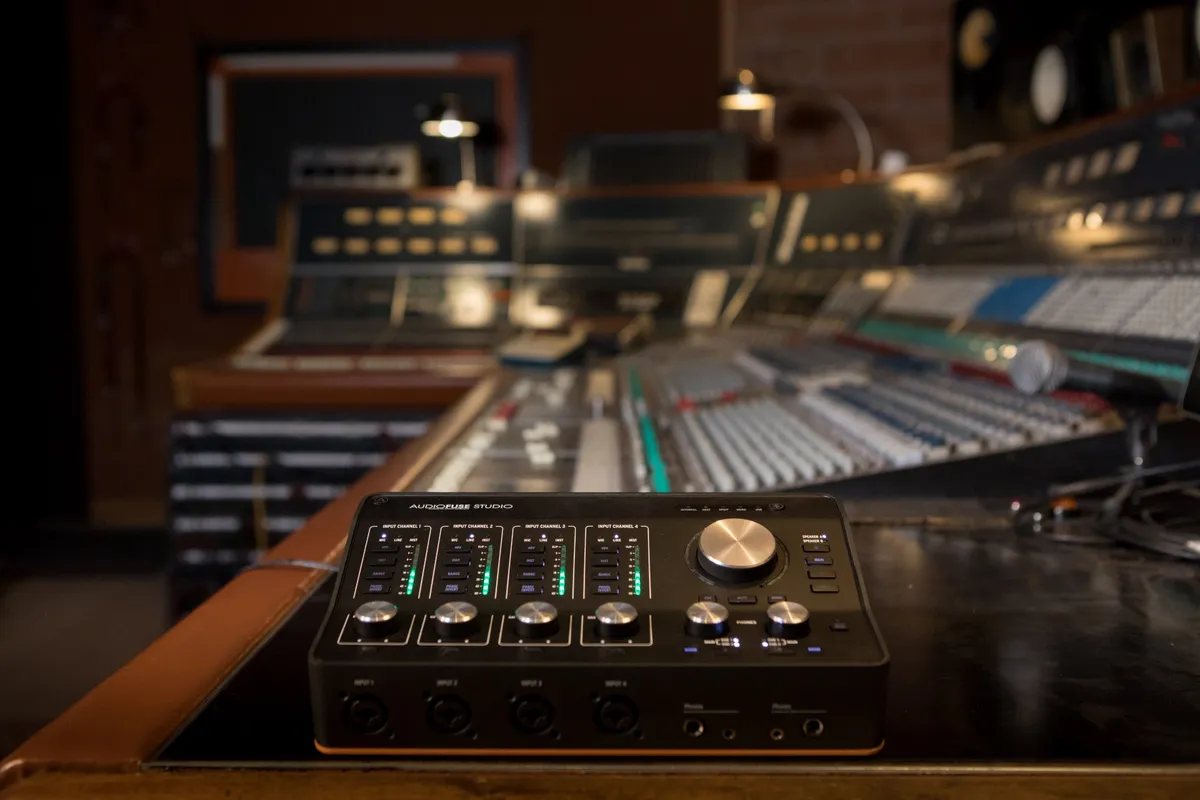
A buffer is a small block of audio that your computer processes at once before sending it to your speakers. Buffer size is the number of samples in that block. A 128-sample buffer at 44.1 kHz gives about 2.9 milliseconds of delay, while a 1024-sample buffer gives about 23 milliseconds.
Latency is the delay between playing a note and hearing it back through your speakers. It comes from the buffer, the converters, and the plugins on the track. Low latency feels natural, while high latency throws off your timing.
Why your DAW meter can mislead you
Your DAW meter shows plugin load, but it hides the rest of the system. Email sync, cloud backups, antivirus scans, and updates all compete for processor time. A single background task can cause a dropout even when the meter looks calm.
Driver delays cause the same problem. DPC latency describes how long Windows drivers can hold up time-sensitive work. A slow graphics, network, or USB driver can block audio for a moment, even when the processor meter looks normal. That is why a DAW can glitch on a fast computer with a bad driver.
How buffer size controls latency and dropouts
Buffer size is the first control to learn, because it trades latency against processor load. A small buffer gives the processor less time per chunk, so it works harder. A large buffer gives it more time, so it works less hard, but you hear more delay.
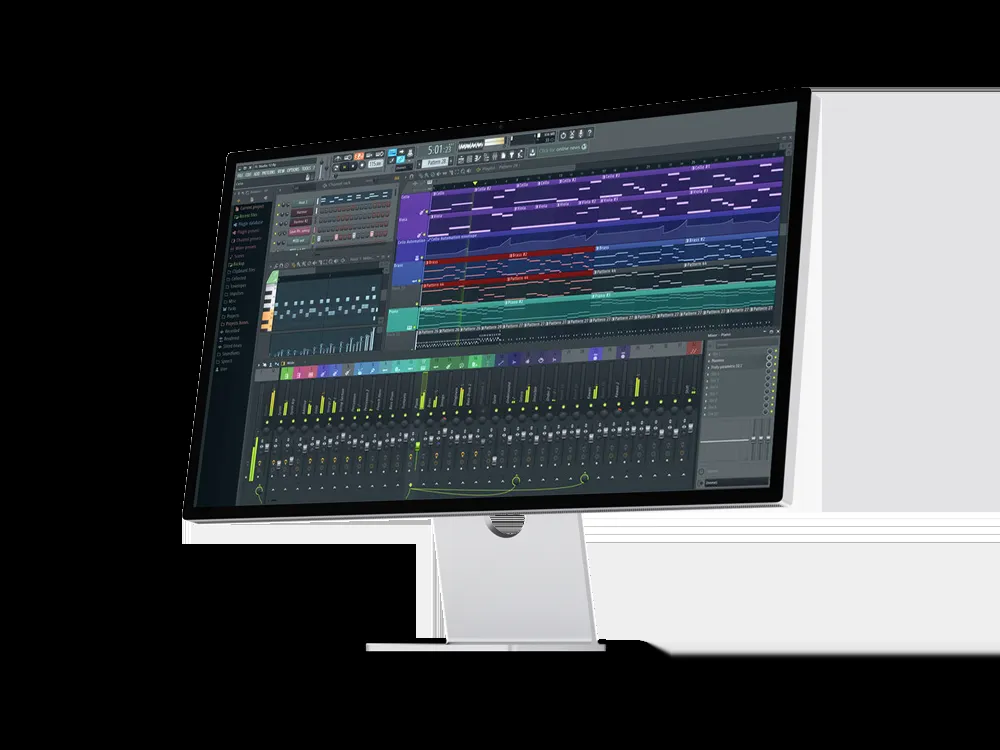
The math is simple: buffer latency in milliseconds equals buffer size divided by sample rate, times 1000. At 44.1 kHz, 64 samples give about 1.5 milliseconds, and 128 samples give about 2.9 milliseconds. At the same rate, 256 samples give about 5.8 milliseconds, and 1024 samples give about 23 milliseconds. Real latency is higher, because converters add about 1 to 3 milliseconds on top.
The table below shows the usual starting points for each job. Treat them as starting points, not as rules, because every project and interface differs.
| Job | Starting buffer size | One-way buffer latency at 44.1 kHz | Processor load |
|---|---|---|---|
| Live vocal or instrument tracking | 64 to 128 samples | About 1.5 to 2.9 ms | High |
| Overdubs with a few plugins | 128 to 256 samples | About 2.9 to 5.8 ms | Moderate to high |
| Mixing a dense project | 512 to 1024 samples | About 11.6 to 23 ms | Low |
| Mastering or editing | 1024 samples | About 23 ms | Low |
How to find your stable buffer size
Start at 128 samples for recording, listen for clicks, and raise the buffer one step to 256, then to 512, if you hear glitches. If the glitches stop at 512, that is your stable size for that project.
For mixing, raise the buffer to 512 or 1024 samples at once, because mixing does not need instant response and the extra delay costs nothing. The extra processor room lets you run dense plugin chains without dropouts. Change the buffer between sessions without fear, because it does not change your recorded audio quality.
A music production CPU bottleneck fix that costs nothing
Most DAW dropouts are fixed with settings, not hardware. Work through the list below in order, and test after each step. Stop when the dropouts stop.
First, set your DAW to the audio interface maker's own ASIO driver on Windows, or Core Audio on a Mac. ASIO is a low-latency driver standard that lets your DAW talk to the interface without extra Windows layers. Generic drivers add delay and cause dropouts. Never use the basic Windows sound driver for recording.
Second, match the sample rate everywhere. Set the same rate in your DAW, your interface panel, and your system settings. A mismatch between 44.1 kHz and 48 kHz can cause glitches. For most music, 44.1 kHz or 48 kHz is enough.
Third, freeze heavy tracks. Freezing turns a live instrument and its plugins into a plain audio file. The processor load for that track drops to almost nothing, and you can unfreeze it later. Freeze the biggest virtual instruments first.
Fourth, set your power plan to high performance. A balanced plan can slow the processor at the wrong moment, which causes a dropout. On a laptop, plug in the charger before a session. If your laptop slows down under sustained load, read thermal throttling versus a real bottleneck to tell the two apart.
Fifth, close background apps and pause cloud sync during a session. Each one steals processor time and disk access, and disk access can halt audio for a moment. Our guide to streaming and recording bottlenecks covers the same background-load problem from the video side.
When drivers are the real problem
If the steps above do not help, test with LatencyMon, a free tool that checks whether your Windows system can handle real-time audio. Run it for 10 to 15 minutes while your DAW plays a real project. It names the drivers that cause the longest delays.
Common culprits are graphics drivers, network adapters, and USB controllers. Update the audio interface driver and firmware first, then the chipset driver, then the graphics driver. Connect the interface to a rear motherboard USB port, not a hub, and turn off USB selective suspend in power settings. If one driver keeps causing spikes, check the maker's forum for a known fix before you replace hardware.
When the processor really is too weak
Sometimes the processor is the limit. The signs are clear. Dropouts continue at 1024 samples, the DAW meter stays high with few tracks, and freezing most tracks is the only way to play. In that case, a faster processor helps, but clock speed matters more than core count for live audio.
Live audio runs on a single chain of work, so one fast core beats many slow cores for tracking. A processor with strong single-core speed handles low buffers better than a many-core chip. For mixing, more cores help, because the DAW can spread tracks across them. Buy for your main job: tracking needs clock speed, while heavy mixing needs cores too.
Memory also matters. Large sample libraries load into RAM, and a full drive slows sample loading. Keep your sample libraries on a fast SSD. Our guide to whether RAM causes a bottleneck explains the memory side.
A simple upgrade order for DAW work
First, fix drivers and buffer size, because they cost nothing. Second, freeze tracks and trim the plugin chain, because that frees the processor at once. Third, add memory or move samples to a fast SSD if loading is slow. Fourth, replace the processor only when dropouts continue at large buffers with a clean system. Check how to tell a CPU bottleneck from a GPU bottleneck before you spend, because the test is the same idea in games. Also check your pair on the CPU bottleneck calculator to see which part limits your whole PC.
DAW latency by task: a quick reference
The table below sums up the workflow in one place. Use it as a checklist at the start of each session.
| Session stage | Buffer size | Driver check | Plugin rule |
|---|---|---|---|
| Tracking live parts | 64 to 128 samples | Maker ASIO driver, matched sample rate | Only the plugins you need to hear |
| Overdubbing | 128 to 256 samples | Same driver, same rate | Light monitoring plugins only |
| Mixing | 512 to 1024 samples | Same driver, same rate | Full chain, frozen instruments first |
| Mastering | 1024 samples | Same driver, same rate | Few plugins, all on the master bus |
For general balance checks, try the PC bottleneck calculator. It shows which part limits your whole PC. Our guide to how much RAM you need for gaming in 2026 also covers memory sizing for sample libraries. That checklist keeps a music production CPU bottleneck from ruining a session.
Frequently asked questions
What buffer size should I use for recording?
Use 64 to 128 samples for recording, because that keeps latency low enough to play in time. At 44.1 kHz, 128 samples give about 2.9 milliseconds of one-way buffer delay. If you hear clicks at that size, raise the buffer one step at a time until the clicks stop, then record at that size.
Why does my DAW crackle when the CPU meter looks low?
Your DAW crackles when the CPU meter looks low because the meter shows plugin load, not driver delays or background tasks. A slow driver can block audio for a moment, and a background task can steal processor time. Test with LatencyMon, update your interface driver, and close background apps to find the real cause.
Does a bigger buffer change my recorded audio quality?
A bigger buffer does not change your recorded audio quality at all. It only changes how much delay you hear while recording and how much time the processor gets per chunk. A vocal recorded at 1024 samples sounds the same as one recorded at 64 samples, so use a large buffer for mixing without worry.
What is DPC latency and why does it break audio?
DPC latency describes how long Windows drivers can hold up time-sensitive work, and it breaks audio because real-time sound needs steady timing. If a graphics, network, or USB driver blocks the system for too long, your DAW misses its deadline and you hear a click. LatencyMon finds the driver that causes the delay.
Does a faster CPU fix audio dropouts in a DAW?
It helps, but it is not the only fix. A faster CPU handles more plugins and tracks, yet dropouts also come from a small buffer, bad drivers, and background apps. Raise the buffer size first, close extra apps, and update your audio driver before you spend on a new CPU.
Does freezing tracks really help CPU load?
Freezing tracks really helps CPU load, because it turns a live instrument and its plugins into a plain audio file for playback. The processor no longer calculates that track in real time, so its load drops to almost nothing. You can unfreeze the track later to edit it, so nothing is lost.
What sample rate should I use for music production?
Use 44.1 kHz or 48 kHz for most music production, because those rates are standard and keep processor load low. Higher rates like 96 kHz add load and can make weak driver setups less stable, with no benefit you can hear in most projects. Match the rate in your DAW, your interface, and your system settings.
How this guide was prepared
This guide was prepared from verified DAW and audio guides on buffer size, latency math, ASIO drivers, and DPC latency, checked in November 2026. Buffer latency figures come from the standard formula of buffer size divided by sample rate, and starting buffer sizes come from the cited guides. No hardware was tested by us, and no benchmark figures are claimed.
Last updated: November 10, 2026