
Key takeaways
- The error reports a failed memory allocation, not a verified reading that VRAM ran out.
- Lower Texture Quality by one step first, since textures drive VRAM use more than resolution does.
- A too-small or switched-off pagefile can cause the error even on a card with free VRAM.
- On Intel 13th and 14th-gen CPUs, the error can come from CPU instability during shader work.
- If VRAM had room and textures change nothing, the problem is not capacity.
What out of video memory error really means
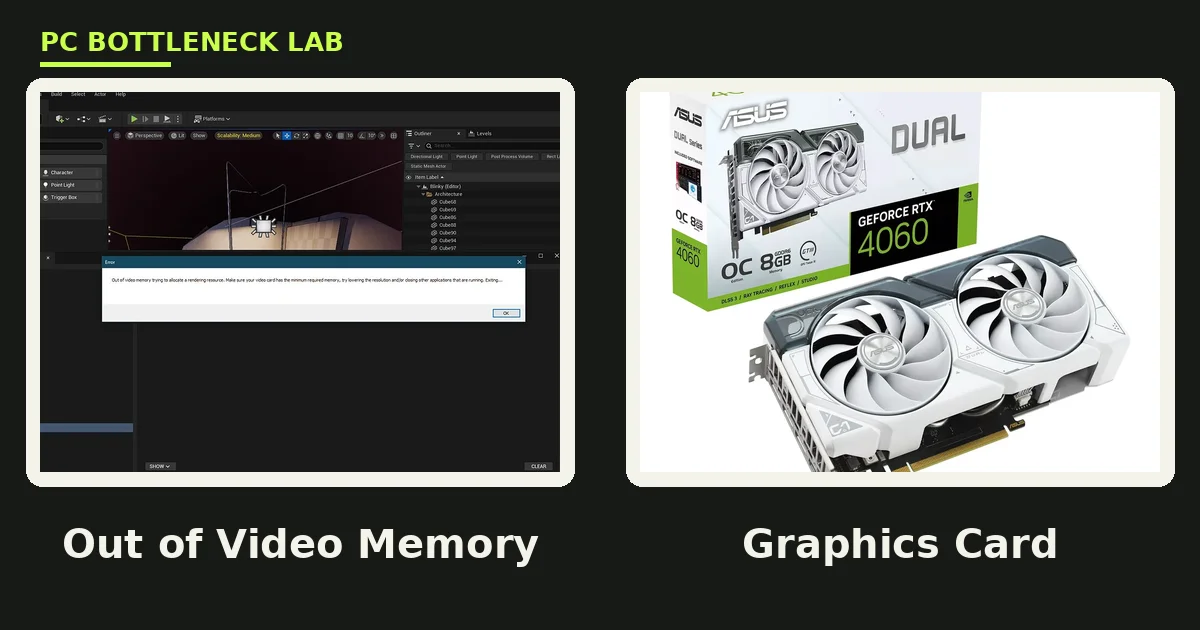
The full message in Unreal Engine games reads "Out of video memory trying to allocate a rendering resource". An allocation is a request for a block of memory for one resource, such as a high-resolution texture, and the driver cannot provide that block. The engine then prints the error and closes, yet the message blames the video card when it is not always the GPU at fault. An old driver, a too-small pagefile, and an unstable CPU can all throw the same error, even on a card with 16 GB of VRAM. Each cause breaks the allocation in a different place. Check your own pair first with the free tool: PC bottleneck calculator. For the VRAM capacity story in full, see this: VRAM bottleneck: 8GB vs 12GB vs 16GB.
| When the error appears | Most likely cause | Fix to try first |
|---|---|---|
| Mid-game, in a busy scene | VRAM truly full | Lower Texture Quality one step |
| At launch, during shader compile | Intel CPU instability | Update BIOS microcode |
| After a driver update | Bad or stale driver | DDU clean install |
| On a PC with 8 to 16 GB RAM | Pagefile too small or off | Raise virtual memory |
| Only with ray tracing on | Ray tracing structures use VRAM | Turn ray tracing off |
| VRAM had plenty of room | Allocation failure, not capacity | Clean driver, then pagefile |
The pivot test: is it really VRAM capacity
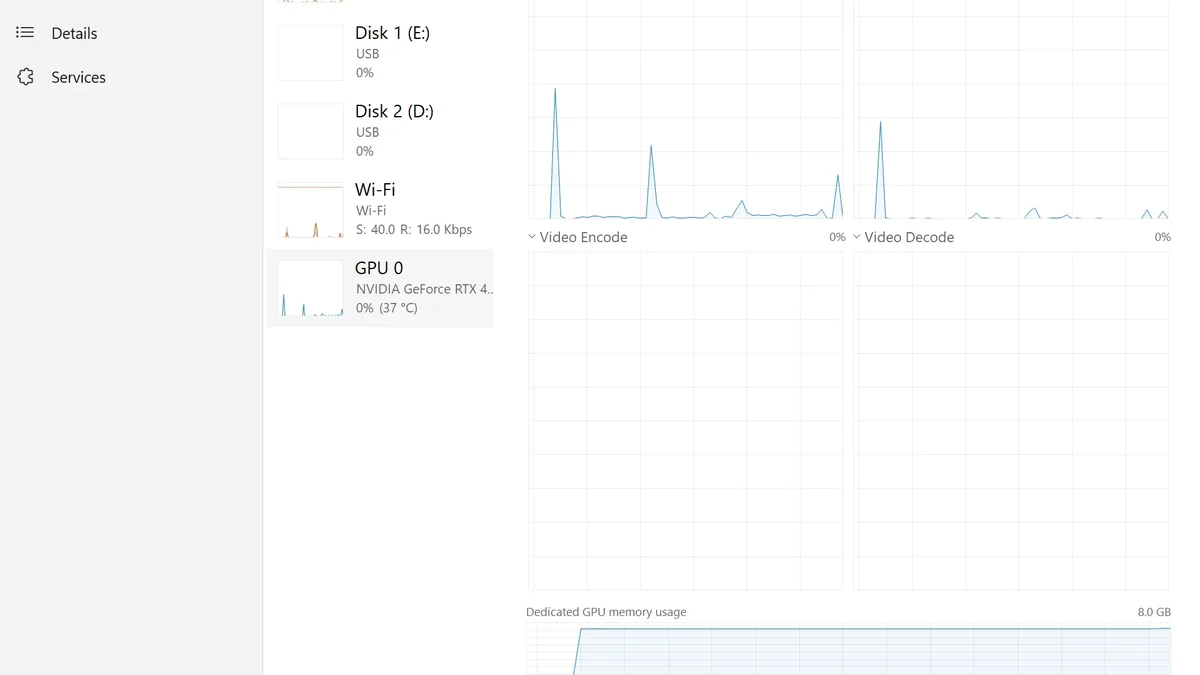
Run this test before you change anything else, since it splits the causes in two, and both conditions must hold for a real capacity problem. First, watch VRAM use at the moment the error appears by opening Task Manager, going to Performance, then GPU, and reading Dedicated GPU memory. It must sit pinned near the card limit when the game crashes, and second, lower Texture Quality by one step and play again. The error must go away after that one change, and texture quality is the setting that matters here, not resolution. If either condition fails, the problem is not capacity. This test saves you from buying a new card for a problem a new card would not fix. For the stutter angle, see this: stuttering and frame time: 1% lows explained.
Fix 1: lower Texture Quality one step
Lower Texture Quality by one step in the game video options, where the setting may also be called Texture Detail or Texture Streaming Pool Size. Drop it from Ultra to High, or from High to Medium. Textures are the biggest VRAM user in most games, so one step can free memory to stop the crash, while resolution does not shrink textures. Turn ray tracing off as well if the game uses it. Ray tracing builds acceleration structures that also eat VRAM, and they can push a full card over the edge. Lower the texture streaming pool if the game shows that option, and if the error stops after this step, the card was truly full. Keep the lower setting, or upgrade to a card with more VRAM when you can. For the VRAM versus system RAM story, see this: VRAM vs system RAM explained.
Fix 2: clean-install the graphics driver
A bad or stale driver can fail an allocation even when VRAM has room, so download the latest stable driver and save the installer. Then run DDU, short for Display Driver Uninstaller, in Safe Mode, and pick your GPU brand and click Clean and restart. After the reboot, run the saved installer in normal Windows, and on NVIDIA, pick Custom install and tick Perform a clean installation. On AMD, use the factory reset option in the installer. Do not install a beta driver for this test, since a beta can bring its own bugs, and remove any GPU overclock before you test. An unstable overclock can fail an allocation under load, and it looks just like a VRAM error. Clear the DirectX shader cache too, since a stale cache can crash the game, by opening Disk Cleanup and ticking DirectX Shader Cache. For the low-usage angle, see this: low GPU usage and low FPS: causes and fixes.
Fix 3: raise the Windows pagefile
The pagefile is the virtual memory file Windows uses when RAM and VRAM fill up. When both are full, Windows spills data to the pagefile on the storage drive. If that file is too small, or switched off, the overflow has nowhere to go, so the allocation fails and the game reports the error. This branch matters most on machines with 8 to 16 GB of system RAM. Press Win, search for View advanced system settings, and open it. Go to the Advanced tab, then Performance, then Settings, then Advanced, then Virtual memory, and click Change. If the box "Automatically manage paging file size for all drives" is ticked, leave it alone, and Windows manages the size itself. If someone set it by hand to a small size, or turned it off, fix it. Untick the box, pick the system drive, and set Initial and Maximum both to about 1.5 times your RAM in MB. That is 24576 MB for 16 GB of RAM, and 49152 MB for 32 GB. Click Set, then OK, and restart the PC.
Fix 4: the Intel 13th and 14th-gen CPU angle
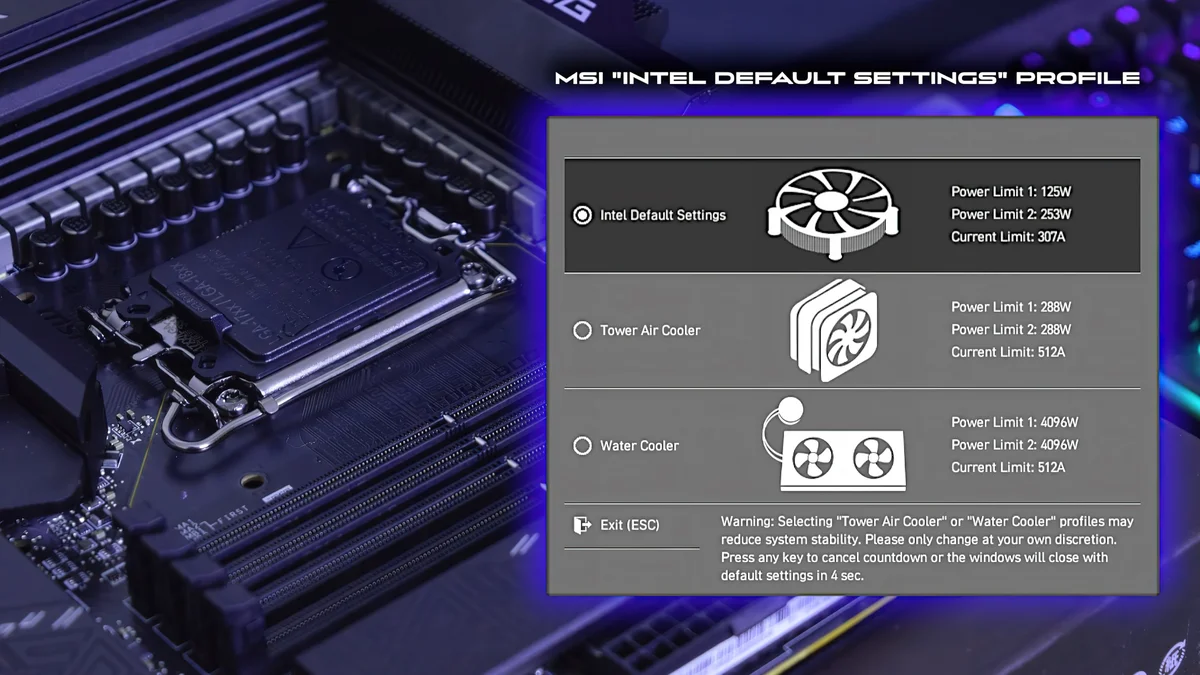
This is the most counter-intuitive branch, and it catches many people out. According to Intel and board-vendor guidance, a microcode voltage bug in these chips can make them unstable under heavy work. The instability shows up during Unreal Engine shader compilation, when the CPU decompresses shader data. That work fails, and the engine throws the same "out of video memory" message. The signs point away from the card in three ways. The crash happens during shader compilation, not during rendering. It happens on a card with plenty of VRAM free. And it gets worse over weeks, not all at once. The fix is a BIOS update, not a new GPU. Update your motherboard BIOS to the version with the 0x12B microcode or later, from your board maker's support page. After the flash, enter BIOS and load Intel Default Settings. Some boards remove power limits by default, and that keeps the instability alive. If the CPU has already degraded past the point a BIOS can fix, Intel extended the warranty to five years for affected chips. An RMA is the remedy at that stage. For the new-card black screen case, see this: black screen after installing a new GPU: how to fix it.
| Fix | When to use it | How long it takes |
|---|---|---|
| Lower Texture Quality | VRAM pinned near limit | One minute |
| DDU clean install | After driver update, VRAM had room | About 15 minutes |
| Raise pagefile | 8 to 16 GB RAM, pagefile set small | Five minutes plus restart |
| Clear shader cache | Crash at launch or after patch | Five minutes |
| BIOS microcode update | Intel 13th or 14th-gen, shader crash | About 20 minutes |
| Remove GPU overclock | Crash under load after tuning | One minute |
What to do if nothing above works
If every fix above fails, test the hardware itself, and run Windows Memory Diagnostic, since unstable system RAM can corrupt the data the driver reads. Test one RAM stick at a time if it reports errors. If no setting helps, the fault may sit in the card or the CPU. Test the card in a second PC if you can borrow one. If it crashes there too, on a clean driver, the card needs repair or replacement. If the card runs fine in the second PC, your CPU, RAM, or board needs a closer look. Before you spend on new parts, check the balance of your build on the CPU GPU bottleneck calculator.
The bottom line on out of video memory error
Out of video memory error is a failed allocation, not proof that your card ran dry. Run the pivot test first, and let VRAM use and texture quality tell you if capacity is real. Lower textures one step, clean-install the driver, and check the pagefile. On Intel 13th and 14th-gen CPUs, update the BIOS microcode and load Intel Default Settings. Most of these crashes end at one of those four fixes, and the card you own is often fine.
Frequently asked questions
What does "out of video memory" mean in a game?
It means the game asked the driver for video memory, and the driver could not provide it, which happens most in Unreal Engine games. It is a report of a failed allocation, not proof that VRAM ran out. A driver fault, a small pagefile, or an unstable CPU can throw the same error.
Why does the error appear when my VRAM is not full?
The error appears because the allocation failed, not because the card ran out of capacity. A bad driver can refuse a block even with free VRAM. A too-small pagefile leaves the overflow nowhere to go. An unstable Intel 13th or 14th-gen CPU can fail shader work and throw the same message. Check the pivot test in this guide first.
Will lowering resolution fix the out of video memory error?
Lowering resolution rarely fixes it, since textures drive VRAM use more than resolution does, so lower Texture Quality by one step instead. If that one change stops the crash, the card was truly full. Resolution helps frame rate, yet it does not shrink the textures the game loads.
How do I raise the pagefile to fix the error?
Open View advanced system settings, go to Advanced, then Performance, then Settings, then Advanced, then Virtual memory, and click Change. Untick automatic management, pick the system drive, and set Initial and Maximum both to about 1.5 times your RAM in MB. That is 24576 MB for 16 GB of RAM. Click Set, then OK, and restart.
Can an Intel CPU really cause a video memory error?
Yes, according to Intel and board-vendor guidance, a microcode voltage bug in 13th and 14th-gen CPUs can cause it. The instability shows up during Unreal Engine shader compilation, when the CPU decompresses shader data. Update the motherboard BIOS to the 0x12B microcode or later, then load Intel Default Settings in BIOS.
Do I need a new graphics card to fix this error?
Usually not, since most cases end at textures, the driver, the pagefile, or the CPU fix. Buy a new card only if the pivot test proves capacity is real, with VRAM pinned near the limit and lower textures stopping the crash. If the error appears with VRAM free, a new card would show the same error.
How this guide was prepared
This guide uses the out of video memory fix documented by Tier1Settings, and the allocation-failure pivot test comes from DisplayCard Repair. The Intel 13th and 14th-gen microcode angle comes from Intel and board-vendor guidance, as reported by Tier1Settings. No VRAM use figure per game is claimed, since none is measured here.
Last updated: November 12, 2026