Key takeaways
- A DDR5-6000 kit boots at 4800 MT/s by design, since the rated speed is a profile, not the default.
- XMP is the Intel profile name, and EXPO is the AMD profile name for the same job.
- Enabling the profile takes about a minute in BIOS, and you pick Profile 1.
- CPU-Z shows half the rated speed in MHz, so 3000 MHz means 6000 MT/s is working.
- Four sticks run slower than two, and a failed first boot is usually memory training, not a dead kit.
Why your RAM runs at the wrong speed
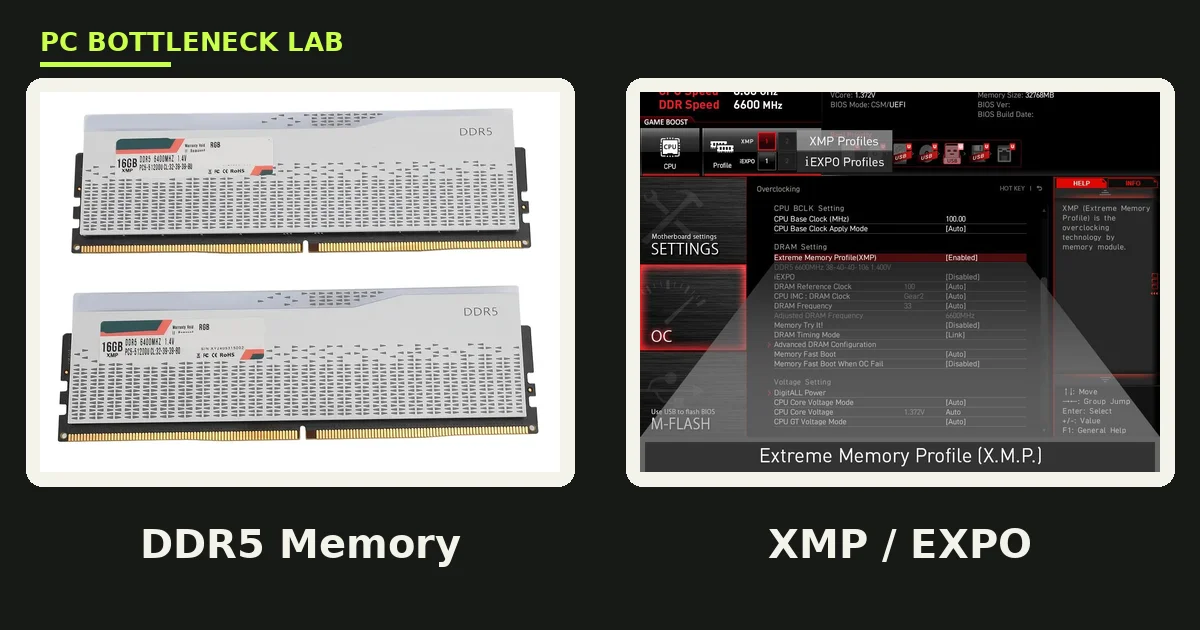
Your RAM is not broken, and the box is not lying, since every DDR5 kit boots at a JEDEC default speed first. JEDEC is the standards body that defines baseline speeds every compliant module must support, and for DDR5, that baseline is usually 4800 MT/s. The speed on the box is a factory-tested overclock, stored on the stick as a profile. XMP stands for Extreme Memory Profile, and it is the Intel name for the profile. EXPO stands for Extended Profiles for Overclocking, and it is the AMD name. Some ASUS boards call the AMD setting DOCP, and some MSI boards call it A-XMP. The profile sets the speed, the timings, and the voltage the maker tested. Until you enable it, you run the safe baseline. Check your own build first with the free tool: PC bottleneck calculator. For the DDR4 and DDR5 story in full, see this: DDR4 vs DDR5 RAM speed and bottleneck.
| Kit on the box | JEDEC boot speed | Speed after profile |
|---|---|---|
| DDR5-6000 | 4800 MT/s | 6000 MT/s |
| DDR5-6400 | 4800 MT/s | 6400 MT/s |
| DDR5-5200 | 4800 MT/s | 5200 MT/s |
| DDR4-3200 | 2133 MT/s | 3200 MT/s |
| DDR4-3600 | 2133 MT/s | 3600 MT/s |
| Plain DDR5-4800 | 4800 MT/s | 4800 MT/s, no profile |
How to check your current RAM speed
Check the speed before you change anything by opening Task Manager and clicking Memory under Performance. The Speed figure shows the current rate. If it says 4800 MT/s and your kit is DDR5-6000, the profile is off, while the rated number means the profile is already on. CPU-Z gives the same answer in a different form, since its Memory tab shows DRAM Frequency in MHz, which is half the MT/s rate. A correct DDR5-6000 kit reads 3000 MHz there, yet many people see 3000 MHz and think the kit runs at half speed. It does not, since DDR moves data twice per clock. Double the CPU-Z number to get the MT/s rate. Also check how many sticks you have and which slots they sit in. Two sticks belong in slots A2 and B2 on most boards. For the dual-channel angle, see this: dual-channel vs single-channel RAM.
How to enable XMP or EXPO in BIOS
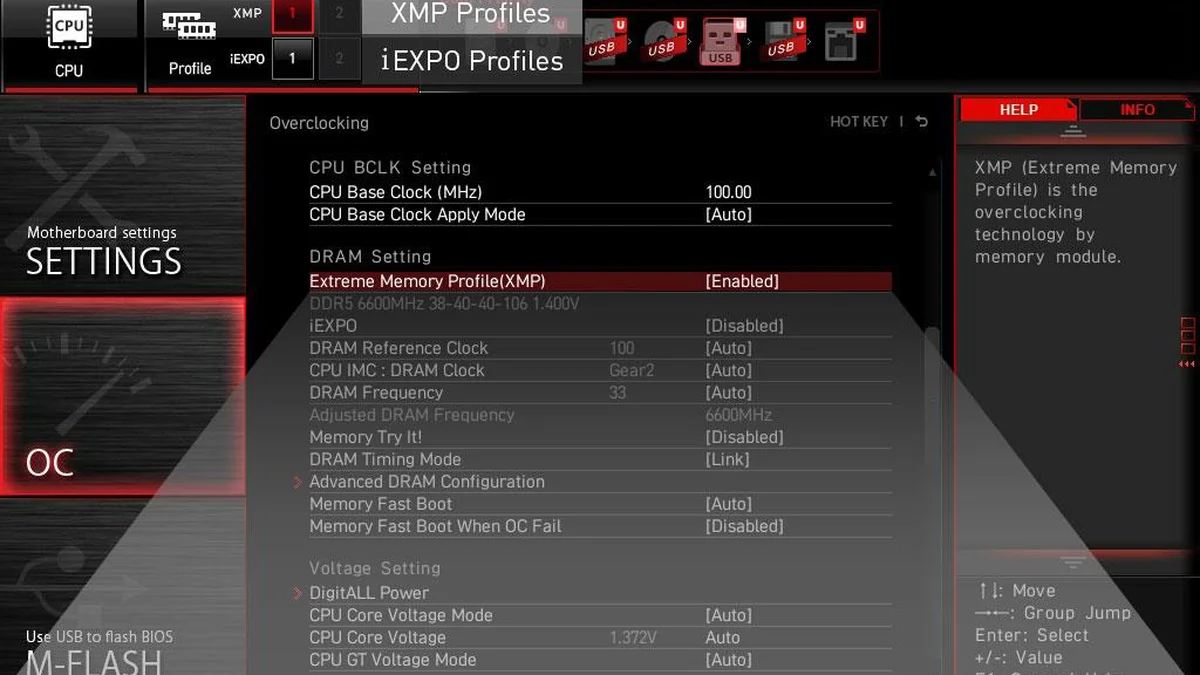
Enabling the profile takes about a minute on most boards, so restart the PC and press Del or F2 at the logo screen. Some boards need F10 instead, so watch the prompt at the bottom of the screen. On most boards, the setting sits on the first screen in the simple view. On ASUS boards, look under Extreme Tweaker, and on MSI boards, look under OC. On Gigabyte boards, look under Tweaker, and on ASRock boards, look under OC Tweaker. Find the XMP, EXPO, DOCP, or A-XMP option and set it to Profile 1, which is the advertised speed on most kits. Press F10 to save and exit. The first boot after enabling the profile can sit on a black screen for 30 seconds to 3 minutes. The board is running memory training, which tests signal timings and calibrates the sticks. That wait is normal, so do not force the PC off. When Windows loads, open Task Manager again and read the Speed figure. It should now show the rated number.
- Restart the PC and press Del or F2 at the logo to enter BIOS.
- Switch to Advanced Mode if the memory setting is not on the first screen.
- Find XMP on Intel boards, or EXPO on AMD boards.
- Select Profile 1, which is the advertised speed and timings.
- Press F10 to save and exit, then wait through the first boot.
- Open Task Manager, go to Performance, then Memory, and read Speed.
RAM running at wrong speed after enabling XMP or EXPO
Sometimes the profile is on in BIOS, yet Task Manager still shows 4800 MT/s. The board tried the profile, failed training, and fell back to the JEDEC default. That fallback is the board protecting itself, not a dead kit. Work through the fixes below one at a time, and check the speed after each one.
Check the slots and the stick count
Two sticks must sit in A2 and B2 for the rated speed, since sticks in the wrong slots often cap the speed or fail training. Four sticks run slower than two on most boards, since the memory controller works harder with four. If you run four DDR5 sticks at 6000 MT/s and it fails, try two sticks first. If two sticks work at full speed, the four-stick load was the limit.
Update the BIOS
Old BIOS versions often fail with newer RAM kits, so check your board maker's support page for a newer BIOS. A BIOS update can add support for a kit that failed before, so follow the maker's steps exactly and do not turn the PC off.
Step the speed down one notch
If 6000 MT/s fails, try 5600 MT/s in BIOS instead. Pick the profile, then lower the frequency one step by hand. A small step down often holds stable where the full speed fails. You lose a little speed, yet you keep most of the gain over 4800 MT/s.
Check the kit and the board list
A plain DDR5-4800 kit has no fast profile at all, so no setting will make it run at 6000 MT/s. Check the label on the stick or the box for the rated speed. Also check the board's QVL, which is the list of kits the maker tested with that board. A kit on the list has the best chance of holding its profile. For how much RAM you need in the first place, see this: how much RAM do you need for gaming in 2026.
Reset the BIOS if the PC will not boot
If the PC will not boot after you enable the profile, clear the CMOS. Turn the PC off and unplug it. Remove the small coin battery for a minute, or use the clear CMOS button if your board has one. The board will boot at JEDEC defaults again.
| Symptom | Likely cause | Fix to try |
|---|---|---|
| Speed still 4800 after enabling | Training failed, board fell back | Check slots, step speed down |
| Black screen for minutes, then boots slow | Memory training in progress | Wait, do not force power off |
| PC will not boot at all | Profile too fast for this kit | Clear CMOS, try lower speed |
| Crashes after enabling profile | Unstable timings or voltage | Update BIOS, try Profile 2 |
| Four sticks slower than two | Memory controller limit | Run two sticks, or lower speed |
| CPU-Z shows 3000 MHz | Normal, DDR doubles the rate | No fix, 3000 MHz is 6000 MT/s |
Does faster RAM actually help gaming
Faster RAM helps most in CPU-limited games, where the processor waits on memory. The gain is real, yet it is not the same on every CPU. A CPU without a large cache leans on main memory more, so the jump from 4800 to 6000 MT/s shows up more there. A CPU with a large stacked cache, such as a 3D V-Cache chip, absorbs much of the memory wait. At 4K with a heavy GPU load, the GPU sets the pace, so RAM speed matters less again. The biggest jump is always from the JEDEC default to any enabled profile. On AM5 boards, 6000 MT/s is the practical sweet spot, since the memory controller runs in step with the RAM there. For whether RAM can hold a build back, see this: does RAM cause a bottleneck. For the extreme-speed question, see this: DDR5-8000: does extreme RAM speed help.
The bottom line on RAM running at wrong speed
RAM running at wrong speed is a setting, not a fault. Your kit boots at its JEDEC default until you enable XMP or EXPO, so a DDR5-6000 kit shows 4800 MT/s out of the box. Check the speed in Task Manager, enable Profile 1 in BIOS, and verify the number after the reboot. If the profile will not stick, check the slots, update the BIOS, and step the speed down. Before you spend on new parts, check the balance of your build on the CPU bottleneck calculator.
Frequently asked questions
Why does my DDR5-6000 RAM show 4800 MT/s?
It shows 4800 MT/s because that is the JEDEC default speed, and the rated profile is switched off until you enable it. Enter BIOS, enable XMP or EXPO, pick Profile 1, and save. Task Manager should then show 6000 MT/s.
What is the difference between XMP and EXPO?
XMP is the Intel profile standard, and EXPO is the AMD profile standard, yet both store a tested speed and voltage on the stick. Enabling the profile tells the board to run the kit at its rated speed. Some kits carry both profiles, and some carry only one.
Is enabling XMP or EXPO safe for my RAM?
Yes, enabling Profile 1 is safe for a kit rated for that speed. The maker tested the profile and set the voltage to match. It is an overclock in name, yet it runs inside the kit's tested limits. If the PC will not boot after you enable it, clear the CMOS and try a lower speed.
Why does CPU-Z show half my RAM speed?
CPU-Z shows DRAM Frequency in MHz, and DDR memory moves data twice per clock cycle. A DDR5-6000 kit therefore reads 3000 MHz in CPU-Z, which is correct. Double the CPU-Z number to get the MT/s rate. Task Manager shows the MT/s number directly, so use that if the CPU-Z figure confuses you.
Why does my RAM speed reset to 4800 after I enable XMP?
The board tried the profile, failed memory training, and fell back to the JEDEC default, so check the slots, update the BIOS, and try again. If it still fails, step the speed down one notch, such as from 6000 to 5600 MT/s. Four sticks often need a lower speed than two.
Do I need faster RAM if my CPU has 3D V-Cache?
Not as much as a CPU without it. A large stacked cache absorbs much of the wait for main memory, so the jump from JEDEC to the rated profile is worth less there. Enable the profile anyway, since it is free and it still helps. Spend the money on the GPU or CPU first if you must choose.
How this guide was prepared
This guide uses the DDR5 JEDEC default and XMP/EXPO steps documented by Tech-Cortex and Respawno. The BIOS menu names and the CPU-Z doubling rule come from those guides and from Sunbeamtech. No FPS gain figure is claimed, since the cited sources report their own test results and this guide states the gain in words only.
Last updated: November 12, 2026