
Key takeaways
- A shader compilation crash is a crash during the first-run build of GPU programs, not a sign your card is dying.
- The error message names the cause: Oodle means a decompress failure, out of video memory means a VRAM spike, and D3D device lost means a driver timeout.
- Clearing the DirectX shader cache fixes most first-launch crashes.
- Forcing DirectX 11 with -dx11 bypasses the DirectX 12 shader path as a test.
- Intel 13th and 14th gen CPUs can crash during shader decompression, and a BIOS microcode update is the fix.
Shader compilation crashes: the short answer
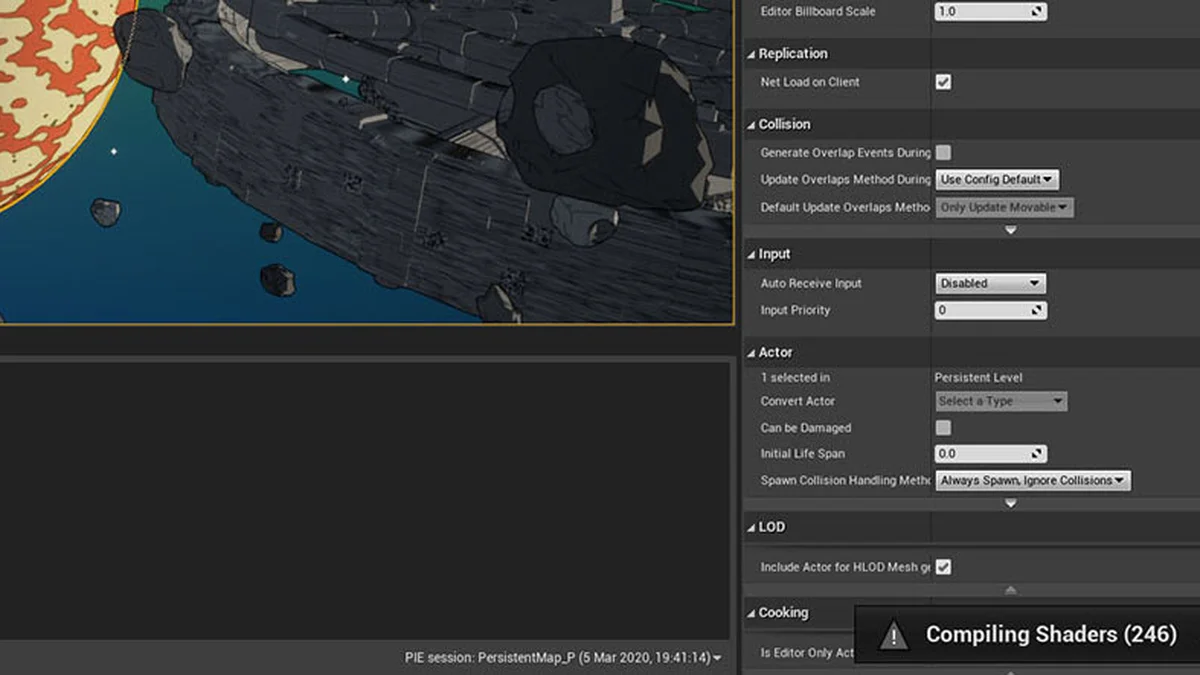
A shader is a small program that tells your GPU how to draw light, shadows, and effects. Before an Unreal Engine game can show you a scene, it must build those programs for your exact card. That build step is shader compilation. When the build fails, the game closes with a fatal error, often before the main menu appears. The fix depends on the error you see, so read the message first and match it to the table below. Most crashes clear with a cache wipe and a clean driver install, and a full reinstall is rarely needed. This guide is about crashes, not hitches: if your game stutters instead of closing, read our shader compilation stutter explained guide. You can also check your pair with the bottleneck calculator.
| Error message | What it means | First fix |
|---|---|---|
| Could not decompress shader group with Oodle | Shader files fail to unpack, often on an unstable CPU | Set NVIDIA shader cache to Unlimited, clear the cache |
| Out of video memory trying to allocate a rendering resource | VRAM spikes during compile or map load | Lower texture quality, close background apps |
| LowLevelFatalError / Fatal error! | The engine hit an unrecoverable fault | Verify game files, clean-install the driver |
| DXGI_ERROR_DEVICE_REMOVED / D3D device lost | Windows reset the driver after a timeout | Remove GPU overclocks, clean-install the driver |
These error messages come from gameerrorcodes.pro, dev.to, and tier1settings.com, checked 16 Nov 2026. The same messages appear across Unreal Engine 4 and 5 games, so the fixes apply beyond one title.
Why games crash while compiling shaders
Games ship shaders as portable bytecode, not as code for one card. Your driver must turn that bytecode into machine code for your exact GPU. The engine first unpacks its shader files, which use Oodle compression, and then compiles them in bulk. That bulk step is heavy: it hammers the CPU, fills the driver shader cache, and spikes VRAM use for a short time. Any weak link in that chain can break the build. A corrupt cache file fails the unpack step, a full shader cache fails the compile step, and an unstable CPU fails the decompress step. Developers face the same compile step from the other side, as our game development shader compile guide explains.
The crash often looks like a graphics problem, yet the cause sits elsewhere. A driver update can wipe the cache and force a fresh compile. Crashes that start after an update point at the driver, not the game. A new patch can do the same thing, since changed shaders need fresh builds. A small page file can also break the compile, since the engine needs headroom. And on some Intel 13th and 14th gen CPUs, the decompress step itself crashes, because the chip is unstable under that exact load. Match the error first, and do not guess.
Fix shader compilation crashes in order
Work through these steps in order, and test the game after each one. Stop when the game gets past the shader screen.
- Let the shader compile finish. Wait on the shader screen until it completes instead of skipping into a match.
- Clear the DirectX shader cache with Windows Disk Cleanup, then restart the PC.
- Verify the game files in Steam or the Epic launcher to replace corrupt shader files.
- Clean-install the latest GPU driver with DDU, and remove any GPU overclock or undervolt.
- Set NVIDIA Shader Cache Size to Unlimited, then clear the DXCache and GLCache folders.
- Raise the Windows page file, since the compile step needs memory headroom.
- Install the latest Visual C++ Redistributables and the DirectX runtime.
- As a test, add the -dx11 launch option in Steam to bypass the DirectX 12 shader path.
Step 5 is the one most guides miss, yet it fixes the Oodle error directly. A limited shader cache runs out of space during the bulk compile, so the build fails halfway through. Setting it to Unlimited gives the driver room to finish, and clearing the old cache removes the corrupt files. Step 8 is a test, not a cure. DirectX 11 skips the DirectX 12 path, so the game runs, yet you lose hardware ray tracing features that need DirectX 12. Use it to prove the crash is a DirectX 12 problem, then fix the real cause. If the crash leaves the whole PC unstable, the PC restarts while gaming guide covers the wider checks.
After a patch, give the game one clean launch before you queue for a match. The first run rebuilds the cache, and players who skip it hit the crash mid-game instead.
The Intel 13th and 14th gen wrinkle
Some shader crashes trace back to the CPU, not the game. Intel confirmed in 2026 that some 13th and 14th gen desktop CPUs are unstable under heavy decompression loads. Unreal Engine's Oodle step is exactly that kind of load. The crash message names the shader group, yet the real fault is the chip failing to unpack it. If your crashes mention Oodle and you run a 13th or 14th gen Intel chip, update your motherboard BIOS to the latest microcode first. That update is Intel's fix for the instability, and it steadies the chip before the game ever runs.
A quick test tells you if the CPU is the cause. Run the game with your CPU at stock settings, with no overclock and no undervolt, and see if the crash goes away. If it does, the overclock was the problem, and the stock settings are the fix. If it still crashes at stock, the BIOS microcode update is the next step. Do not blame the graphics card here. The GPU is still waiting for work while shaders unpack. For the frame-time side of the story, see stuttering and 1% lows.
When the crash is not the shaders
Some crashes wear a shader disguise. A D3D device lost error means Windows reset the driver because the GPU stopped responding, and that is a driver timeout, not a compile failure. The fix is a clean driver install and no overclock, since Unreal Engine 5 exposes clock speeds that pass other games. An out of video memory error means a VRAM spike during compile or map load. Lower texture quality by one step and close background apps, since the spike is brief and the extra headroom is enough. A crash that only happens in one game is a game problem. A crash in every game is a driver or hardware problem, so test a second title before you blame the card.
Game files can also be the cause. A corrupt shader archive fails the same way every launch, and verifying the files replaces it. Some games keep their own shader cache in the AppData folder, and deleting that folder forces a clean rebuild. In S.T.A.L.K.E.R. 2, for example, the fix is to delete the file starting with D3DDriverByteCodeBlob in the game's Saved folder and relaunch. The same idea applies to other Unreal Engine titles: find the game's Saved folder, delete the shader cache inside it, and let the game rebuild. Check the S.T.A.L.K.E.R. 2 system requirements guide if that game is the one crashing.
If nothing above works, the cause may be hardware. Faulty system RAM fails the same way a bad cache does, so run a memory test before you buy parts. A failing power supply can also drop the GPU mid-compile, which looks like a driver crash. Test with a second game and a second driver version first, since those two tests rule out the common causes. A crash that survives both tests means check the hardware. If the card still looks weak, run the gpu bottleneck calculator before you buy a new one.
| Pattern | Likely cause | Next step |
|---|---|---|
| Crash in one game only | That game's files or cache | Verify files, clear its cache |
| Crash in every game | Driver or hardware fault | Clean-install driver, test RAM |
| Crash only after an update | Fresh shader cache | Clear cache, let it rebuild |
The bottom line
A shader compilation crash is a fixable software problem in most cases, not a dying graphics card. Match the error message to the fix, clear the DirectX shader cache, clean-install the driver, and let the compile finish. When the error names Oodle on a 13th or 14th gen Intel chip, update the BIOS microcode first. The CPU is the weak link there.
Frequently asked questions
Why does my game crash while compiling shaders?
Your game crashes while compiling shaders because the build step fails, usually from a corrupt shader cache, a driver fault, or an unstable CPU. The engine unpacks and compiles GPU programs at launch, and any weak link closes the game. Clearing the cache and clean-installing the driver fixes most cases.
How do I fix the Oodle shader decompression crash?
Set the NVIDIA Shader Cache Size to Unlimited, then clear the DXCache and GLCache folders and retry. The limited cache runs out of space during the bulk compile, so the unpack fails. On Intel 13th and 14th gen CPUs, update the BIOS microcode too, since the chip itself can fail the decompress step.
Why does the game say it ran out of video memory while shaders build?
It means VRAM spiked while the engine compiled shaders or loaded a map, even if your card has spare VRAM in normal play. Lower texture quality by one step, close background apps, and let the compile finish before you play. The spike is brief, so a little headroom is enough to get past it.
Does forcing DirectX 11 fix shader compilation crashes?
Yes, adding the -dx11 launch option in Steam bypasses the DirectX 12 shader path, so many crashes go away. It is a test, not a cure, since you lose DirectX 12 features like hardware ray tracing. Use it to prove the crash is a DirectX 12 problem, then fix the cache or driver.
Why did shader crashes start after a driver update?
A driver update can wipe the shader cache, so the game must rebuild every pipeline from scratch. That fresh compile is the heaviest step the engine does, and it exposes corrupt files or a full cache. Clear the DirectX shader cache after the update and let the compile finish once.
Is a shader compilation crash a sign my GPU is dying?
No, a shader compilation crash is rarely a sign of a dying GPU. It usually comes from a corrupt cache, a driver fault, or CPU instability during decompression. A dying card crashes in every game and shows visual glitches too, while a shader crash hits one engine at one step.
How this guide was prepared
This guide uses dev.to's Unreal Engine 5 crash analysis, gameerrorcodes.pro, tier1settings.com, and xmodhub.com, all checked 16 Nov 2026. Error messages and fixes come from those guides and from game-specific crash reports for Marvel Rivals, S.T.A.L.K.E.R. 2, and Phantom Blade Zero.
No game was crashed or tested for this guide. Steps were checked against the cited guides, not run on a live PC.
Last updated: November 17, 2026