
Key takeaways
- A display driver crash is usually TDR, a Windows watchdog that resets the driver after a 2-second GPU timeout.
- Event ID 4101 in Event Viewer confirms a TDR crash, and its driver name points to NVIDIA, AMD, or Intel.
- A DDU clean install in Safe Mode is the first real fix, not a registry edit.
- If the screen freezes mid-game, press Win + Ctrl + Shift + B to restart the driver at once.
- One TDR crash does not prove a dying card, since driver bugs cause most of them.
What a display driver crash (TDR) actually is
TDR stands for Timeout Detection and Recovery, a Windows watchdog that watches the graphics card while it works. The GPU normally finishes each task in milliseconds, and when it stops answering for 2 seconds, Windows steps in and resets the driver. That reset is the black flash you see, and then the picture comes back, with Windows reporting that the driver stopped responding and has recovered. TDR is a symptom, not a diagnosis, since a bad driver, an unstable overclock, or a hot card can all trip it. Check your own pair first with the free tool: bottleneck calculator. For a card that never shows up at all, see this: GPU not detected: how to fix a graphics card not showing up.
| What you see | What it usually means | Next step |
|---|---|---|
| Screen freezes, then flashes black | TDR reset the driver | Check Event Viewer for 4101 |
| "Driver stopped responding" message | Reset worked, driver recovered | Run a DDU clean install |
| Blue screen VIDEO_TDR_FAILURE | Reset failed after repeated hangs | Clean install, then test at stock clocks |
| Whole PC reboots, no message | Power or hardware fault, not TDR | Check Event 41 and PSU first |
| Game exits with no message | Game or driver install problem | Clean install, then verify game files |
How to confirm the crash is a TDR
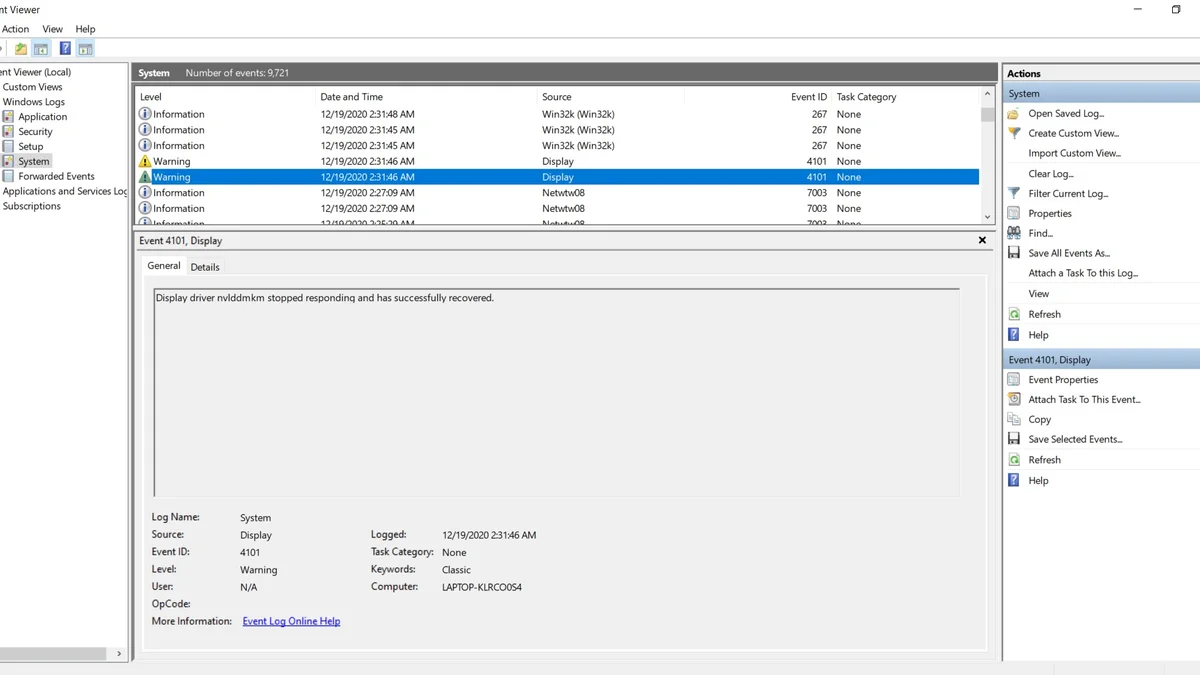
Do not guess from the black flash alone, and open Event Viewer to look for the record Windows leaves behind. Press Win + R, type eventvwr.msc, and press Enter. Then go to Windows Logs, then System, and look for a warning from source Display with Event ID 4101. The entry names the driver that hung, so nvlddmkm means NVIDIA and amdkmdag means AMD. Match the entry time to your crash time. If they line up, you have a confirmed TDR. If you find no 4101, the crash is something else, since a loose monitor cable or a monitor fault can look the same. Kernel-Power Event 41, by contrast, means the whole PC lost power or rebooted, which points at the power supply, not the driver. One 4101 in a month is a long GPU job that tripped the limit. It needs a note, not a repair.
Fix it first with a DDU clean install
A DDU clean install is the first real fix for a confirmed TDR. DDU stands for Display Driver Uninstaller, a free tool that removes the driver and its leftovers after years of in-place updates. The normal uninstaller keeps some of that mess, so installing over it often changes nothing. DDU clears it out, and then a fresh driver starts clean. Download the new driver first and save the installer, then download DDU from its official site and extract it to your desktop. Do not run the new driver yet. For the driver story in full, see this: FPS drops after a Windows update: how to fix it.
- Download the latest stable driver for your exact card, and save the installer on your desktop.
- Download DDU from its official site, then extract the folder to your desktop.
- Hold Shift while you click Restart, then pick Troubleshoot, Advanced options, and Startup Settings.
- Press 4 at the Startup Settings screen to boot into Safe Mode.
- Open DDU in Safe Mode, pick your GPU brand, and click Clean and restart.
- After the reboot, run the saved driver installer in normal Windows.
- On NVIDIA, pick Custom install and tick Perform a clean installation.
- On AMD, use the factory reset option in the Adrenalin installer.
- Restart once more, then play the game that crashed before.
Use the latest stable driver, not a beta build, for this test, since a beta can bring its own bugs and hide what fixed what. If the crashes stop after the clean install, the old driver stack was the cause, and if they keep coming, move to the next section. Do not jump to registry edits yet. When the screen freezes mid-game, press Win + Ctrl + Shift + B to restart the driver, with every app still open.
Display driver crashes after a clean install: what to try next
When a clean driver still crashes, the cause sits outside the driver stack. Work through the checks below in order, and test the game after each one. Change one thing at a time, or you will not know which change helped.
Remove any GPU overclock first
An overclock can turn unstable after a driver update, so open your tuning tool and reset the card to stock clocks. Also reset any memory overclock on the card. Then play the same game for a while. If the crashes stop, the overclock was the cause, not the card.
Check temperatures and power
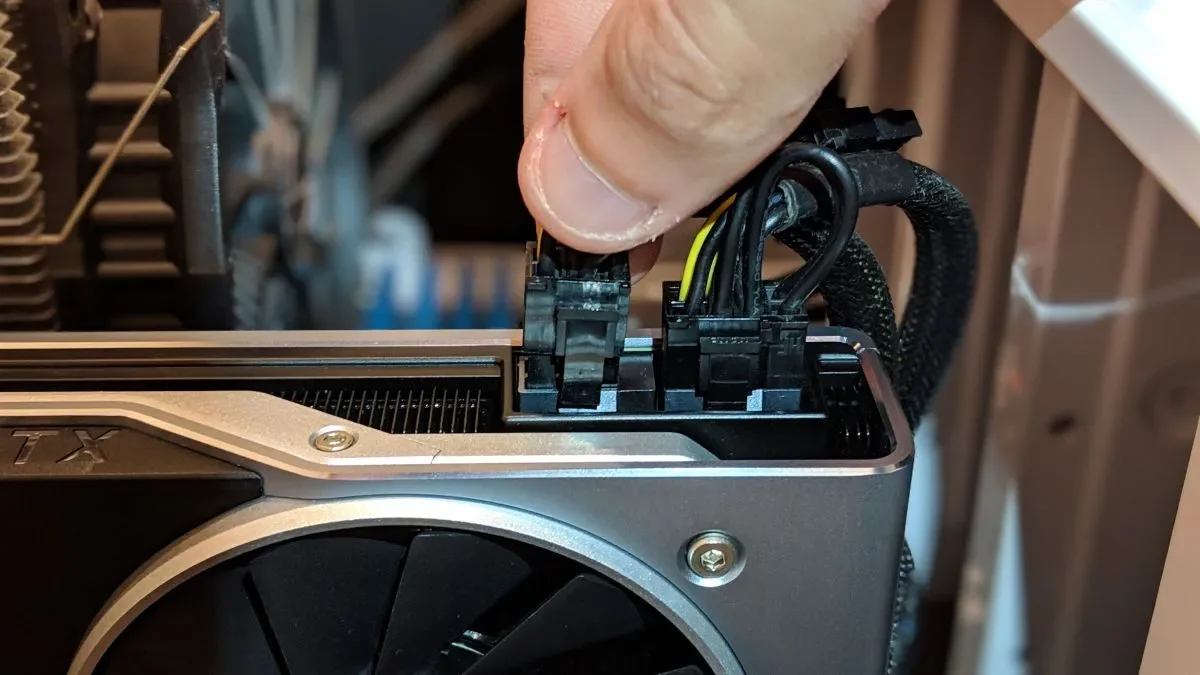
Heat makes a GPU miss its deadlines, so check the card temperature under load, since a hot card throttles and can hang. Clean dust from the fans and check that they spin freely. Also check that the power cables sit firmly in the card. A loose cable can starve the card under load. For the low-usage angle, see this: low GPU usage and low FPS: causes and fixes.
Test the system memory
Unstable system RAM can corrupt driver memory and trip TDR, so search for mdsched and run Windows Memory Diagnostic. Let the test finish, then read the result after the reboot. If it reports errors, test one RAM stick at a time.
Reseat the card
Turn the PC off, unplug it, and reseat the card in its PCIe slot, pushing it in until the latch clicks, then refit the cables. A poor slot connection can cause the same hangs as a bad driver. For the new-card case, see this: black screen after installing a new GPU: how to fix it.
| Check | How to do it | Crashes stop means |
|---|---|---|
| Stock clocks | Reset overclock in tuning tool | Overclock was unstable |
| Temperature | Watch GPU temp under load | Heat or dust was the cause |
| Power cables | Refit both ends firmly | Loose cable starved the card |
| System RAM | Run Windows Memory Diagnostic | Bad RAM corrupted driver data |
| PCIe slot | Reseat card, try second slot | Slot connection was poor |
| Older driver | Install one older stable version | New driver had a bug |
TdrDelay: the last resort, with a backup warning
TdrDelay is a registry value that gives the GPU more time before Windows resets it. The default is 2 seconds, and raising it to 8 or 10 seconds can help long GPU jobs. It is a dial, not a fix, since it hides the timeout instead of removing the cause. Use it only after a DDU clean install and the checks above have failed. Back up the registry first, because a wrong edit can stop Windows from booting right. Export the key before you change it. Then open Registry Editor as an administrator and go to HKEY_LOCAL_MACHINE, SYSTEM, CurrentControlSet, Control, and GraphicsDrivers. Create a new DWORD (32-bit) value named TdrDelay, set it to 8 in decimal, and reboot. If the crashes stop, a long workload was tripping the short limit. If they keep coming, delete the value and go back to testing the hardware.
When the card itself may be the cause
A card can still be faulty, but TDR alone does not prove it. Suspect hardware only when crashes continue on a clean driver, at stock clocks, with good temperatures and solid power. Artifacts on screen, such as colored blocks or lines, point more at hardware than a driver does. So does a crash that follows the card into a second PC. Before you spend on new parts, check the balance of your build on the CPU GPU bottleneck calculator. For the upgrade path without a new card, see this: how to fix a GPU bottleneck without upgrading.
The bottom line on display driver crashes
Display driver crashes are usually a TDR timeout, and a TDR is usually a driver problem. Confirm Event ID 4101 first, then run a DDU clean install in Safe Mode. Test at stock clocks, check heat and power, and test the RAM before you blame the card. Keep TdrDelay as a last resort, with a registry backup in hand.
Frequently asked questions
What does "display driver stopped responding" mean?
It means Windows reset your graphics driver after the GPU stopped answering for 2 seconds, using a watchdog called TDR. The screen flashes black during the reset, then the picture returns. The message is a report of that reset, not proof that your card is dying.
How do I know my crash is a TDR crash?
Open Event Viewer, go to Windows Logs and then System, and look for Event ID 4101. The source is Display, and the entry names the driver that hung. Match the entry time to your crash time. If they line up, you have a confirmed TDR. If no 4101 exists, the crash came from something else.
Is DDU safe to use on my PC?
Yes, DDU is safe when you download it from its site and run it in Safe Mode, since it only removes the driver and leftovers. Download the new driver before you start, so you can install it right after the reboot. Avoid third-party driver tools that promise one-click fixes.
Why does my driver crash only in one game?
One game can push the GPU in a way other games do not, so a driver bug may only show up under that exact load. A clean install often fixes it, since the old driver stack had stale files. If only that game crashes after a clean install, verify its files and check for a game patch.
Can an overclock cause display driver crashes?
Yes, an unstable GPU overclock is a common cause of TDR crashes, and the card may run fine for months before it trips the watchdog. Reset the card to stock clocks and test the same game. If the crashes stop, the overclock was the cause. Lower the clock a little before you try it again.
Should I raise TdrDelay to fix my crashes?
No, not as a first step. TdrDelay only gives the GPU more time before Windows resets it, so it hides the timeout instead of fixing the cause. Run a DDU clean install first, then test at stock clocks. Back up the registry before any edit, and use TdrDelay only if those steps fail.
How this guide was prepared
This guide uses the TDR mechanism and DDU flow documented by DisplayCard Repair. The Event ID 4101 checks and TdrDelay notes come from recent Windows troubleshooting guides. No measured crash rates are claimed, since the guide explains a diagnosis, not a benchmark.
Last updated: November 12, 2026